Azure OpenAI Setup ↗
noOriginal Documentation
Documentation Index#
Fetch the complete documentation index at: https://docs.crewai.com/llms.txt Use this file to discover all available pages before exploring further.
Configure Azure OpenAI with Crew Studio for enterprise LLM connections
This guide walks you through connecting Azure OpenAI with Crew Studio for seamless enterprise AI operations.
Setup Process#
In Azure, go to Azure AI Foundry > select your Azure OpenAI deployment.
On the left menu, click
Deployments. If you don’t have one, create a deployment with your desired model.Once created, select your deployment and locate the
Target URIandKeyon the right side of the page. Keep this page open, as you’ll need this information.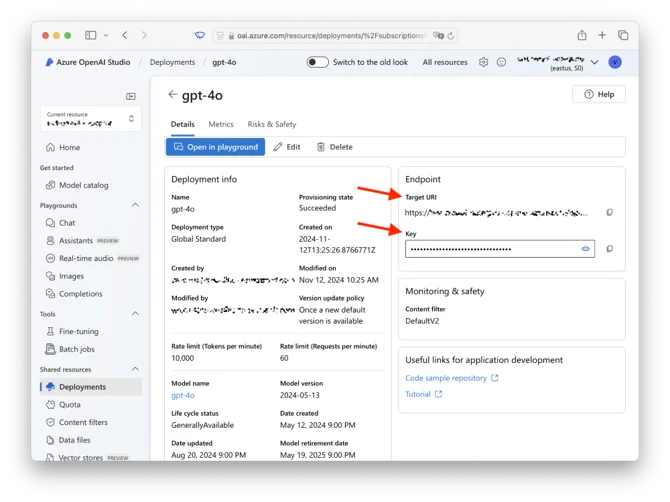
4. In another tab, open CrewAI AMP > LLM Connections. Name your LLM Connection, select Azure as the provider, and choose the same model you selected in Azure.
5. On the same page, add environment variables from step 3:
- One named
AZURE_DEPLOYMENT_TARGET_URL(using the Target URI). The URL should look like this: https://your-deployment.openai.azure.com/openai/deployments/gpt-4o/chat/completions?api-version=2024-08-01-preview - Another named
AZURE_API_KEY(using the Key).
- Click
Add Connectionto save your LLM Connection.
7. In CrewAI AMP > Settings > Defaults > Crew Studio LLM Settings, set the new LLM Connection and model as defaults.
8. Ensure network access settings:
- In Azure, go to
Azure OpenAI > select your deployment. - Navigate to
Resource Management > Networking. - Ensure that
Allow access from all networksis enabled. If this setting is restricted, CrewAI may be blocked from accessing your Azure OpenAI endpoint.
Verification#
You’re all set! Crew Studio will now use your Azure OpenAI connection. Test the connection by creating a simple crew or task to ensure everything is working properly.
Troubleshooting#
If you encounter issues:
- Verify the Target URI format matches the expected pattern
- Check that the API key is correct and has proper permissions
- Ensure network access is configured to allow CrewAI connections
- Confirm the deployment model matches what you’ve configured in CrewAI