Gmail Trigger ↗
noOriginal Documentation
Documentation Index#
Fetch the complete documentation index at: https://docs.crewai.com/llms.txt Use this file to discover all available pages before exploring further.
Trigger automations when Gmail events occur (e.g., new emails, labels).
Overview#
Use the Gmail Trigger to kick off your deployed crews when Gmail events happen in connected accounts, such as receiving a new email or messages matching a label/filter.
Make sure Gmail is connected in Tools & Integrations and the trigger is enabled for your deployment.
Enabling the Gmail Trigger#
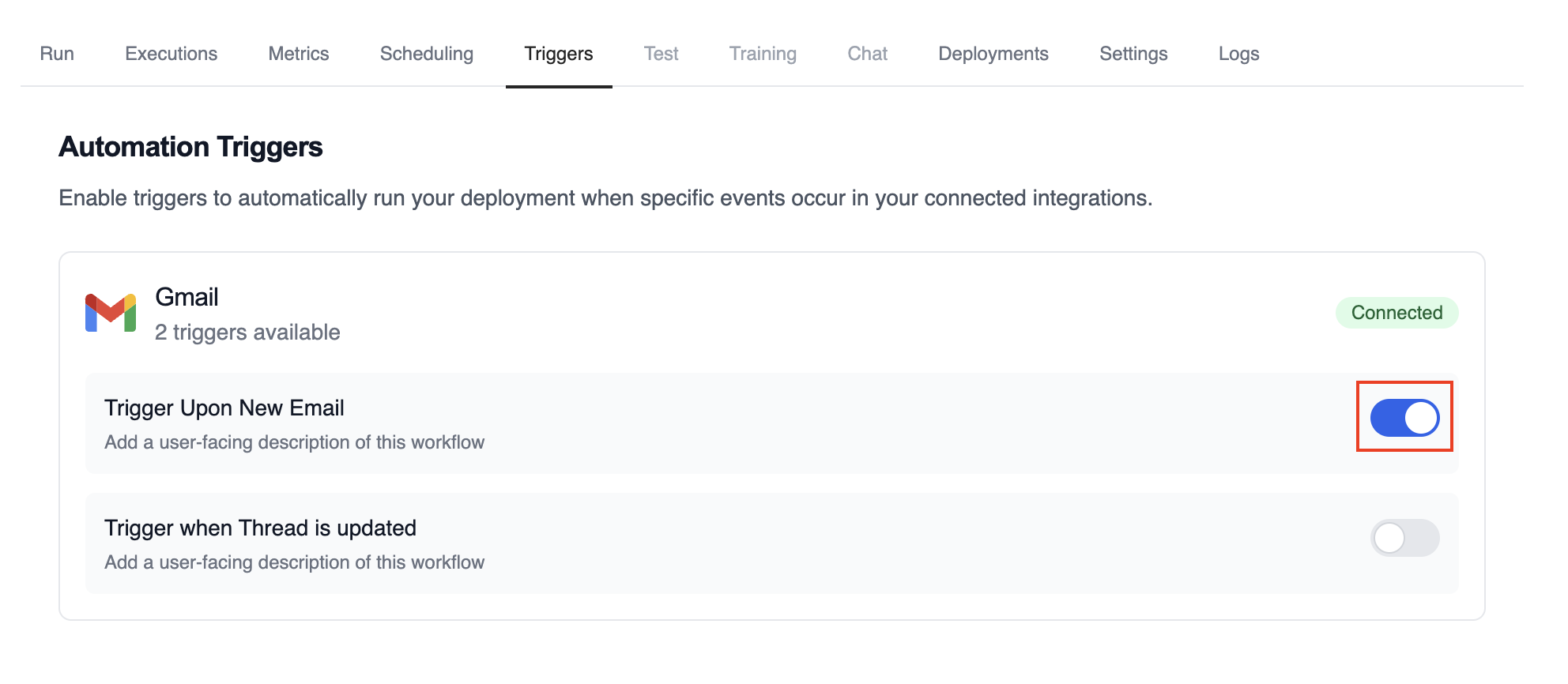
- Open your deployment in CrewAI AMP
- Go to the Triggers tab
- Locate Gmail and switch the toggle to enable
Example: Process new emails#
When a new email arrives, the Gmail Trigger will send the payload to your Crew or Flow. Below is a Crew example that parses and processes the trigger payload.
@CrewBase
class GmailProcessingCrew:
    @agent
    def parser(self) -> Agent:
        return Agent(
            config=self.agents_config['parser'],
        )

    @task
    def parse_gmail_payload(self) -> Task:
        return Task(
            config=self.tasks_config['parse_gmail_payload'],
            agent=self.parser(),
        )

    @task
    def act_on_email(self) -> Task:
        return Task(
            config=self.tasks_config['act_on_email'],
            agent=self.parser(),
        )
The Gmail payload will be available via the standard context mechanisms.
Testing Locally#
Test your Gmail trigger integration locally using the CrewAI CLI:
# View all available triggers
crewai triggers list

# Simulate a Gmail trigger with realistic payload
crewai triggers run gmail/new_email_received
The crewai triggers run command will execute your crew with a complete Gmail payload, allowing you to test your parsing logic before deployment.
Use crewai triggers run gmail/new_email_received (not crewai run) to
simulate trigger execution during development. After deployment, your crew
will automatically receive the trigger payload.
Monitoring Executions#
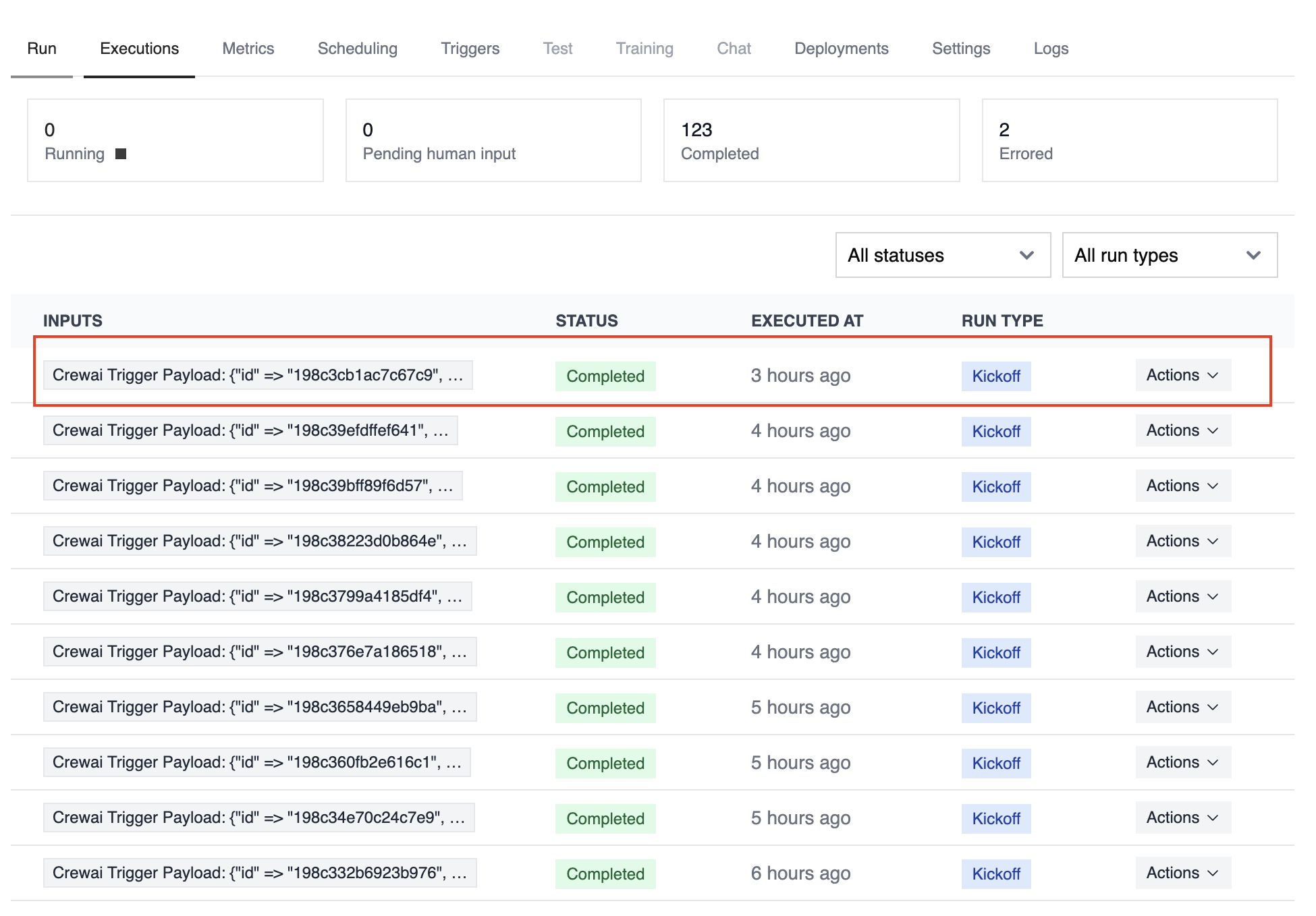
Track history and performance of triggered runs:
Troubleshooting#
- Ensure Gmail is connected in Tools & Integrations
- Verify the Gmail Trigger is enabled on the Triggers tab
- Test locally with
crewai triggers run gmail/new_email_receivedto see the exact payload structure - Check the execution logs and confirm the payload is passed as
crewai_trigger_payload - Remember: use
crewai triggers run(notcrewai run) to simulate trigger execution