Google Calendar Trigger ↗
noOriginal Documentation
Documentation Index#
Fetch the complete documentation index at: https://docs.crewai.com/llms.txt Use this file to discover all available pages before exploring further.
Kick off crews when Google Calendar events are created, updated, or cancelled
Overview#
Use the Google Calendar trigger to launch automations whenever calendar events change. Common use cases include briefing a team before a meeting, notifying stakeholders when a critical event is cancelled, or summarizing daily schedules.
Make sure Google Calendar is connected in Tools & Integrations and enabled for the deployment you want to automate.
Enabling the Google Calendar Trigger#
- Open your deployment in CrewAI AMP
- Go to the Triggers tab
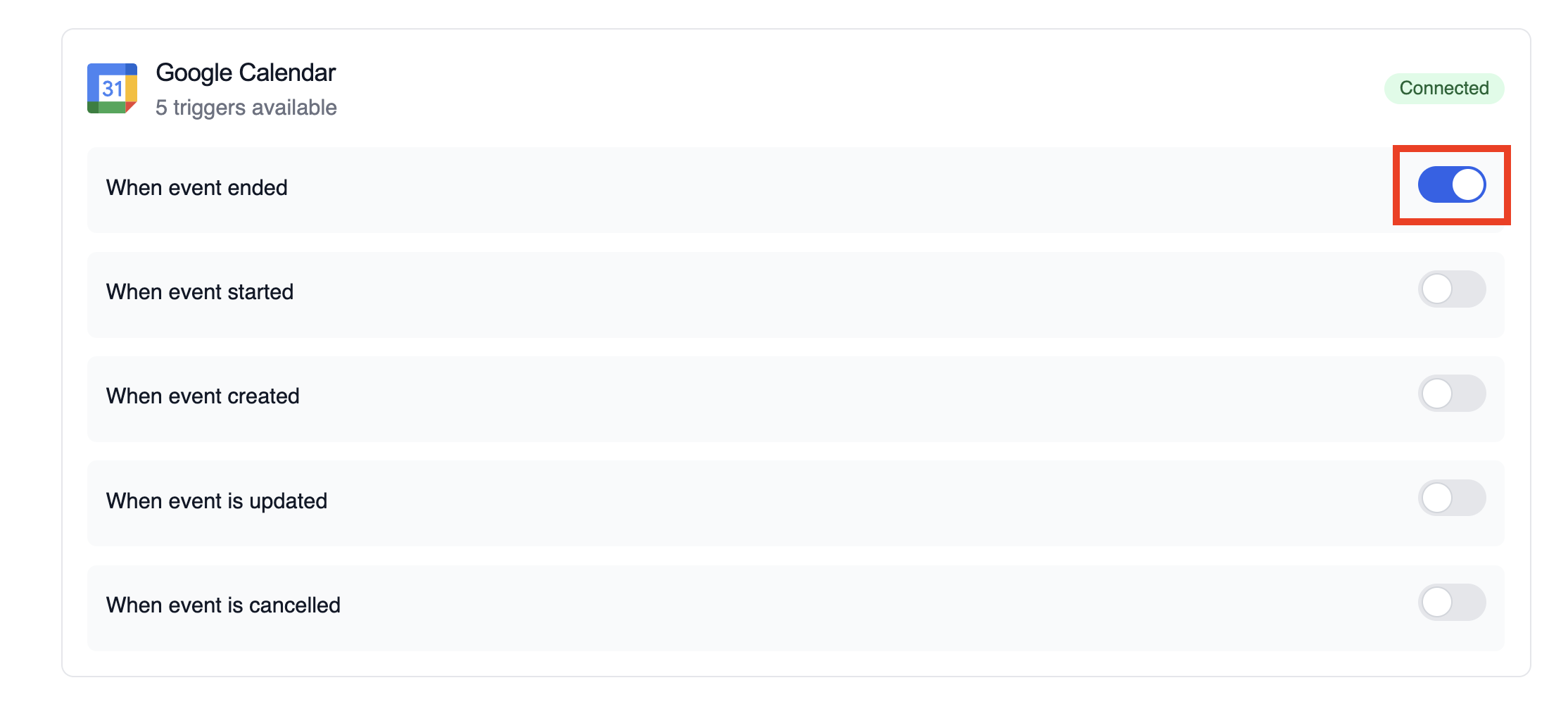
- Locate Google Calendar and switch the toggle to enable
Example: Summarize meeting details#
The snippet below mirrors the calendar-event-crew.py example in the trigger repository. It parses the payload, analyses the attendees and timing, and produces a meeting brief for downstream tools.
from calendar_event_crew import GoogleCalendarEventTrigger

crew = GoogleCalendarEventTrigger().crew()
result = crew.kickoff({
    "crewai_trigger_payload": calendar_payload,
})
print(result.raw)
Use crewai_trigger_payload exactly as it is delivered by the trigger so the crew can extract the proper fields.
Testing Locally#
Test your Google Calendar trigger integration locally using the CrewAI CLI:
# View all available triggers
crewai triggers list

# Simulate a Google Calendar trigger with realistic payload
crewai triggers run google_calendar/event_changed
The crewai triggers run command will execute your crew with a complete Calendar payload, allowing you to test your parsing logic before deployment.
Use crewai triggers run google_calendar/event_changed (not crewai run) to
simulate trigger execution during development. After deployment, your crew
will automatically receive the trigger payload.
Monitoring Executions#
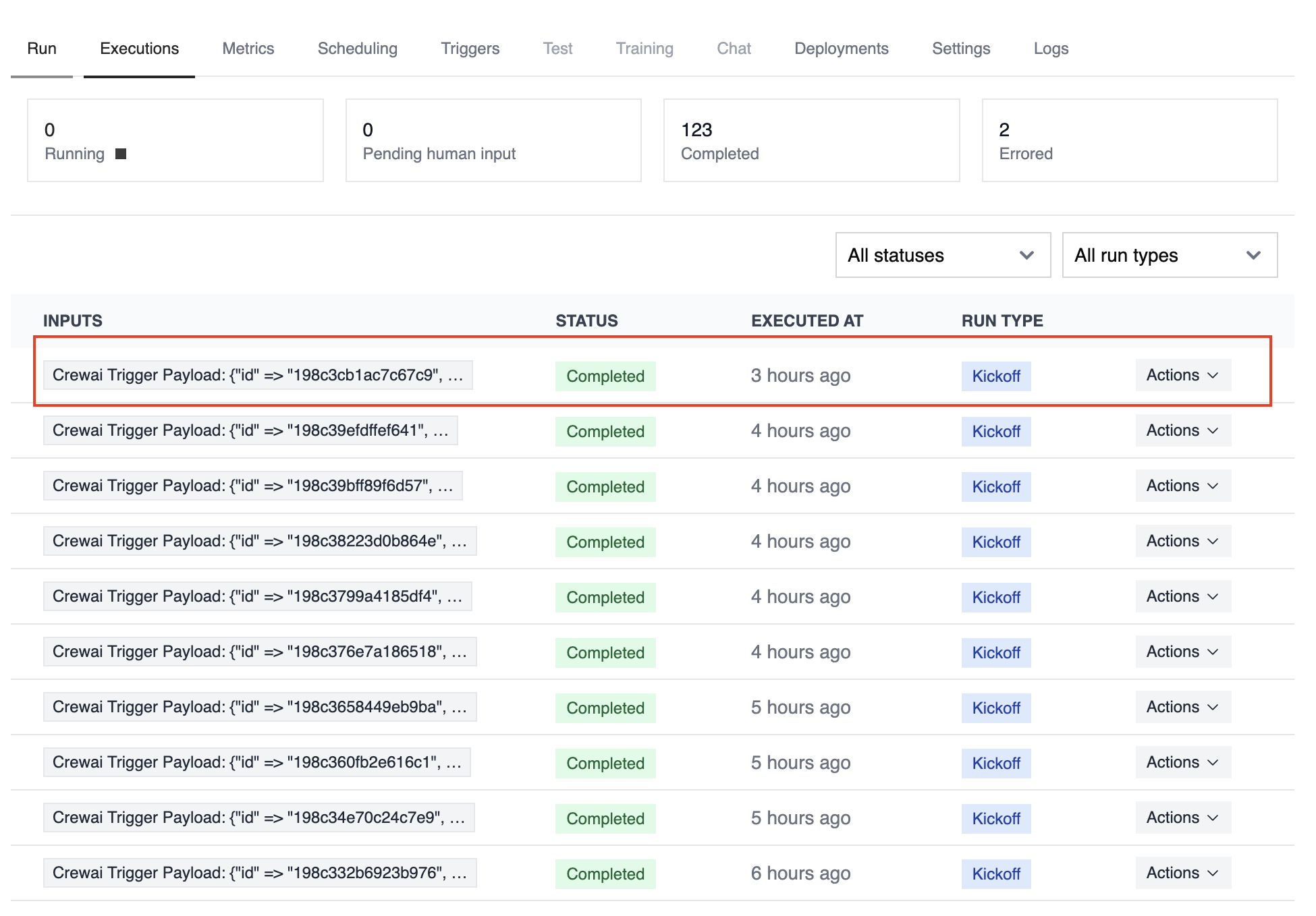
The Executions list in the deployment dashboard tracks every triggered run and surfaces payload metadata, output summaries, and errors.
Troubleshooting#
- Ensure the correct Google account is connected and the trigger is enabled
- Test locally with
crewai triggers run google_calendar/event_changedto see the exact payload structure - Confirm your workflow handles all-day events (payloads use
start.dateandend.dateinstead of timestamps) - Check execution logs if reminders or attendee arrays are missing—calendar permissions can limit fields in the payload
- Remember: use
crewai triggers run(notcrewai run) to simulate trigger execution