HubSpot Trigger ↗
noOriginal Documentation
Documentation Index#
Fetch the complete documentation index at: https://docs.crewai.com/llms.txt Use this file to discover all available pages before exploring further.
Trigger CrewAI crews directly from HubSpot Workflows
This guide provides a step-by-step process to set up HubSpot triggers for CrewAI AMP, enabling you to initiate crews directly from HubSpot Workflows.
Prerequisites#
- A CrewAI AMP account
- A HubSpot account with the HubSpot Workflows feature
Setup Steps#
Log in to your
CrewAI AMP account > Triggers- SelectHubSpotfrom the list of available triggers - Choose the HubSpot account you want to connect with CrewAI AMP - Follow the on-screen prompts to authorize CrewAI AMP access to your HubSpot account - A confirmation message will appear once HubSpot is successfully connected with CrewAI AMPLog in to your
HubSpot account > Automations > Workflows > New workflowSelect the workflow type that fits your needs (e.g., Start from scratch) - In the workflow builder, click the Plus (+) icon to add a new action. - Choose
Integrated apps > CrewAI > Kickoff a Crew. - Select the Crew you want to initiate. - ClickSaveto add the action to your workflow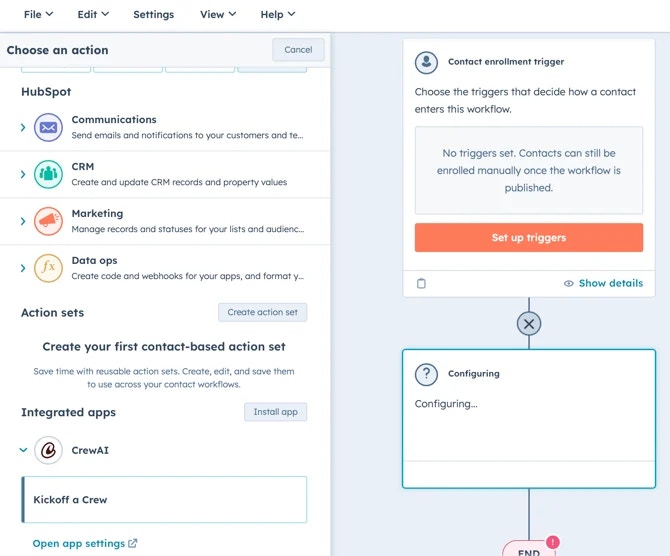
After the Kickoff a Crew step, click the Plus (+) icon to add a new action. - For example, to send an internal email notification, choose
Communications > Send internal email notification- In the Body field, clickInsert data, selectView properties or action outputs from > Action outputs > Crew Resultto include Crew data in the email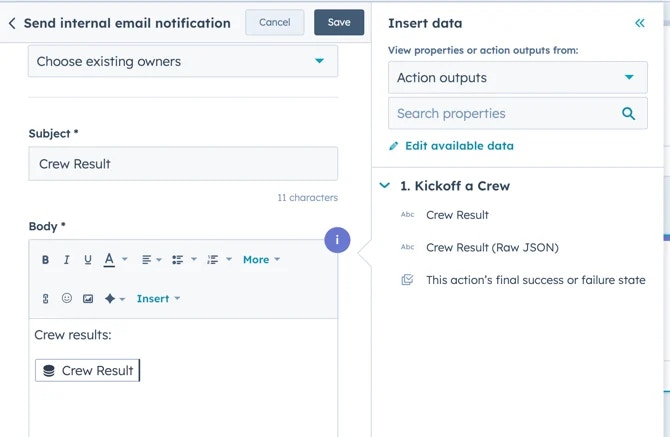
Configure any additional actions as needed - Review your workflow steps to ensure everything is set up correctly - Activate the workflow
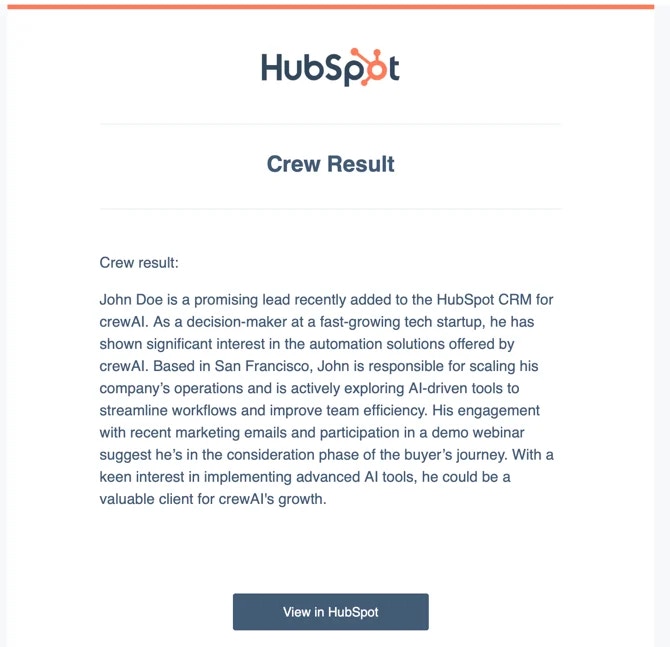
For more detailed information on available actions and customization options, refer to the HubSpot Workflows Documentation.