Kickoff Crew ↗
noOriginal Documentation
Documentation Index#
Fetch the complete documentation index at: https://docs.crewai.com/llms.txt Use this file to discover all available pages before exploring further.
Kickoff a Crew on CrewAI AMP
Overview#
Once you’ve deployed your crew to the CrewAI AMP platform, you can kickoff executions through the web interface or the API. This guide covers both approaches.
Method 1: Using the Web Interface#
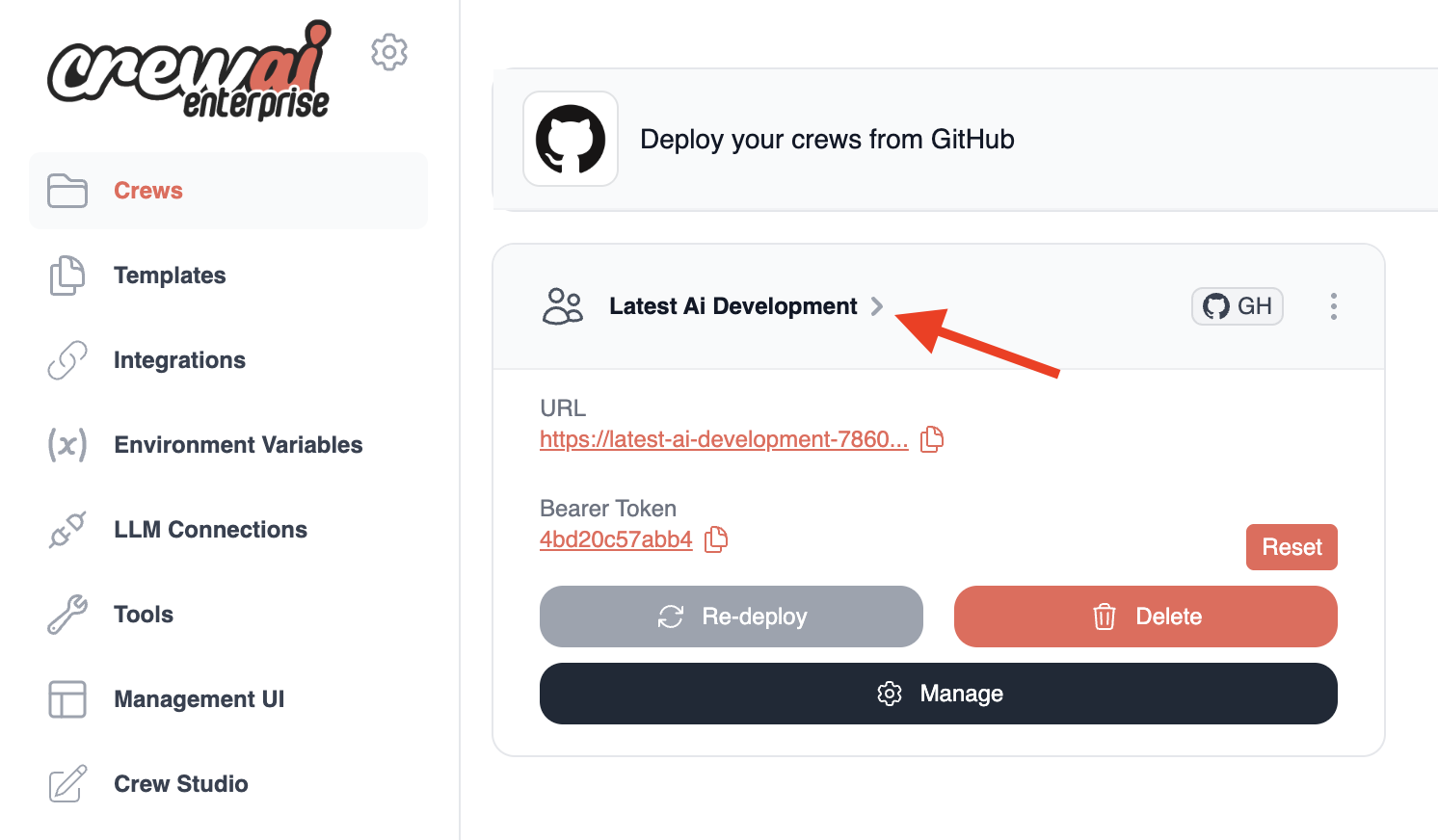
Step 1: Navigate to Your Deployed Crew#
- Log in to CrewAI AMP
- Click on the crew name from your projects list
- You’ll be taken to the crew’s detail page
Step 2: Initiate Execution#
From your crew’s detail page, you have two options to kickoff an execution:
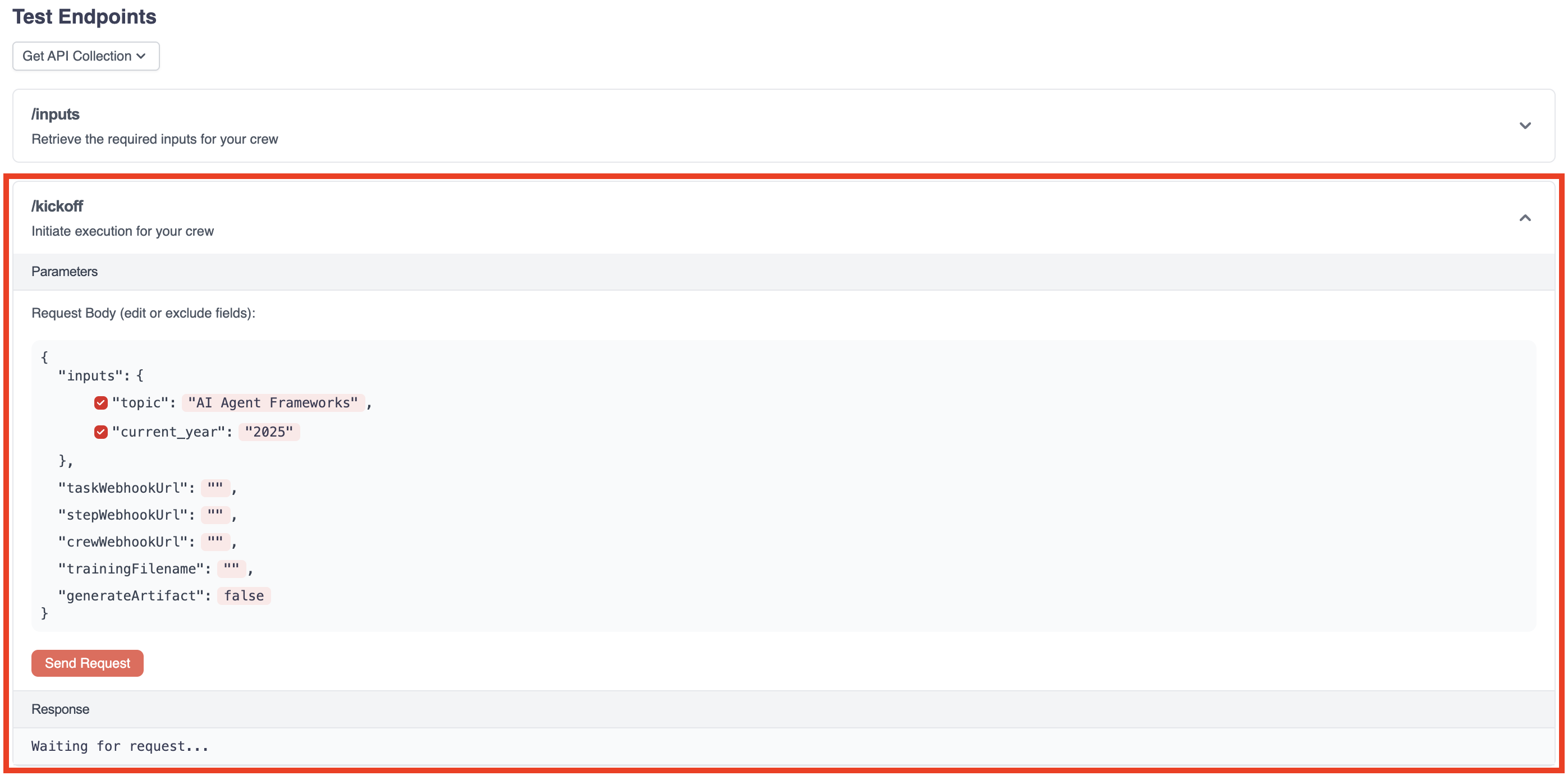
Option A: Quick Kickoff#
- Click the
Kickofflink in the Test Endpoints section - Enter the required input parameters for your crew in the JSON editor
- Click the
Send Requestbutton
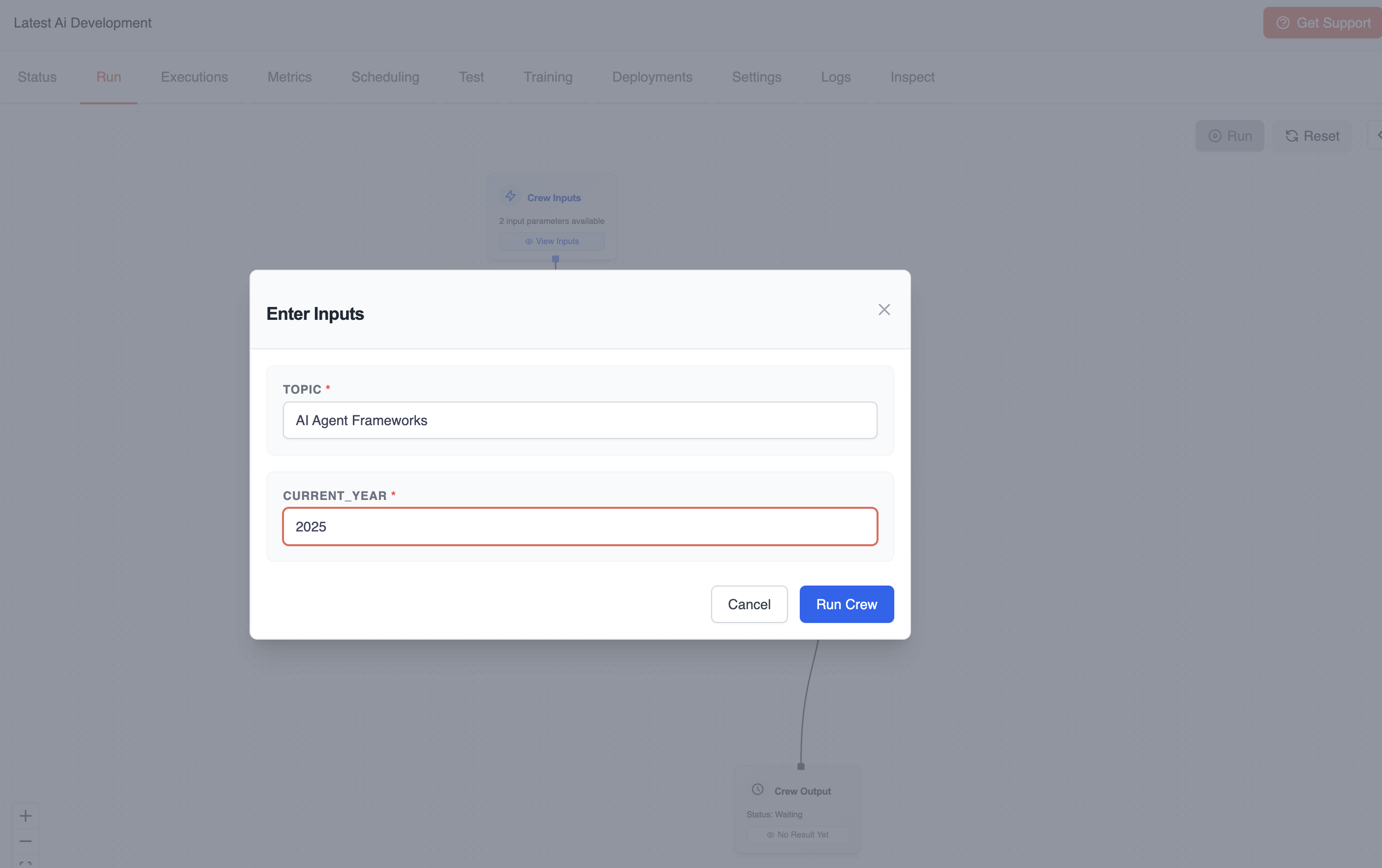
Option B: Using the Visual Interface#
- Click the
Runtab in the crew detail page - Enter the required inputs in the form fields
- Click the
Run Crewbutton
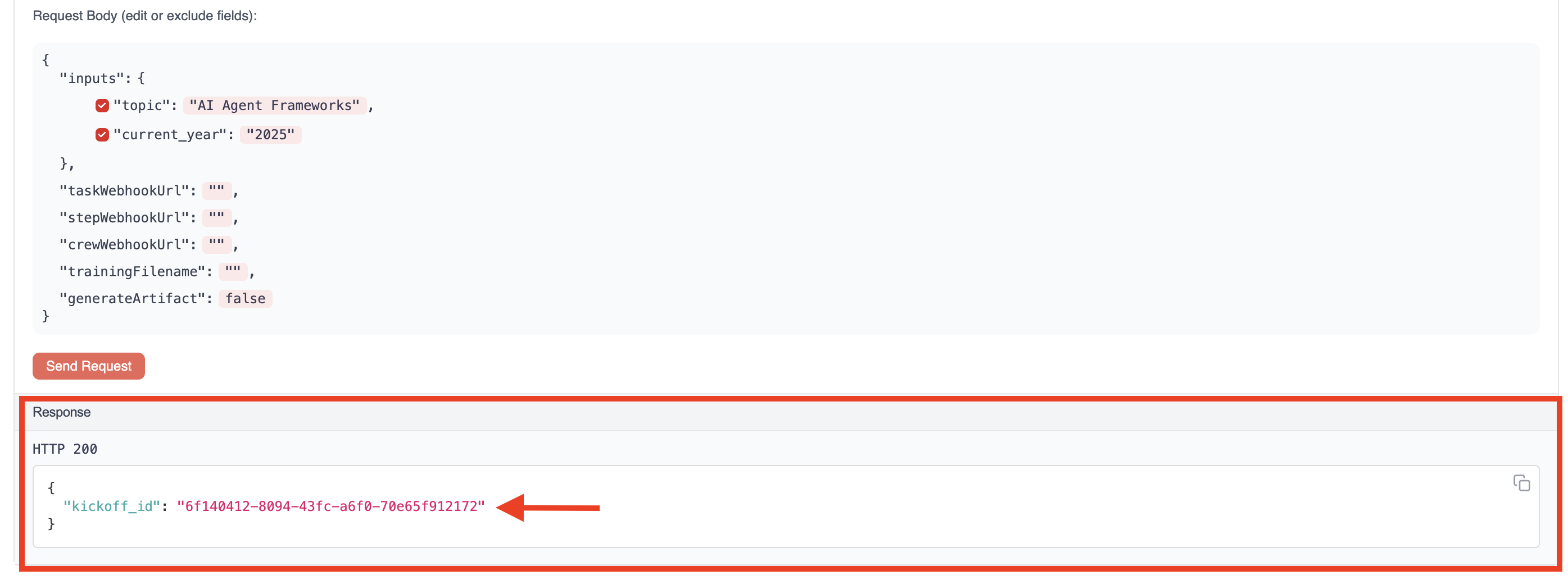
Step 3: Monitor Execution Progress#
After initiating the execution:
- You’ll receive a response containing a
kickoff_id- copy this ID - This ID is essential for tracking your execution
Step 4: Check Execution Status#
To monitor the progress of your execution:
- Click the “Status” endpoint in the Test Endpoints section
- Paste the
kickoff_idinto the designated field - Click the “Get Status” button

The status response will show:
- Current execution state (
running,completed, etc.) - Details about which tasks are in progress
- Any outputs produced so far
Step 5: View Final Results#
Once execution is complete:
- The status will change to
completed - You can view the full execution results and outputs
- For a more detailed view, check the
Executionstab in the crew detail page
Method 2: Using the API#
You can also kickoff crews programmatically using the CrewAI AMP REST API.
Authentication#
All API requests require a bearer token for authentication:
curl -H "Authorization: Bearer YOUR_CREW_TOKEN" https://your-crew-url.crewai.comYour bearer token is available on the Status tab of your crew’s detail page.
Checking Crew Health#
Before executing operations, you can verify that your crew is running properly:
curl -H "Authorization: Bearer YOUR_CREW_TOKEN" https://your-crew-url.crewai.comA successful response will return a message indicating the crew is operational:
Healthy%Step 1: Retrieve Required Inputs#
First, determine what inputs your crew requires:
curl -X GET \
  -H "Authorization: Bearer YOUR_CREW_TOKEN" \
  https://your-crew-url.crewai.com/inputs
The response will be a JSON object containing an array of required input parameters, for example:
{ "inputs": ["topic", "current_year"] }This example shows that this particular crew requires two inputs: topic and current_year.
Step 2: Kickoff Execution#
Initiate execution by providing the required inputs:
curl -X POST \
  -H "Content-Type: application/json" \
  -H "Authorization: Bearer YOUR_CREW_TOKEN" \
  -d '{"inputs": {"topic": "AI Agent Frameworks", "current_year": "2025"}}' \
  https://your-crew-url.crewai.com/kickoff
The response will include a kickoff_id that you’ll need for tracking:
{ "kickoff_id": "abcd1234-5678-90ef-ghij-klmnopqrstuv" }Step 3: Check Execution Status#
Monitor the execution progress using the kickoff_id:
curl -X GET \
  -H "Authorization: Bearer YOUR_CREW_TOKEN" \
  https://your-crew-url.crewai.com/status/abcd1234-5678-90ef-ghij-klmnopqrstuv
Handling Executions#
Long-Running Executions#
For executions that may take a long time:
- Consider implementing a polling mechanism to check status periodically
- Use webhooks (if available) for notification when execution completes
- Implement error handling for potential timeouts
Execution Context#
The execution context includes:
- Inputs provided at kickoff
- Environment variables configured during deployment
- Any state maintained between tasks
Debugging Failed Executions#
If an execution fails:
- Check the “Executions” tab for detailed logs
- Review the “Traces” tab for step-by-step execution details
- Look for LLM responses and tool usage in the trace details
Contact our support team for assistance with execution issues or questions about the Enterprise platform.