Slack Trigger ↗
noOriginal Documentation
Documentation Index#
Fetch the complete documentation index at: https://docs.crewai.com/llms.txt Use this file to discover all available pages before exploring further.
Trigger CrewAI crews directly from Slack using slash commands
This guide explains how to start a crew directly from Slack using CrewAI triggers.
Prerequisites#
- CrewAI Slack trigger installed and connected to your Slack workspace
- At least one crew configured in CrewAI
Setup Steps#
In the CrewAI dashboard, navigate to the Triggers section.
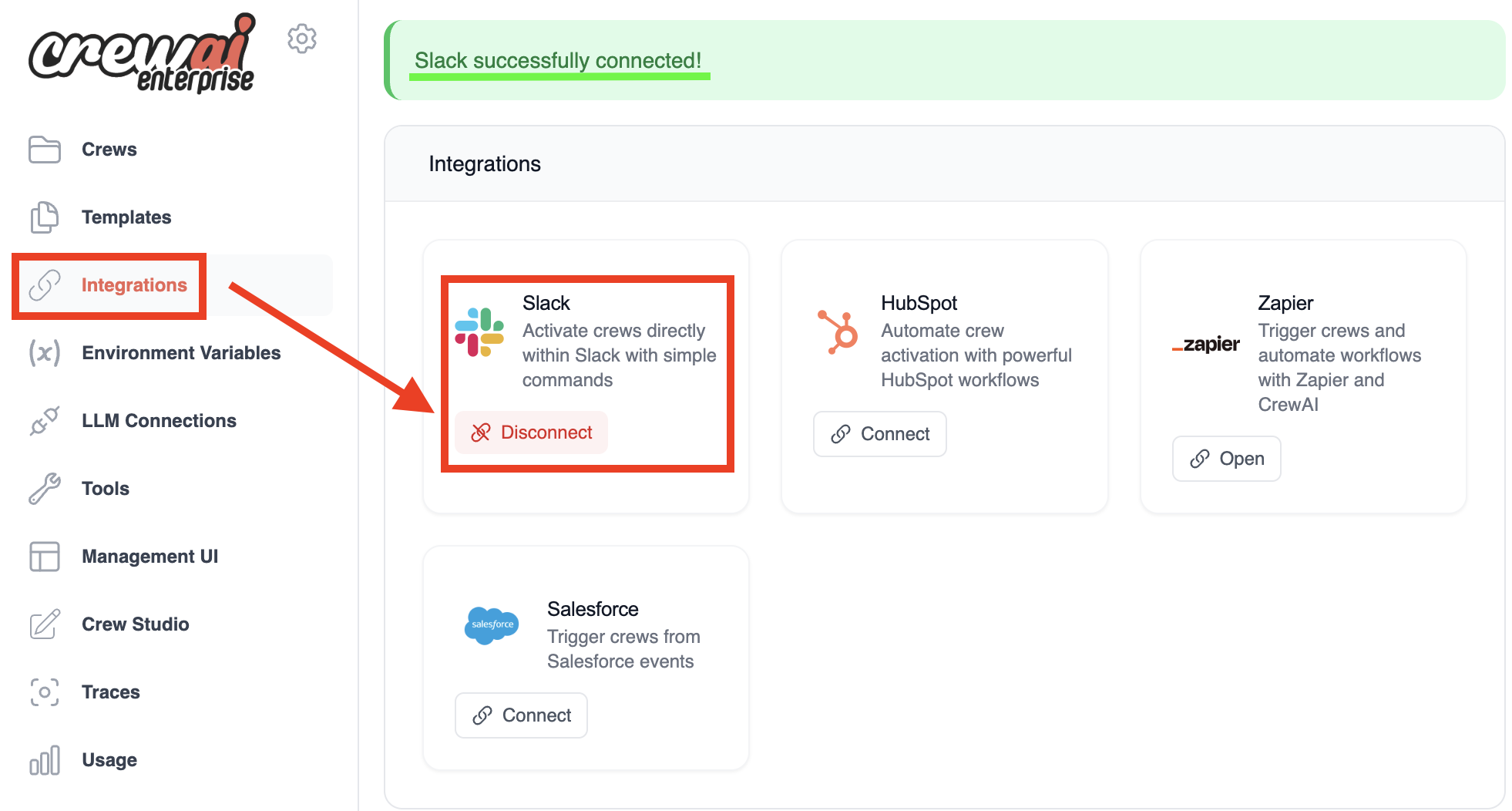
Verify that Slack is listed and is connected.
Navigate to the channel where you want to kickoff the crew.
Type the slash command “/kickoff” to initiate the crew kickoff process.
You should see a “Kickoff crew” appear as you type:
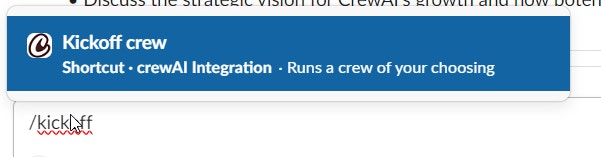
Press Enter or select the “Kickoff crew” option. A dialog box titled “Kickoff an AI Crew” will appear.
In the dropdown menu labeled “Select of the crews online:”, choose the crew you want to start.
In the example below, “prep-for-meeting” is selected:
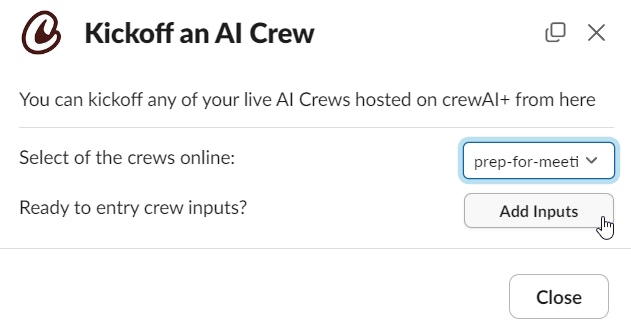
If your crew requires any inputs, click the “Add Inputs” button to provide them. The “Add Inputs” button is shown in the example above but is not yet clicked.
Once you’ve selected the crew and added any necessary inputs, click “Kickoff” to start the crew.
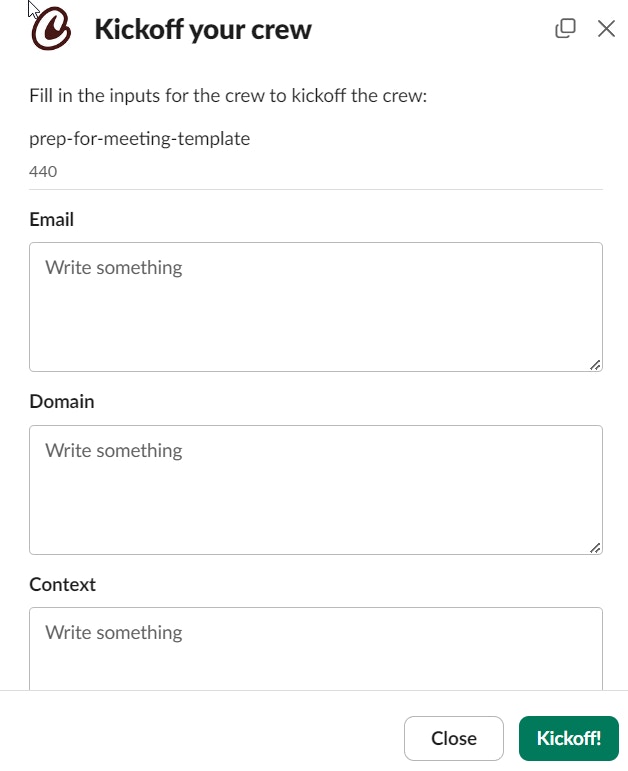
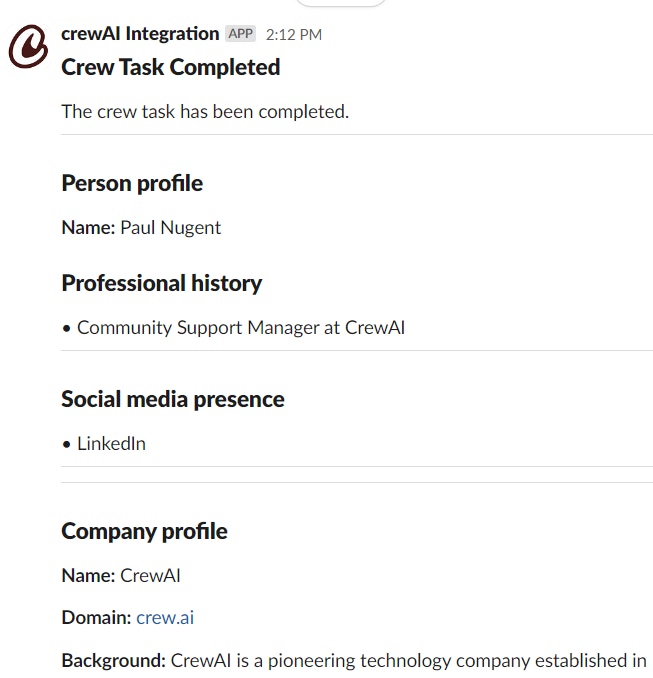
The crew will start executing and you will see the results in the Slack channel.
Tips#
- Make sure you have the necessary permissions to use the
/kickoffcommand in your Slack workspace. - If you don’t see your desired crew in the dropdown, ensure it’s properly configured and online in CrewAI.