Team Management ↗
noOriginal Documentation
Documentation Index#
Fetch the complete documentation index at: https://docs.crewai.com/llms.txt Use this file to discover all available pages before exploring further.
Learn how to invite and manage team members in your CrewAI AMP organization
As an administrator of a CrewAI AMP account, you can easily invite new team members to join your organization. This guide will walk you through the process step-by-step.
Inviting Team Members#
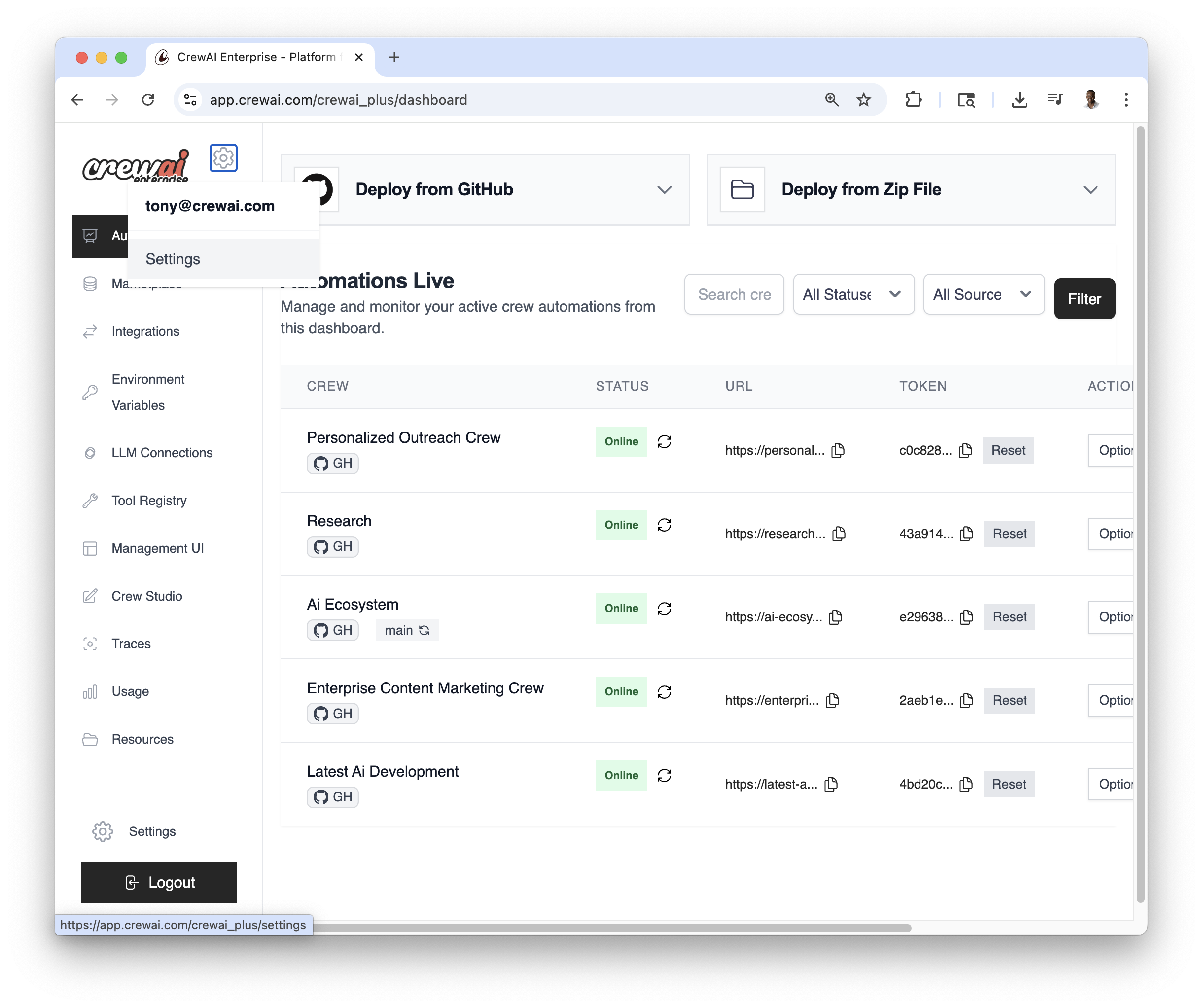
- Log in to your CrewAI AMP account - Look for the gear icon (⚙️) in the top right corner of the dashboard - Click on the gear icon to access the Settings page:
- On the Settings page, you’ll see a
Memberstab - Click on theMemberstab to access the Members page:
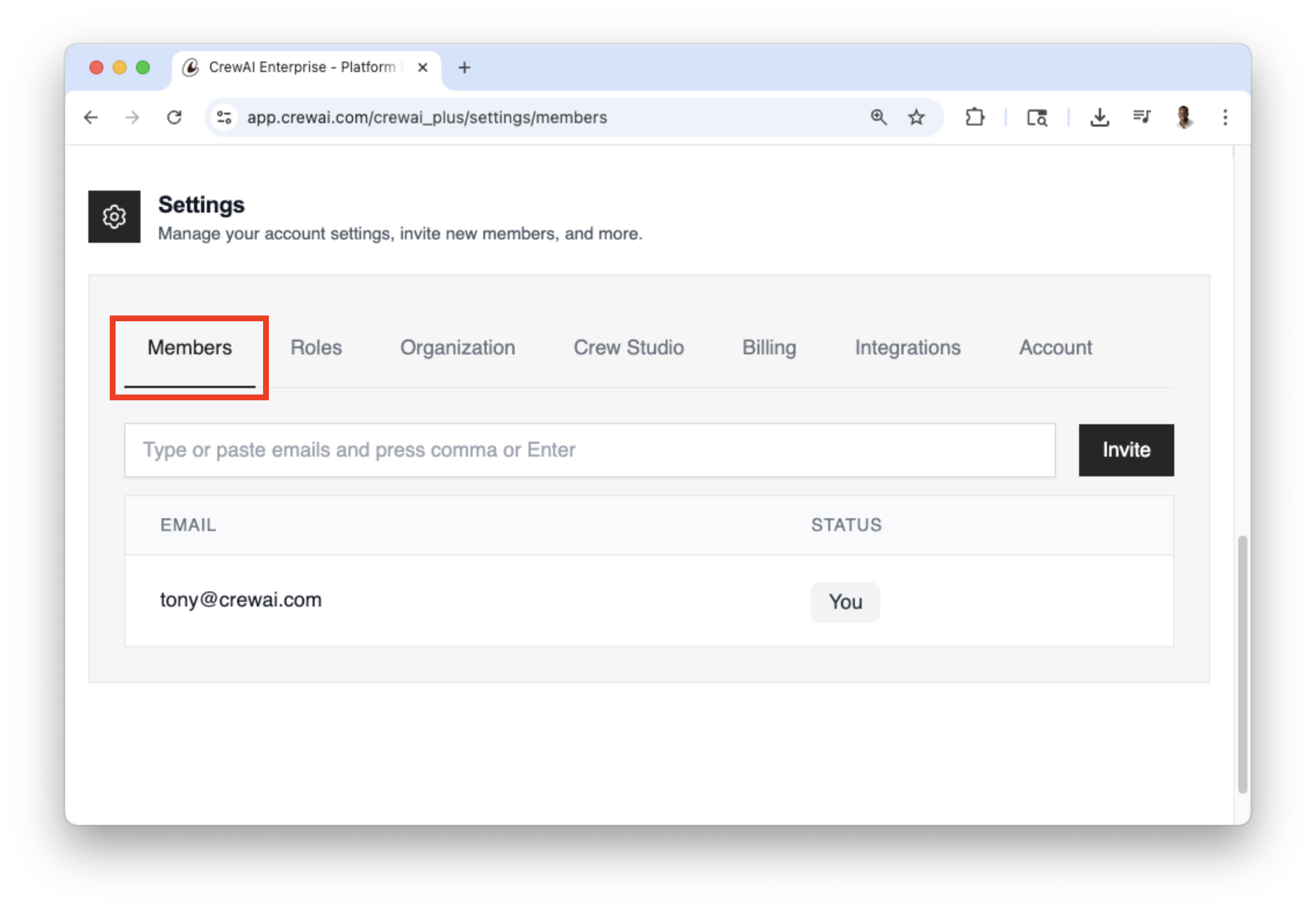
In the Members section, you’ll see a list of current members (including yourself) - Locate the
Emailinput field - Enter the email address of the person you want to invite - Click theInvitebutton to send the invitationYou can repeat this process to invite multiple team members - Each invited member will receive an email invitation to join your organization
Adding Roles#
You can add roles to your team members to control their access to different parts of the platform.
Log in to your CrewAI AMP account - Look for the gear icon (⚙️) in the top right corner of the dashboard - Click on the gear icon to access the Settings page:
On the Settings page, you’ll see a
Rolestab - Click on theRolestab to access the Roles page.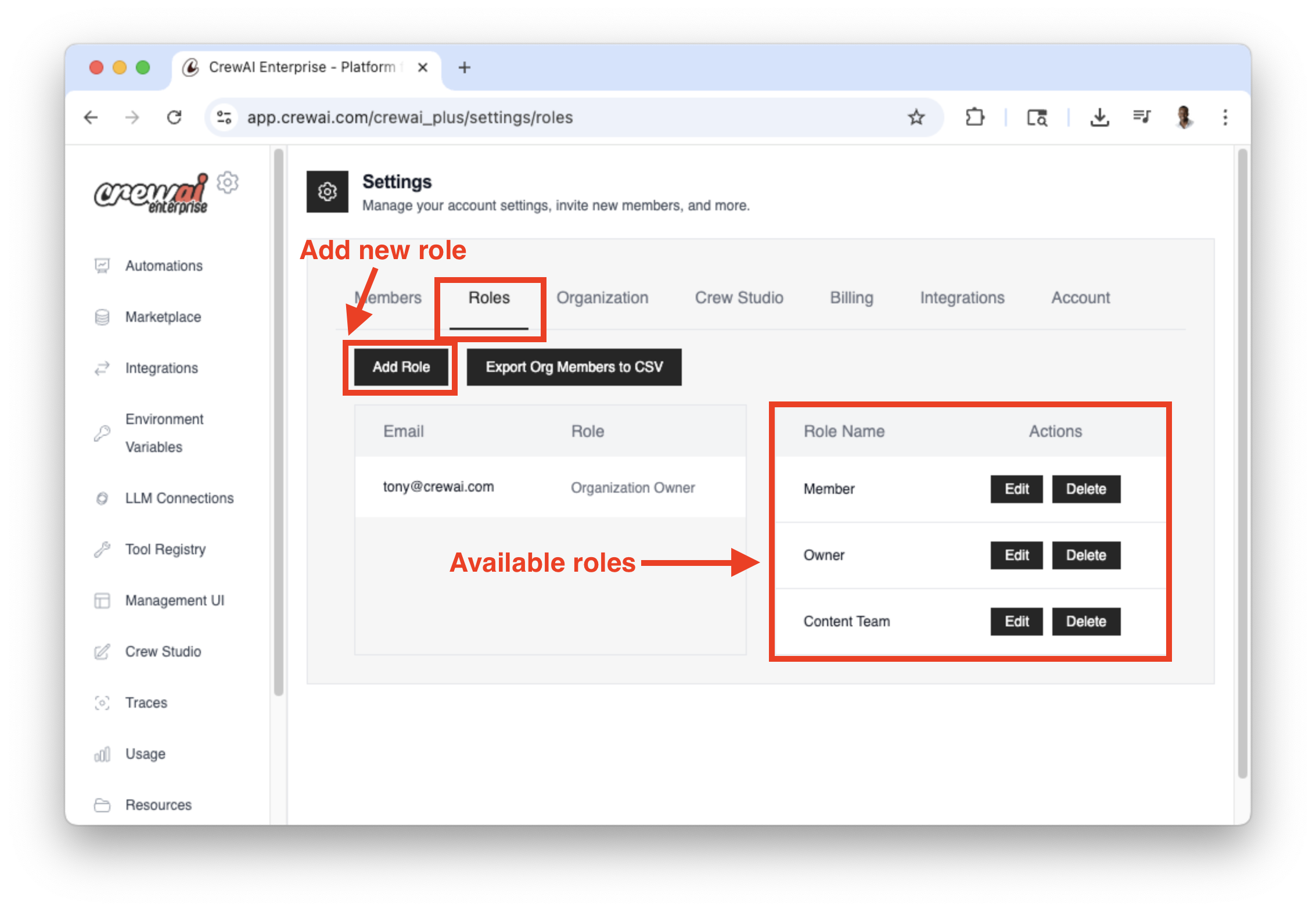
Click on the
Add Rolebutton to add a new role. - Enter the details and permissions of the role and click theCreate Rolebutton to create the role.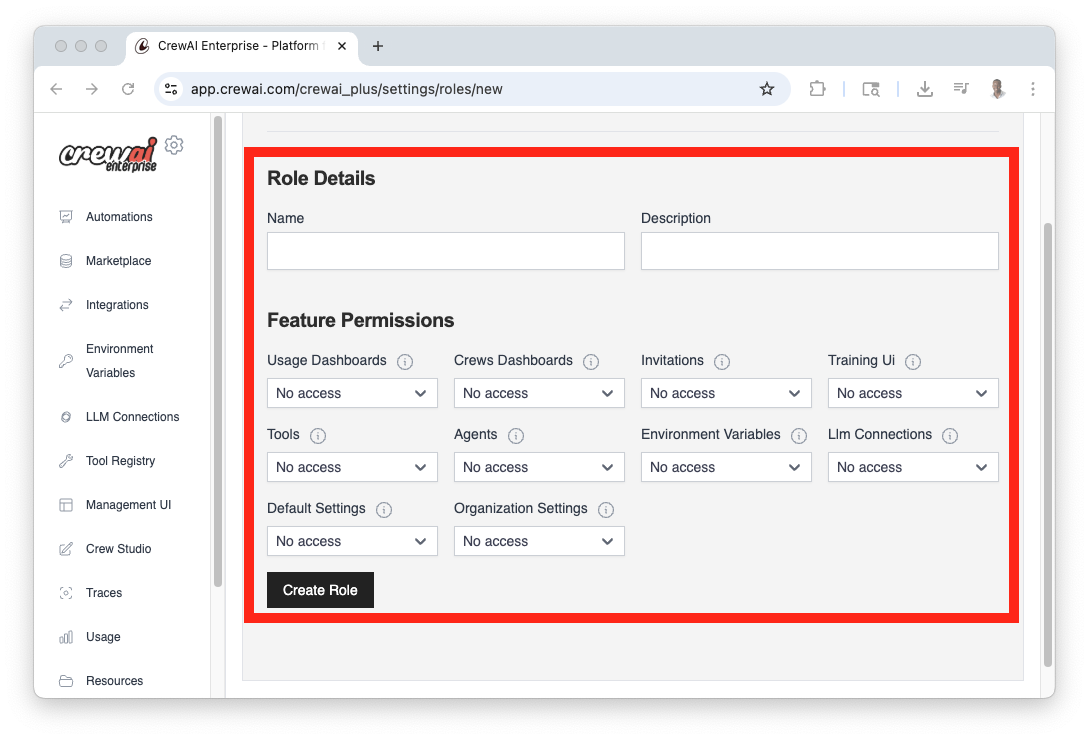
In the Members section, you’ll see a list of current members (including yourself)
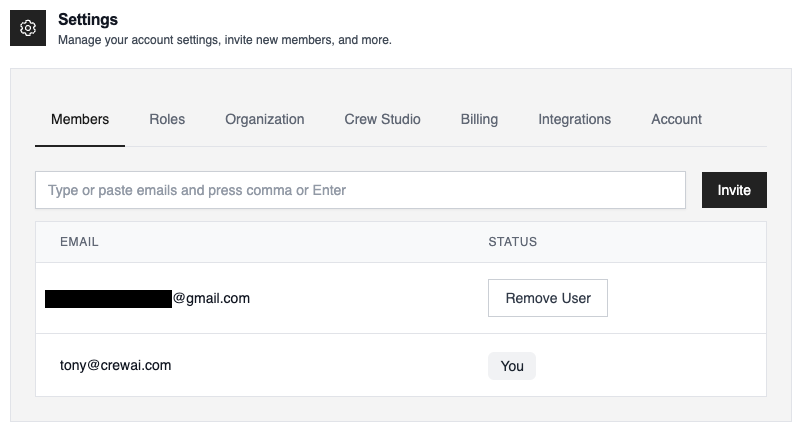
Once the member has accepted the invitation, you can add a role to them. - Navigate back to
Rolestab - Go to the member you want to add a role to and under theRolecolumn, click on the dropdown - Select the role you want to add to the member - Click theUpdatebutton to save the role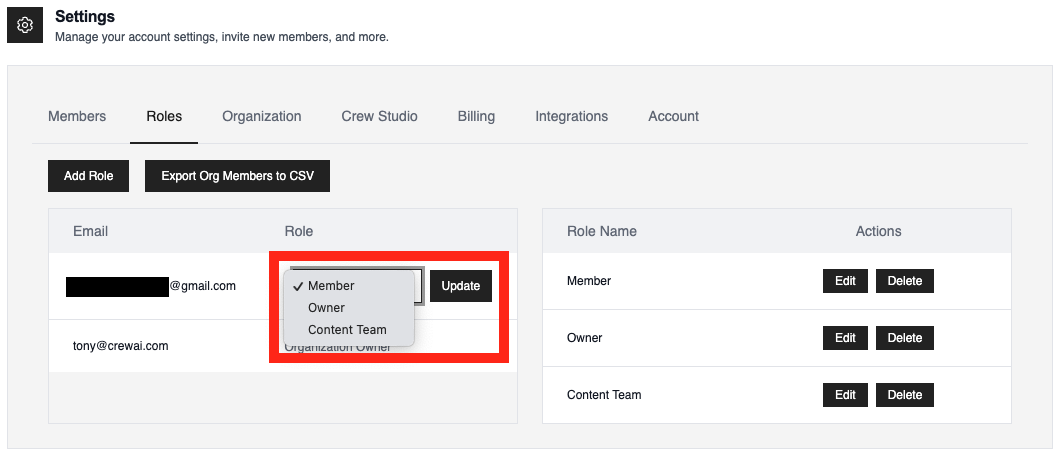
Important Notes#
- Admin Privileges: Only users with administrative privileges can invite new members
- Email Accuracy: Ensure you have the correct email addresses for your team members
- Invitation Acceptance: Invited members will need to accept the invitation to join your organization
- Email Notifications: You may want to inform your team members to check their email (including spam folders) for the invitation
By following these steps, you can easily expand your team and collaborate more effectively within your CrewAI AMP organization.