Zapier Trigger ↗
noOriginal Documentation
Documentation Index#
Fetch the complete documentation index at: https://docs.crewai.com/llms.txt Use this file to discover all available pages before exploring further.
Trigger CrewAI crews from Zapier workflows to automate cross-app workflows
This guide will walk you through the process of setting up Zapier triggers for CrewAI AMP, allowing you to automate workflows between CrewAI AMP and other applications.
Prerequisites#
- A CrewAI AMP account
- A Zapier account
- A Slack account (for this specific example)
Step-by-Step Setup#
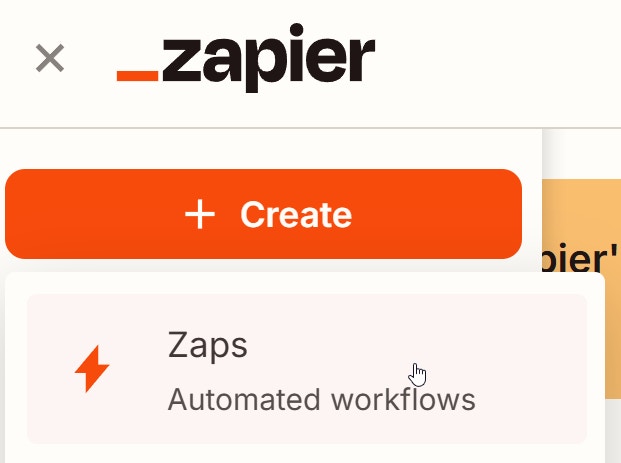
In Zapier, create a new Zap.
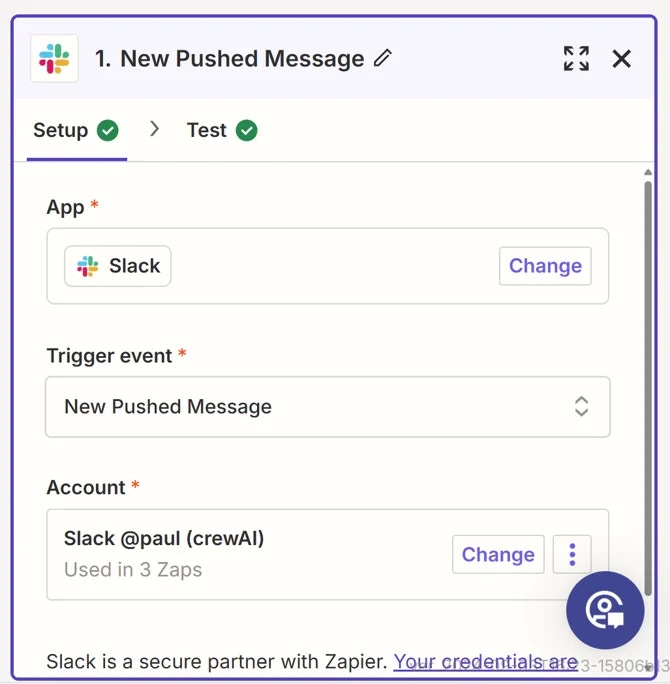
Select
New Pushed Messageas the Trigger Event.Connect your Slack account if you haven’t already.
Add a new action step to your Zap.
Choose CrewAI+ as your action app and Kickoff as the Action Event
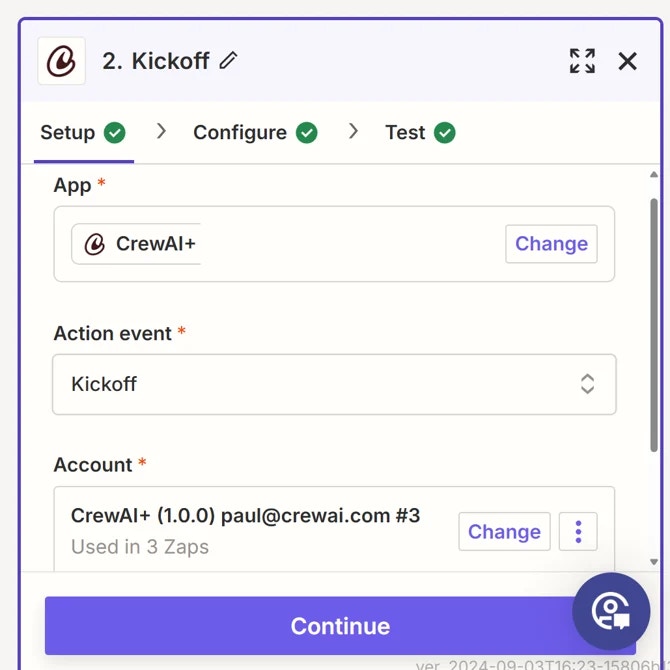
Connect your CrewAI AMP account.
Select the appropriate Crew for your workflow.
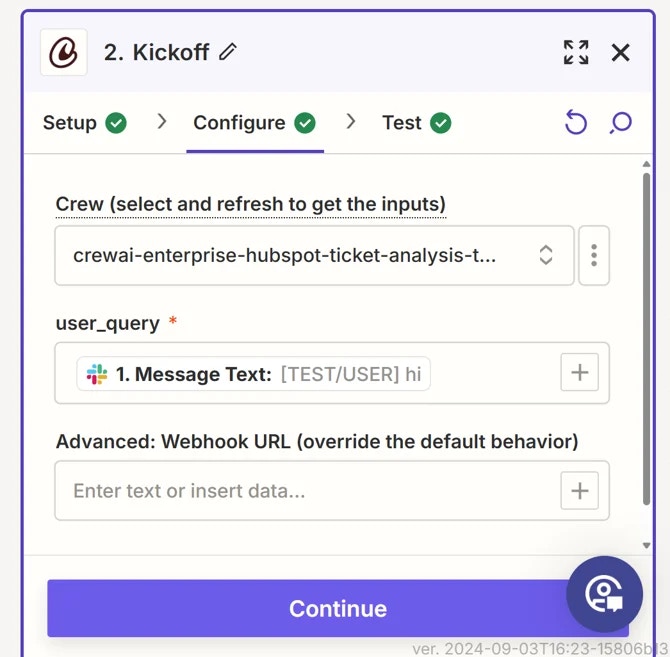
Configure the inputs for the Crew using the data from the Slack message.
Add another action step to format the text output from CrewAI AMP.
Use Zapier’s formatting tools to convert the Markdown output to HTML.
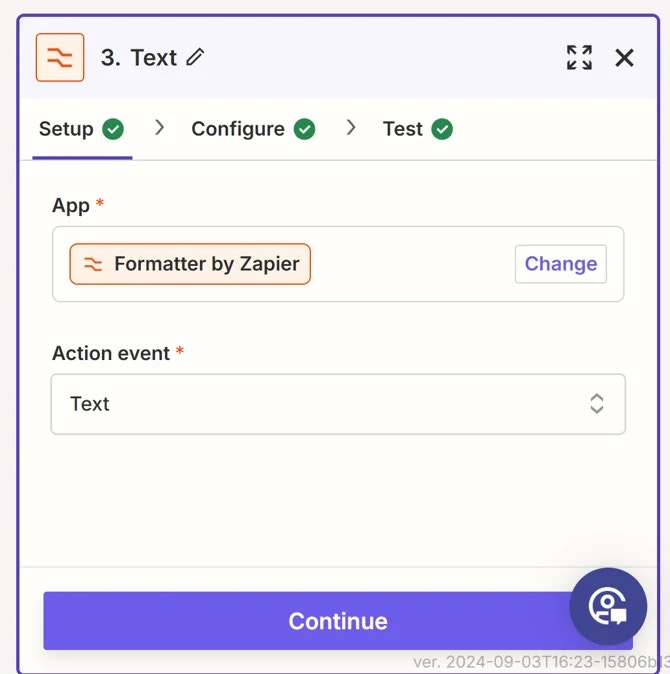
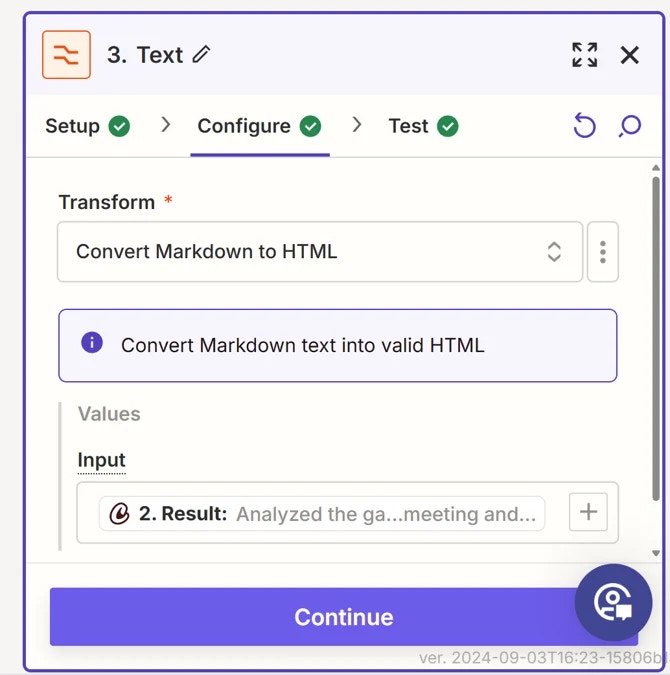
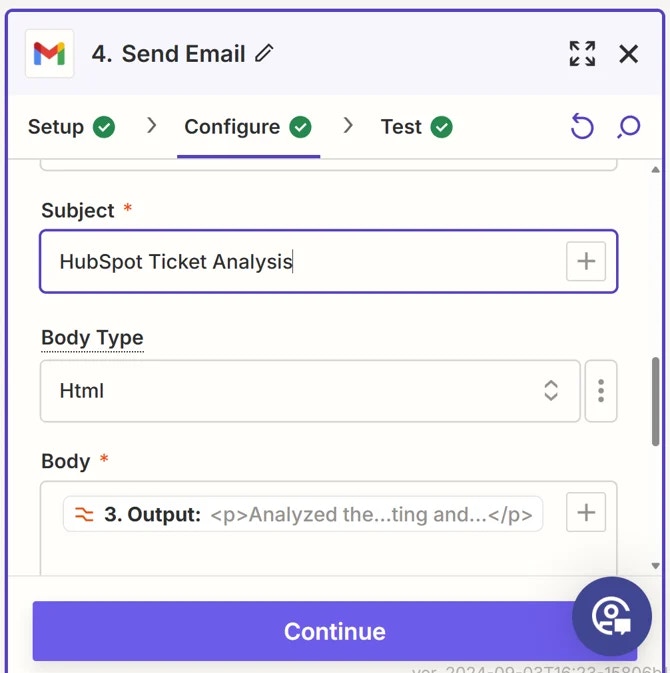
Add a final action step to send the formatted output via email.
Choose your preferred email service (e.g., Gmail, Outlook).
Configure the email details, including recipient, subject, and body.
Insert the formatted CrewAI AMP output into the email body.
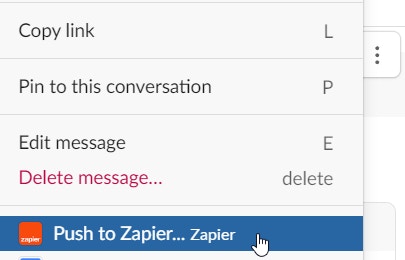
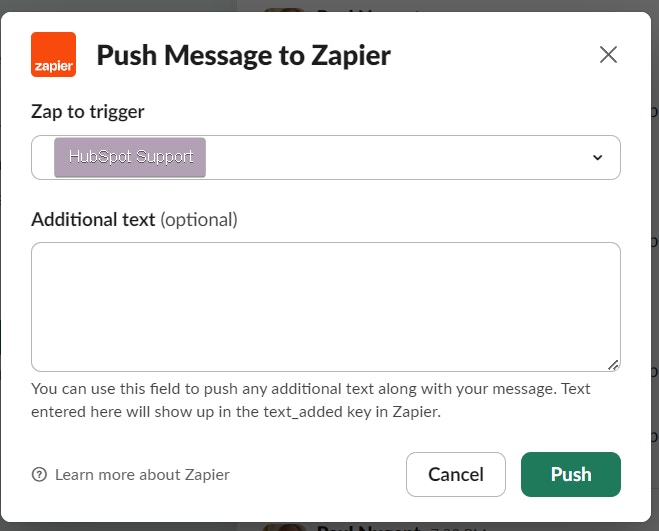
Enter the text in your Slack channel

Select the 3 ellipsis button and then chose Push to Zapier
Tips for Success#
- Ensure that your CrewAI AMP inputs are correctly mapped from the Slack message.
- Test your Zap thoroughly before turning it on to catch any potential issues.
- Consider adding error handling steps to manage potential failures in the workflow.
By following these steps, you’ll have successfully set up Zapier triggers for CrewAI AMP, allowing for automated workflows triggered by Slack messages and resulting in email notifications with CrewAI AMP output.