Filter traces ↗
noOriginal Documentation
Documentation Index#
Fetch the complete documentation index at: https://docs.langchain.com/llms.txt Use this file to discover all available pages before exploring further.
Recommended reading: For more details about the concepts mentioned on this page, refer to the Conceptual guide on tracing.
Tracing projects can contain a significant amount of data. You can use filters to navigate and analyze this data, which allows you to:
- Quickly narrow down to specific runs for ad-hoc analysis.
- Identify and examine errors, failed runs, and performance bottlenecks.
This page describes how to filter runs in a tracing project. If you are programmatically exporting runs for analysis via the API or SDK, refer to the exporting traces guide for more information.
Create and apply filters#
Filter by run attributes#
There are two ways to filter runs in a tracing project:
Filters: Located at the top left of the Tracing project page. This is where you construct and manage filter criteria.
- The first dropdown filters for default and saved views.
- Quick filter by Traces or Runs.
- + Add filter to configure a filter based on an attribute or full-text search.
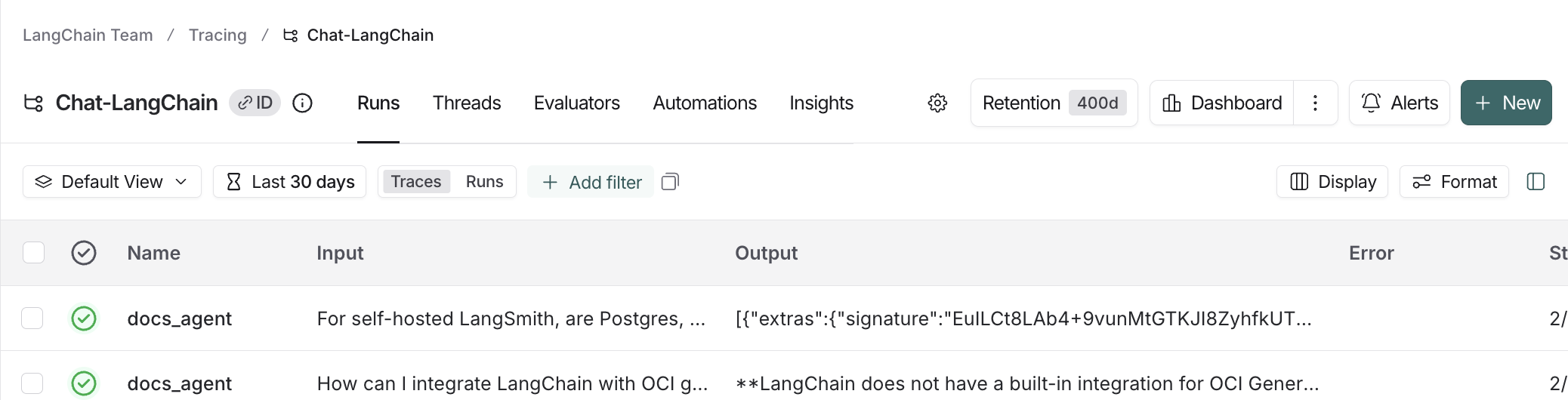
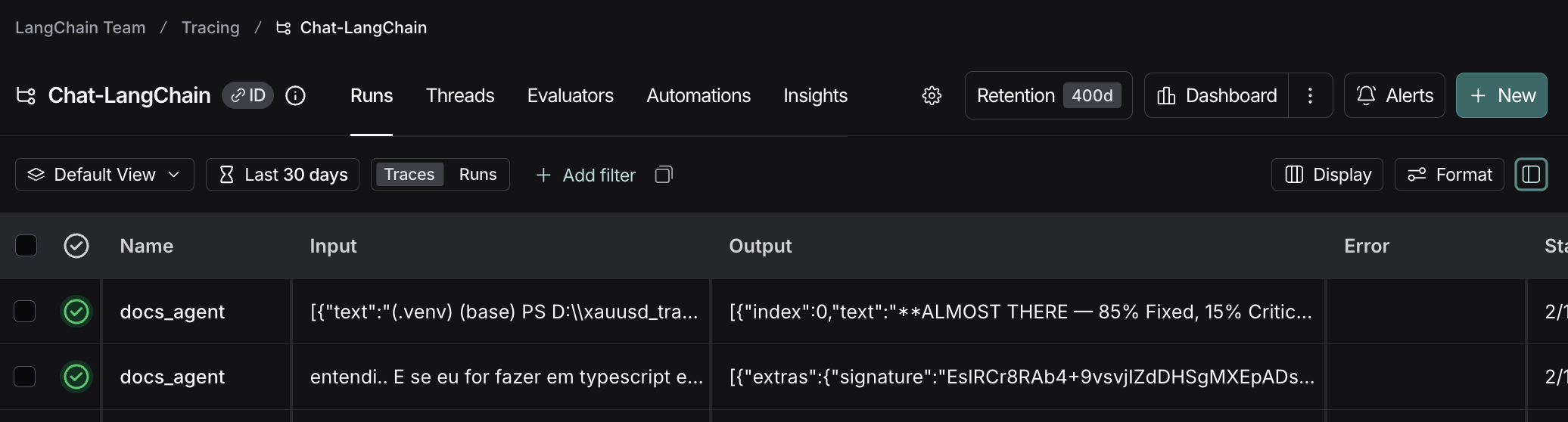
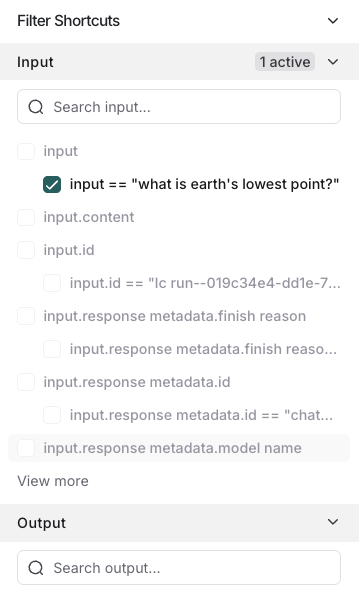
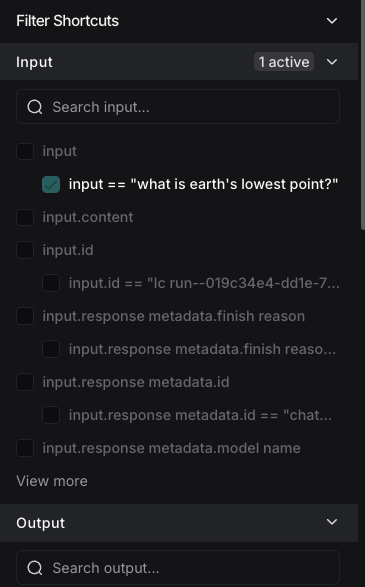
Filter Shortcuts: Positioned on the right sidebar of the Tracing project page. The filter shortcuts bar provides quick access to filters based on the most frequently occurring attributes in your project’s runs.
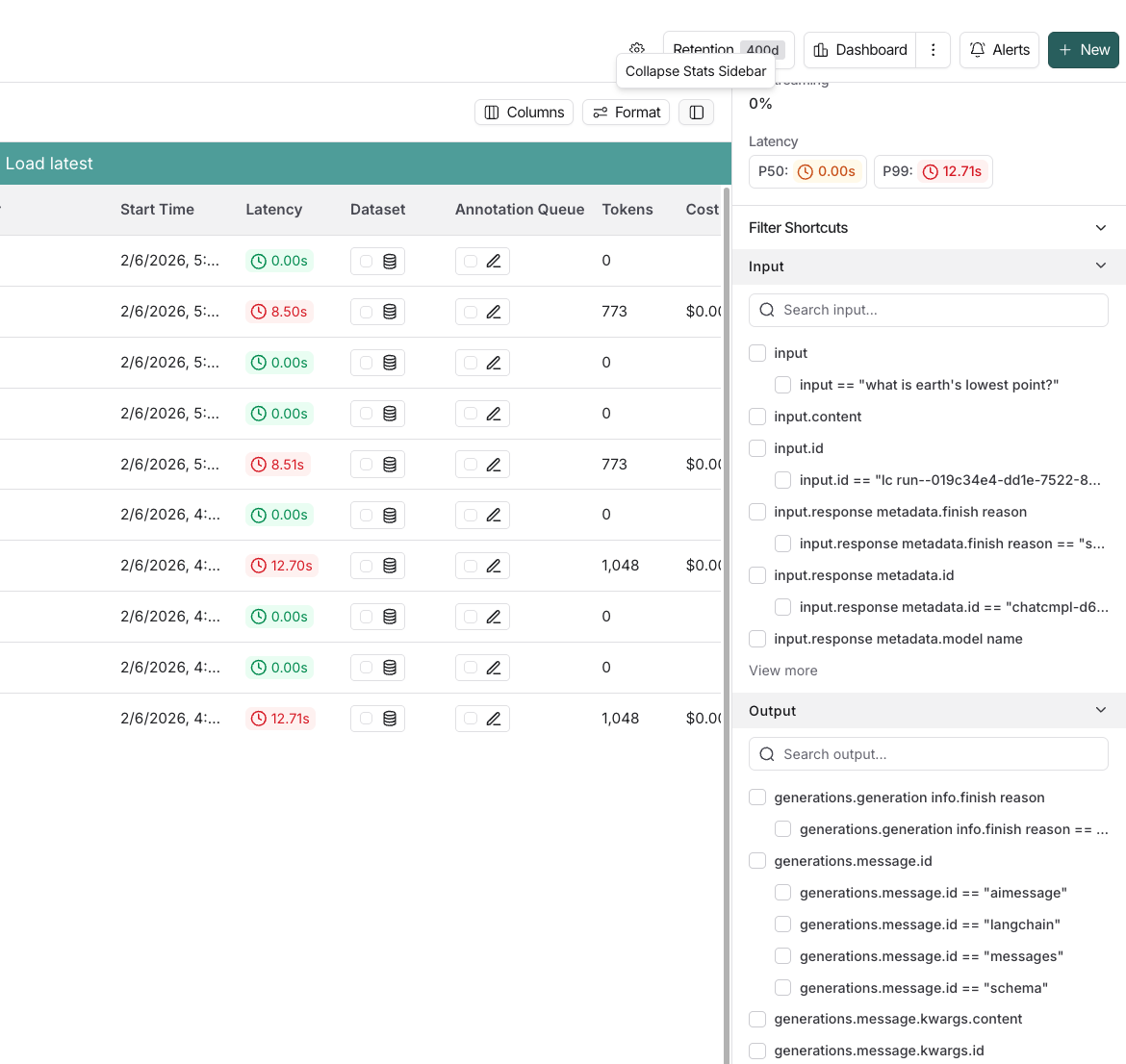
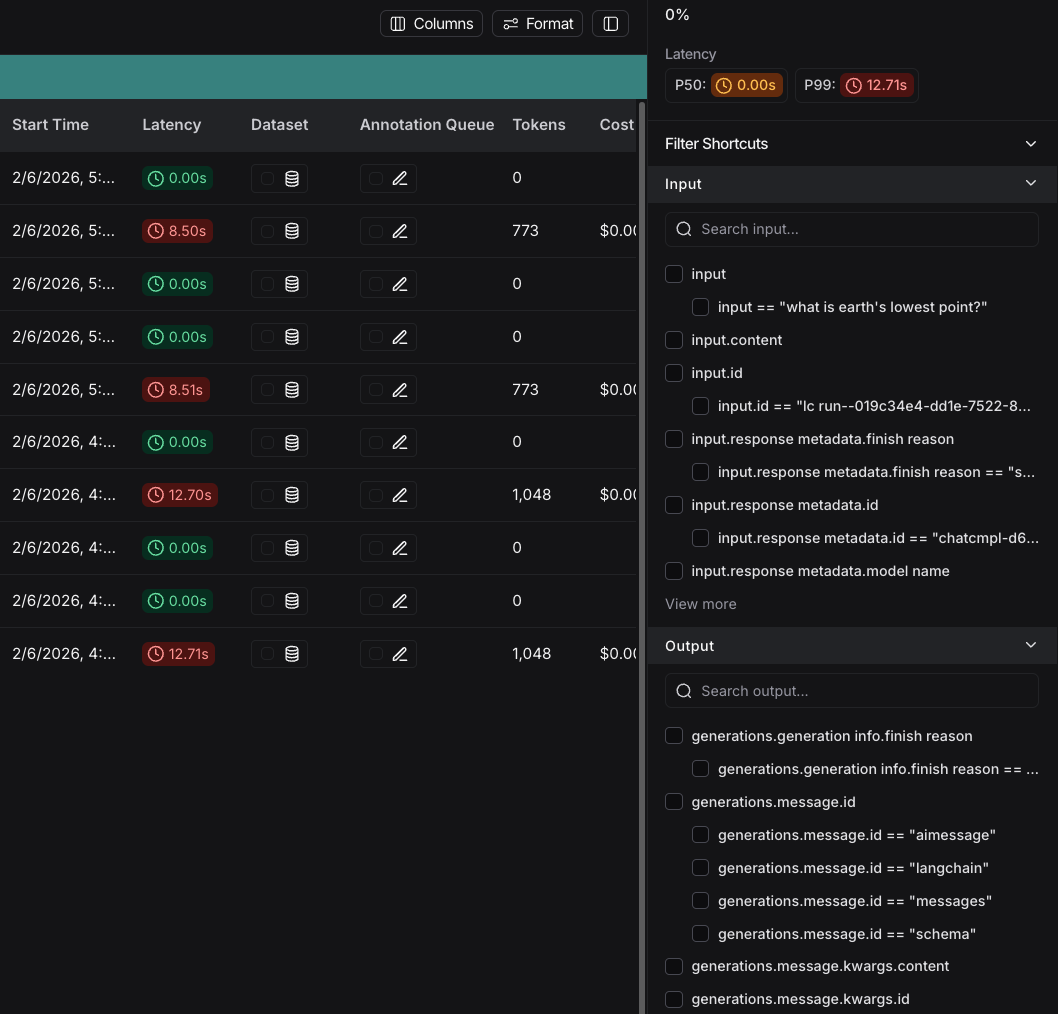
By default, the Traces filter is applied, which displays only top-level root runs. You can switch to Runs to show all runs.
Filter operators#
The available filter operators depend on the data type of the attribute you are filtering on. Here’s an overview of common operators:
- is: Exact match on the filter value
- is not: Negative match on the filter value
- contains: Partial match on the filter value
- does not contain: Negative partial match on the filter value
- is one of: Match on any of the values in the list
>/<: Available for numeric fields
Specific filtering techniques#
Filter for runs (spans)#
To filter for runs (spans), change the default from Traces to Runs. For example, you would do this if you wanted to filter by run name for runs or filter by run type.
Run metadata and tags are also useful to filter on. These rely on good tagging across all parts of your pipeline. To learn more, refer to Add metadata and tags to traces.
As you specify more filters, you can click each filter individually to update the attributes you’re searching on.
Filter based on inputs and outputs#
You can filter runs based on the content in the inputs and outputs of the run.
To filter either inputs or outputs, you can use the
For performance, we index up to 250 characters of data for full-text search. If your search query exceeds this limit, we recommend using Input/Output key-value search instead.
You can also specify multiple to match all terms provided, either by:
- Including multiple terms separated by whitespace with the Full-Text Search.
- Adding multiple filters with the
button after you’ve added the first filter.
LangSmith completes keyword search by splitting the text and finding any partial matches on the search keywords, so it is not done in specific order. LangSmith excludes common stop words from the search (from the nltk stop word list along with a few other common JSON keywords).


Based on the filters in the image, the system will search for python and tensorflow in either inputs or outputs, and embedding in the inputs along with fine and tune in the outputs.
You can remove filters as needed from the filter path, which will widen the search to the remaining filters.
Filter based on input / output key-value pairs#
In addition to full-text search, you can filter runs based on specific key-value pairs in the inputs and outputs. This allows for more precise filtering, especially when dealing with structured data.
LangSmith indexes up to 100 unique keys per run to keep your data organized and searchable. Each key also has a character limit of 250 characters per value. If your data exceeds either of these limits, the text won’t be indexed. This helps ensure fast, reliable performance.
To filter based on key-value pairs, for example, to match the following input:
{
  "input": "What is the capital of France?"
}- Select + Add filter.
- Select Input from the first dropdown and leave Key as the second dropdown and select input as the key.
- Click + Value and enter the value:
What is the capital of France?as the value.
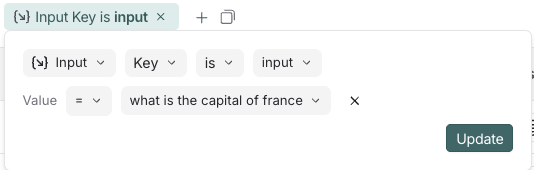
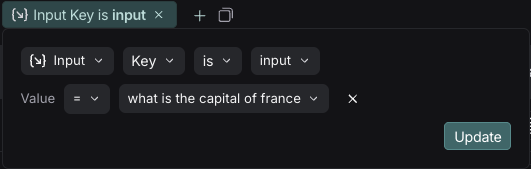
You can also match nested keys by using dot notation to select the nested key name. For example, to match nested keys in the output:
{
  "documents": [
    {
      "page_content": "The capital of France is Paris",
      "metadata": {},
      "type": "Document"
    }
  ]
}
Select Output Key, enter documents.page_content as the key and enter The capital of France is Paris as the value. This will match the nested key documents.page_content with the specified value.
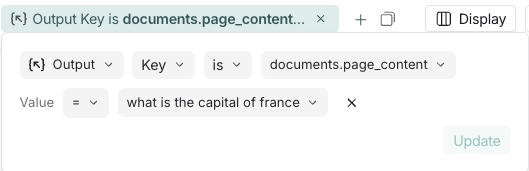
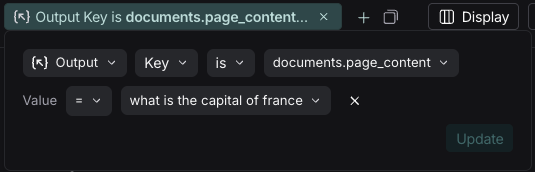
You can add multiple key-value filters to create more complex queries. You can also use the Filter Shortcuts on the right side to filter based on common key-value pairs quickly:
Example: Filtering for tool calls#
It’s common to want to search for traces that contain specific tool calls. Tool calls are typically indicated in the output of an LLM run. To filter for tool calls, you would use the Output Key filter.
While this example will show you how to filter for tool calls, the same logic can be applied to filter for any key-value pair in the output.
In this case, let’s assume this is the output you want to filter for:
{
  "generations": [
    [
      {
        "text": "",
        "type": "ChatGeneration",
        "message": {
          "lc": 1,
          "type": "constructor",
          "id": [],
          "kwargs": {
            "type": "ai",
            "id": "run-ca7f7531-f4de-4790-9c3e-960be7f8b109",
            "tool_calls": [
              {
                "name": "Plan",
                "args": {
                  "steps": [
                    "Research LangGraph's node configuration capabilities",
                    "Investigate how to add a Python code execution node",
                    "Find an example or create a sample implementation of a code execution node"
                  ]
                },
                "id": "toolu_01XexPzAVknT3gRmUB5PK5BP",
                "type": "tool_call"
              }
            ]
          }
        }
      }
    ]
  ],
  "llm_output": null,
  "run": null,
  "type": "LLMResult"
}
With the example, the KV search will map each nested JSON path as a key-value pair that you can use to search and filter.
LangSmith will break it into the following set of searchable key-value pairs:
| Key | Value |
|---|---|
generations.type | ChatGeneration |
generations.message.type | constructor |
generations.message.kwargs.type | ai |
generations.message.kwargs.id | run-ca7f7531-f4de-4790-9c3e-960be7f8b109 |
generations.message.kwargs.tool_calls.name | Plan |
generations.message.kwargs.tool_calls.args.steps | Research LangGraph's node configuration capabilities |
generations.message.kwargs.tool_calls.args.steps | Investigate how to add a Python code execution node |
generations.message.kwargs.tool_calls.args.steps | Find an example or create a sample implementation of a code execution node |
generations.message.kwargs.tool_calls.id | toolu_01XexPzAVknT3gRmUB5PK5BP |
generations.message.kwargs.tool_calls.type | tool_call |
type | LLMResult |
To search for a specific tool call, you can use the following Output Key search while removing the root runs filter:
generations.message.kwargs.tool_calls.name = Plan
This will match root and non-root runs where the tool_calls name is Plan.
Negative filtering on key-value pairs#
Different types of negative filtering can be applied to
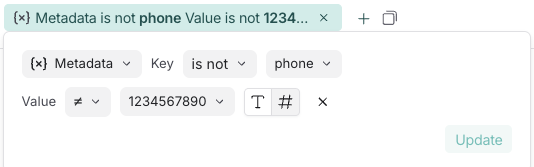
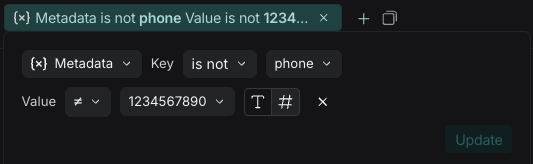
For example, to find all runs where the metadata key phone is not equal to 1234567890:
- Set the Metadata Key operator to
isand Key field tophone. - Set the Value operator to
is notand the Value field to1234567890.
This will match all runs that have a metadata key phone with any value except 1234567890.
To find runs that don’t have a specific metadata key: set the Key operator to is not. For example, setting the Key operator to is not with phone as the key will match all runs that don’t have a phone field in their metadata.
You can also filter for runs that neither have a specific key nor a specific value. To find runs where the metadata has neither the key phone nor any field with the value 1234567890, set the Key operator to is not with key phone, and the Value operator to is not with value 1234567890.
Finally, you can also filter for runs that do not have a specific key but have a specific value. To find runs where there is no phone key but there is a value of 1234567890 for some other key, set the Key operator to is not with key phone, and the Value operator to is with value 1234567890.
You can use the does not contain operator instead of is not to perform a substring match.
Save a filter#
Saving filters allows you to store and reuse frequently used filter configurations. Saved filters are specific to a tracing project.
After you have constructed your filter, click the Save as button to save it. This will bring up a dialog to specify the name and a description of the filter.


After saving a filter, it is available in the view dropdown as a quick filter for you to use.
Update a saved filter#
With the filter selected in the dropdown, you can make any changes to filter parameters. Then, click Save to update the filter.
Delete a saved filter#
Click the
Copy a filter#
You can copy a constructed filter to share it with colleagues, reuse it later, or query runs programmatically in the API or SDK.
To copy the filter:
- Create it in the UI.
- Click the
icon in the filter bar. If you have constructed tree or trace filters, you can also copy those. - This will give you a string representing the filter in the LangSmith query language. For example:
and(eq(is_root, true), and(eq(feedback_key, "user_score"), eq(feedback_score, 1))).
For more information on the query language syntax, refer to the Trace query syntax.
Filter runs within the trace view#
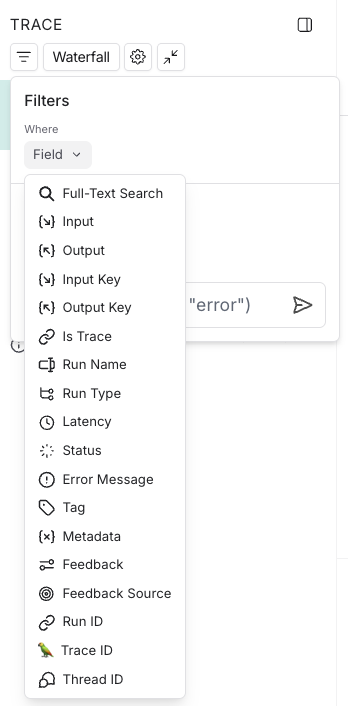
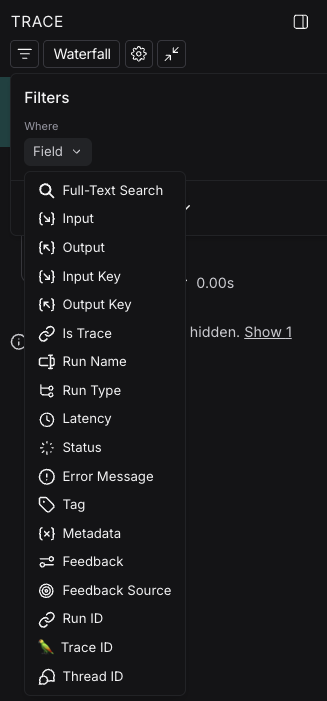
You can also apply filters directly within the trace view, which is useful for sifting through traces with a large number of runs. The same filters available in the main runs table view can be applied here.
By default, only the runs that match the filters will be shown. To see the matched runs within the broader context of the trace tree, switch the view option from “Filtered Only” to “Show All” or “Most relevant”.
Manually specify a raw query in LangSmith query language#
If you have copied a previously constructed filter, you may want to manually apply this raw query in a future session.
In order to do this, you can click on Switch to raw query on the bottom of the filters popover in the trace view. From there you can paste a raw query into the text box.
This will add that query to the existing queries, not overwrite it.
Advanced filters#
Filter for runs (spans) on properties of the root#
A common concept is to filter for runs which are part of a trace whose root run has some attribute. An example is filtering for runs of a particular type whose root run has positive (or negative) feedback associated with it. To do this:
- Click Runs in the Traces/Runs toggle.
- Add another filter rule. You can then click the Advanced filters link at the bottom of the filter dropdown.
- A modal will open where you can add Trace filters. These filters will apply to the traces of all the parent runs of the individual runs you’ve already filtered for.
Filter for runs (spans) whose child runs have some attribute#
You may want to search for runs who have specific types of sub runs. An example of this could be searching for all traces that had a sub run with name Foo. This is useful when Foo is not always called, but you want to analyze the cases where it is.
- Click Runs in the Traces/Runs toggle.
- Add another filter rule. You can then click the Advanced filters link at the bottom of the filter dropdown.
- A modal will open where you can add Tree filters. This will make the rule you specify apply to all child runs of the individual runs you’ve already filtered for.
Example: Filtering on all runs whose tree contains the tool call filter#
Extending the tool call filtering example, if you would like to filter for all runs whose tree contains the tool filter call, you can use the tree filter in the Advanced filters setting.
Edit this page on GitHub or file an issue.
Connect these docs to Claude, VSCode, and more via MCP for real-time answers.