Prompt engineering quickstart ↗
noOriginal Documentation
Documentation Index#
Fetch the complete documentation index at: https://docs.langchain.com/llms.txt Use this file to discover all available pages before exploring further.
Prompts guide the behavior of Large Language Models (LLM). Prompt engineering is the process of crafting, testing, and refining the instructions you give to an LLM so it produces reliable and useful responses.
LangSmith provides tools to create, version, test, and collaborate on prompts. You’ll also encounter common concepts like prompt templates, which let you reuse structured prompts, and variables, which allow you to dynamically insert values (such as a user’s question) into a prompt.
In this quickstart, you’ll create, test, and improve prompts using either the UI or the SDK. This quickstart will use OpenAI as the example LLM provider, but the same workflow applies across other providers.
Prerequisites#
Before you begin, make sure you have:
- A LangSmith account: Sign up or log in at smith.langchain.com.
- A LangSmith API key: Follow the Create an API key guide.
- An OpenAI API key: Generate this from the OpenAI dashboard.
Select the tab for UI or SDK workflows:
1. Set workspace secret#
In the LangSmith UI, ensure that your API key is set as a workspace secret.
- Navigate to
Settings and then move to the Secrets tab. - Select Add secret and enter the key environment variable (e.g.,
OPENAI_API_KEYorANTHROPIC_API_KEY) and your API key as the Value. - Select Save secret.
When adding workspace secrets in the LangSmith UI, make sure the secret keys match the environment variable names expected by your model provider.
2. Create a prompt#
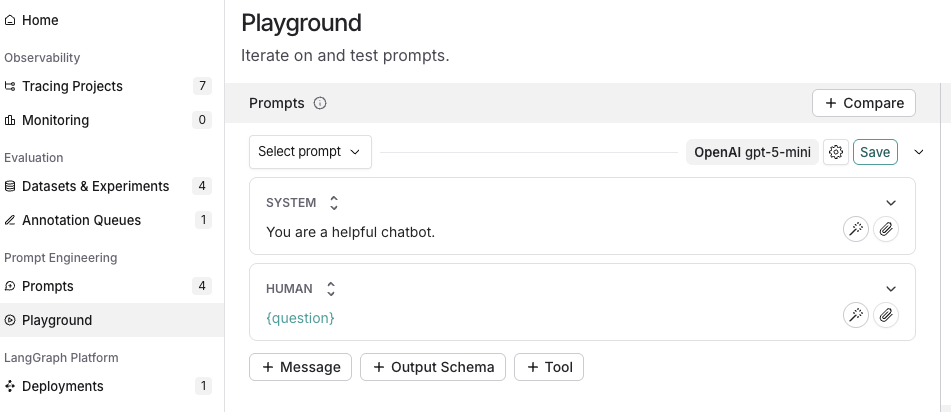
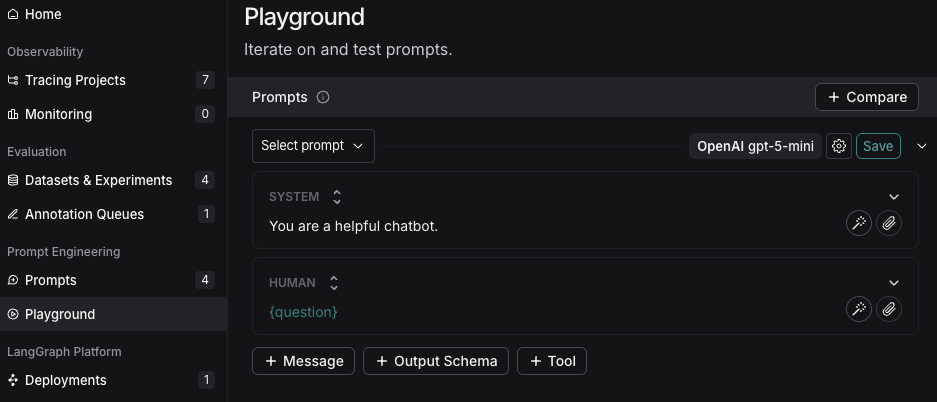
- In the LangSmith UI, navigate to the Prompts section in the left-hand menu.
- Click on + Prompt to create a prompt.
- Modify the prompt by editing or adding prompts and input variables as needed.
3. Test a prompt#
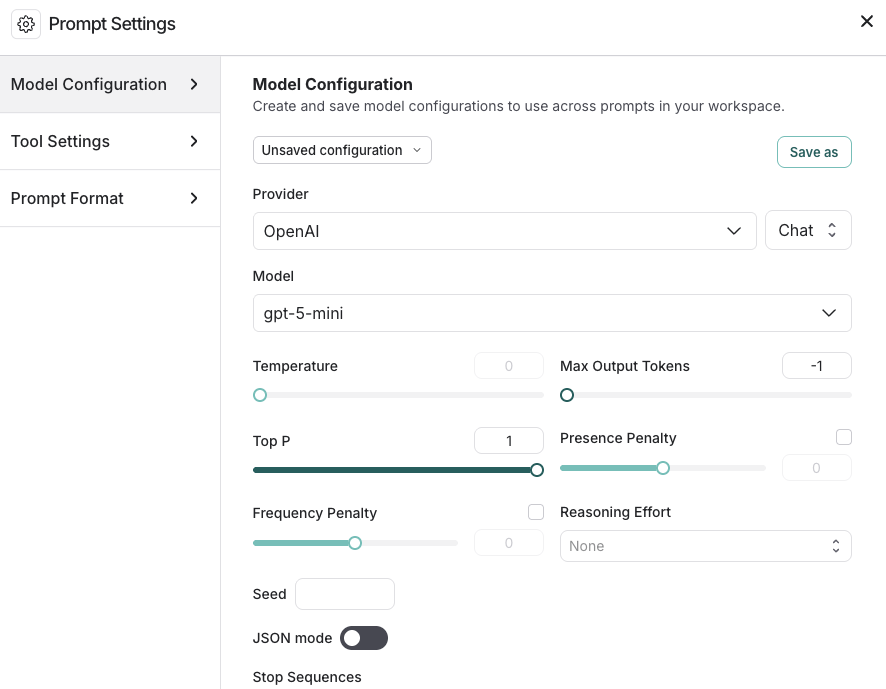
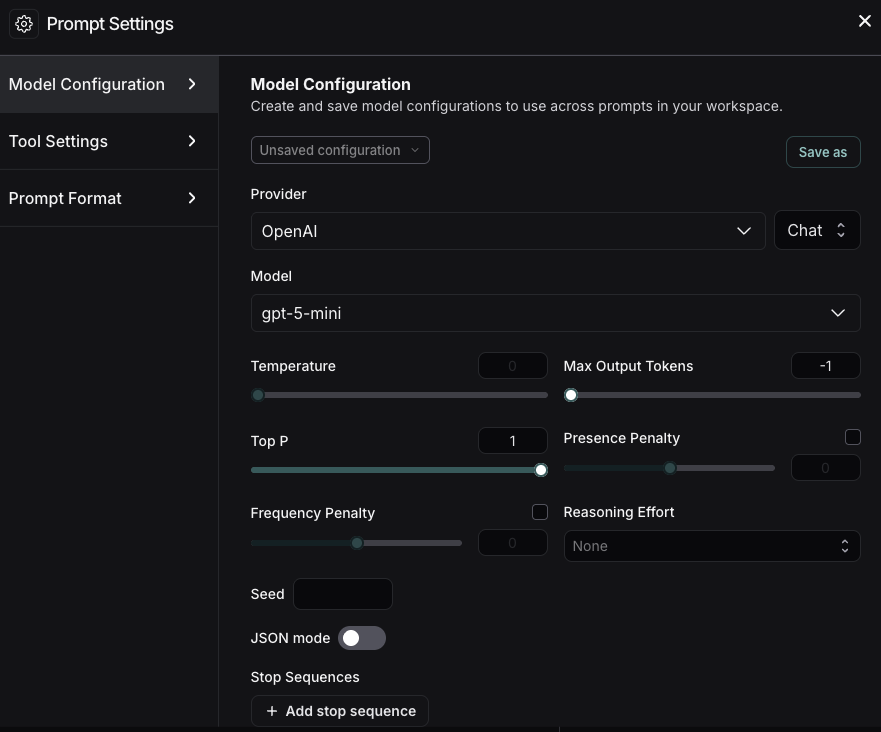
Under the Prompts heading select the gear
icon next to the model name, which will launch the Prompt Settings window on the Model Configuration tab. Set the model configuration you want to use. The Provider and Model you select will determine the parameters that are configurable on this configuration page. Once set, click Save as.
Specify the input variables you would like to test in the Inputs box and then click
Start. 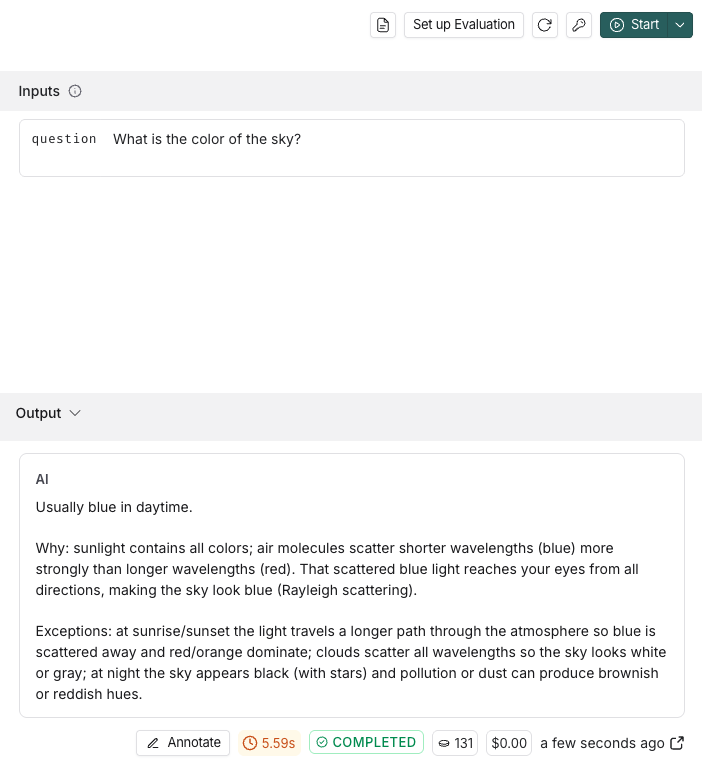
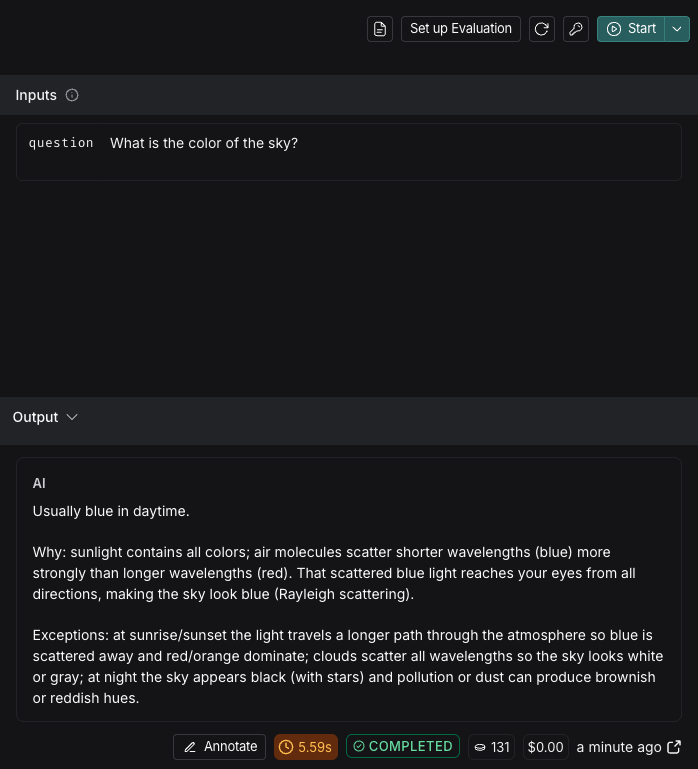
To learn about more options for configuring your prompt in the Playground, refer to Configure prompt settings.
After testing and refining your prompt, click Save to store it for future use.
4. Iterate on a prompt#
LangSmith allows for team-based prompt iteration. Workspace members can experiment with prompts in the playground and save their changes as a new commit when ready.
To improve your prompts:
Reference the documentation provided by your model provider for best practices in prompt creation, such as:
Build and refine your prompts with the Prompt Canvas—an interactive tool in LangSmith. Learn more in the Prompt Canvas guide.
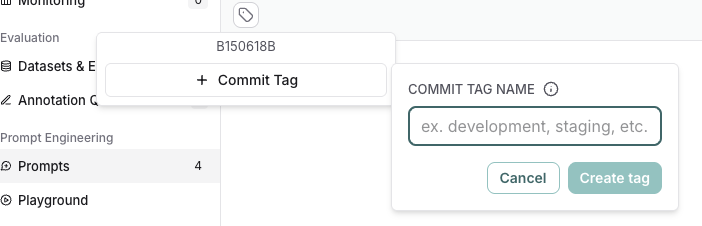
Tag specific commits to mark important moments in your commit history.
- To create a commit, navigate to the Playground and select Commit. Choose the prompt to commit changes to and then Commit.
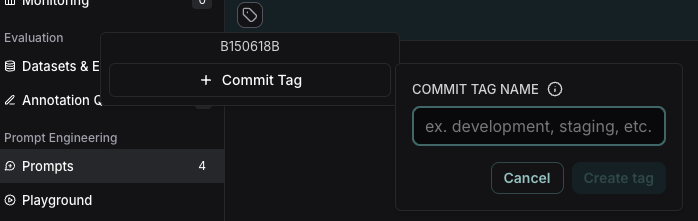
- Navigate to Prompts in the left-hand menu. Select the prompt. Once on the prompt’s detail page, move to the Commits tab. Find the tag icon
to Add a Commit Tag.
1. Set up your environment#
In your terminal, prepare your environment:
    mkdir ls-prompt-quickstart && cd ls-prompt-quickstart
    python -m venv .venv
    source .venv/bin/activate
    pip install -qU langsmith openai langchain_core
    ```

```bash
    mkdir ls-prompt-quickstart-ts && cd ls-prompt-quickstart-ts
    npm init -y
    npm install langsmith openai typescript ts-node
    npx tsc --init
    ```
Set your API keys:
    export LANGSMITH_API_KEY='<your_api_key>'
    export OPENAI_API_KEY='<your_api_key>'
    ```
2. Create a prompt#
To create a prompt, you’ll define a list of messages that you want in your prompt and then push to LangSmith.
Use the language-specific constructor and push method:
- Python:
ChatPromptTemplate→client.push_prompt(...) - TypeScript:
ChatPromptTemplate.fromMessages(...)→client.pushPrompt(...)
Add the following code to a
create_promptfile:from langsmith import Client from langchain_core.prompts import ChatPromptTemplate client = Client() prompt = ChatPromptTemplate([ ("system", "You are a helpful chatbot."), ("user", "{question}"), ]) client.push_prompt("prompt-quickstart", object=prompt) ``` ```typescript import { Client } from "langsmith"; import { ChatPromptTemplate } from "@langchain/core/prompts"; const client = new Client(); const prompt = ChatPromptTemplate.fromMessages([ ["system", "You are a helpful chatbot."], ["user", "{question}"], ]); await client.pushPrompt("prompt-quickstart", { object: prompt, }); ``` This creates an ordered list of messages, wraps them in `ChatPromptTemplate`, and then pushes the prompt by name to your [workspace](/langsmith/administration-overview#workspaces) for versioning and reuse.Run
create_prompt:python create_prompt.py ``` ```typescript npx tsx create_prompt.ts ```
Follow the resulting link to view the newly created Prompt Hub prompt in the LangSmith UI.
3. Test a prompt#
In this step, you’ll pull the prompt you created in step 2 by name ("prompt-quickstart"), format it with a test input, convert it to OpenAI’s chat format, and call the OpenAI Chat Completions API.
Then, you’ll iterate on the prompt by creating a new version. Members of your workspace can open an existing prompt, experiment with changes in the UI, and save those changes as a new commit on the same prompt, which preserves history for the whole team.
Add the following to a
test_promptfile:from langsmith import Client from openai import OpenAI from langchain_core.messages import convert_to_openai_messages client = Client() oai_client = OpenAI() prompt = client.pull_prompt("prompt-quickstart") # Since the prompt only has one variable you could also pass in the value directly # Equivalent to formatted_prompt = prompt.invoke("What is the color of the sky?") formatted_prompt = prompt.invoke({"question": "What is the color of the sky?"}) response = oai_client.chat.completions.create( model="gpt-4.1", messages=convert_to_openai_messages(formatted_prompt.messages), ) ``` ```typescript import { OpenAI } from "openai"; import { pull } from "langchain/hub" import { convertPromptToOpenAI } from "@langchain/openai"; const oaiClient = new OpenAI(); const prompt = await pull("prompt-quickstart"); // Format the prompt with the question const formattedPrompt = await prompt.invoke({ question: "What is the color of the sky?" }); const response = await oaiClient.chat.completions.create({ model: "gpt-4.1", messages: convertPromptToOpenAI(formattedPrompt).messages, }); ``` This loads the prompt by name using `pull` for the latest committed version of the prompt that you're testing. You can also specify a specific commit by passing the commit hash `"<prompt-name>:<commit-hash>"`Run
test_prompt:python test_prompt.py ``` ```typescript npx tsx test_prompt.ts ```To create a new version of a prompt, call the same push method you used initially with the same prompt name and your updated template. LangSmith will record it as a new commit and preserve prior versions.
Copy the following code to an
iterate_promptfile:from langsmith import Client from langchain_core.prompts import ChatPromptTemplate client = Client() new_prompt = ChatPromptTemplate([ ("system", "You are a helpful chatbot. Respond in Spanish."), ("user", "{question}"), ]) client.push_prompt("prompt-quickstart", object=new_prompt) ``` ```typescript import { Client } from "langsmith"; import { ChatPromptTemplate } from "@langchain/core/prompts"; const client = new Client(); const newPrompt = ChatPromptTemplate.fromMessages([ ["system", "You are a helpful chatbot. Speak in Spanish."], ["user", "{question}"] ]); await client.pushPrompt("prompt-quickstart", { object: newPrompt }); ```Run
iterate_prompt:python iterate_prompt.py ``` ```typescript npx tsx iterate_prompt.ts ``` Now your prompt will contain two commits.
To improve your prompts:
- Reference the documentation provided by your model provider for best practices in prompt creation, such as:
- Build and refine your prompts with the Prompt Canvas—an interactive tool in LangSmith. Learn more in the Prompt Canvas guide.
Next steps#
- Learn more about how to store and manage prompts using the Prompt Hub in the Create a prompt guide.
- Learn how to set up the Playground to Test multi-turn conversations in this tutorial.
- Learn how to test your prompt’s performance over a dataset instead of individual examples, refer to Run an evaluation from the Prompt Playground.
Use Polly in the Playground to help optimize your prompts, generate tools, and create output schemas.
Edit this page on GitHub or file an issue.
Connect these docs to Claude, VSCode, and more via MCP for real-time answers.