Deep Agents CLI ↗
noOriginal Documentation
Documentation Index#
Fetch the complete documentation index at: https://docs.langchain.com/llms.txt Use this file to discover all available pages before exploring further.
Terminal coding agent built on the Deep Agents SDK
The Deep Agents CLI is an open source terminal coding agent built on the Deep Agents SDK. It retains persistent memory, maintains context across sessions, learns project conventions, uses customizable skills, and executes code with approval controls.
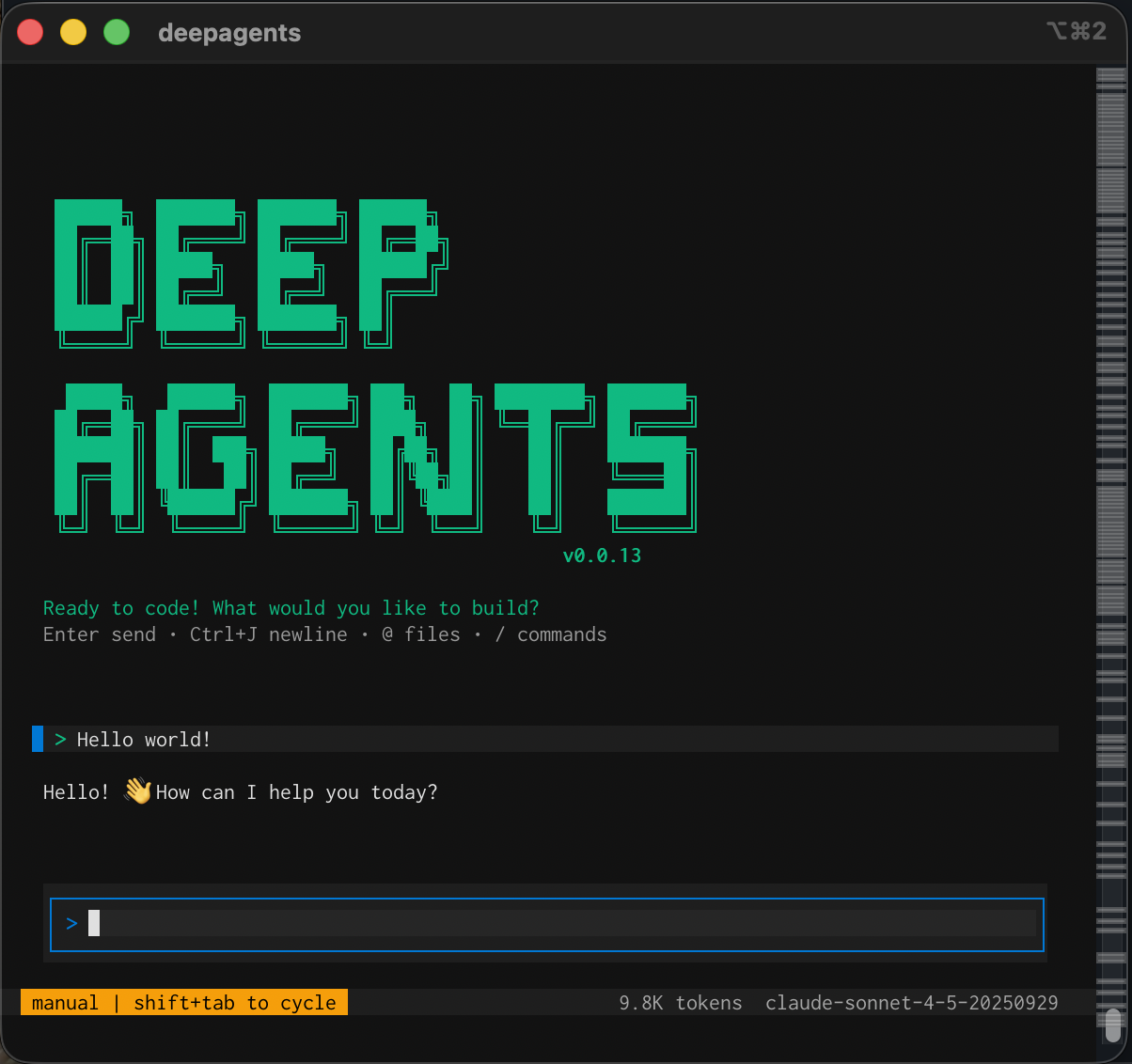
The Deep Agents CLI has the following built-in capabilities:
File operations - read, write, and edit files in your project with tools that enable agents to manage and modify code and documentation. Shell command execution - execute shell commands to run tests, build projects, manage dependencies, and interact with version control systems. Web search - search the web for up-to-date information and documentation (requires Tavily API key). HTTP requests - make HTTP requests to APIs and external services for data fetching and integration tasks. Task planning and tracking - break down complex tasks into discrete steps and track progress through the built-in todo system. Memory storage and retrieval - store and retrieve information across sessions, enabling agents to remember project conventions and learned patterns. Human-in-the-loop - require human approval for sensitive tool operations. Skills - extend agent capabilities with custom expertise and instructions stored in skill directories.
The agent comes with the following built-in tools which are available without configuration:
| Tool | Description | Human-in-the-Loop |
|---|---|---|
ls | List files and directories | - |
read_file | Read contents of a file; supports images (.png, .jpg, .jpeg, .gif, .webp) as multimodal content | - |
write_file | Create or overwrite a file | Required1 |
edit_file | Make targeted edits to existing files | Required1 |
glob | Find files matching a pattern (e.g., **/*.py) | - |
grep | Search for text patterns across files | - |
shell | Execute shell commands (local mode) | Required1 |
execute | Execute commands in remote sandbox (sandbox mode) | Required1 |
web_search | Search the web using Tavily API | Required1 |
fetch_url | Fetch and convert web pages to markdown | Required1 |
task | Delegate work to subagents for parallel execution | Required1 |
write_todos | Create and manage task lists for complex work | - |
1: Potentially destructive operations require user approval before execution.
To bypass human approval, you can toggle auto-approve or start the deep agent with the auto-approve option:
deepagents --auto-approveWatch the demo video to see how the Deep Agents CLI works.
Quickstart#
Select the model provider(s) you want to use and set credentials as environment variables.
Export as an environment variable:
```bash
    export OPENAI_API_KEY="your-api-key"
    ```
Export as an environment variable:
```bash
    export ANTHROPIC_API_KEY="your-api-key"
    ```
Export as an environment variable:
```bash
    export GOOGLE_API_KEY="your-api-key"
    ```
Export your Google Cloud project:
```bash
    export GOOGLE_CLOUD_PROJECT="your-gcp-project-id"
    ```

Vertex AI uses Application Default Credentials (ADC) for authentication.
    uv tool install deepagents-cli
    deepagents
    ```

```bash
    uvx deepagents-cli
    ```

<span class="step-end"></span>

<span class="step-marker" data-step-title="Give the agent a task"></span>
```txt
  > Create a Python script that prints "Hello, World!"
  ```

The agent proposes changes with diffs for your approval before modifying files.
<span class="step-end"></span>
<span class="steps-end"></span>

<Accordion title="Additional installation and configuration options">
Each model provider requires installing its corresponding LangChain integration package. These are available as optional extras when installing the CLI:

```bash
# Install with one provider
uv tool install 'deepagents-cli[anthropic]'

# Install with multiple providers at once
uv tool install 'deepagents-cli[ollama,groq]'

# Add additional packages at a later date
uv tool upgrade deepagents-cli --with langchain-xai
For the full list of supported providers and configuration options, see Custom model providers.
On first launch (when no [models].default or [models].recent is set), the CLI auto-selects the first available startup credential in this order: OPENAI_API_KEY, ANTHROPIC_API_KEY, GOOGLE_API_KEY, then GOOGLE_CLOUD_PROJECT (Vertex AI). This startup fallback is intentionally narrow; other supported providers (for example, Groq) are still available via --model, /model, or a saved default model.
deepagents --model anthropic:claude-opus-4-5Enable web search (optional):
export TAVILY_API_KEY="your-key"API keys can be set as environment variables or in a .env file.
Tracing with LangSmith#
Enable LangSmith tracing to see agent operations in your LangSmith dashboard:
Enable LangSmith tracing:
export LANGCHAIN_TRACING=true
export LANGCHAIN_API_KEY="your-api-key"
Configure agent tracing for deep agent operations such as tool calls and agent decisions:
export DEEPAGENTS_LANGSMITH_PROJECT="my-deep-agent-execution"If you are building a LangChain app with deep agents, and want to separate agent traces from your app’s traces, also configure
LANGSMITH_PROJECT:export LANGSMITH_PROJECT="my-app-calls-to-langchain"
When configured, the CLI displays:
✓ LangSmith tracing: 'my-project'Configuration#
Each agent has its own configuration directory at ~/.deepagents/<agent_name>/.
The default agent name is agent.
As you start the agent if no folder for that agent name exists then it’s created at that path ~/.deepagents/<new_agent>/.
# List all configured agents
deepagents list

# Use a specific agent configuration
deepagents --agent mybot

# Use a specific model (provider:model format or auto-detect)
deepagents --model anthropic:claude-sonnet-4-5
deepagents --model gpt-4o

# Auto-approve tool usage (skip human-in-the-loop prompts)
deepagents --auto-approve

# Execute code in a remote sandbox
deepagents --sandbox modal        # or runloop, daytona
deepagents --sandbox-id dbx_123 # reuse existing sandboxInteractive mode#
Type naturally as you would in a chat interface. The agent will use its built-in tools, skills, and memory to help you with tasks.
/model- Open the interactive model selector/model <provider:model>- Switch directly to a specific model (e.g.,/model anthropic:claude-sonnet-4-5)/model --default <provider:model>- Set a persistent default model/model --default --clear- Clear the saved default model/remember [context]- Review conversation and update memory and skills. Optionally pass additional context/tokens- Display current context window token usage/clear- Clear conversation history and start a new thread/threads- Browse and resume previous conversation threads/trace- Open the current thread in LangSmith (requiresLANGSMITH_API_KEY)/changelog- Open the CLI changelog in your browser/docs- Open the documentation in your browser/feedback- Open the GitHub issues page to file a bug report or feature request/version- Show installeddeepagents-cliand SDK versions/help- Show help and available commands/quit(or/q) - Exit the CLI
Execute shell commands directly by prefixing with !:
    !git status
    !npm test
    !ls -la
    ```
  </Accordion>

  <Accordion title="Keyboard shortcuts" icon="keyboard">
**General**

| Shortcut                                              | Action                                      |
| ----------------------------------------------------- | ------------------------------------------- |
| `Enter`                                               | Submit prompt                               |
| `Shift+Enter`, `Ctrl+J`, `Alt+Enter`, or `Ctrl+Enter` | Insert newline                              |
| `Ctrl+A`                                              | Select all text in input                    |
| `@filename`                                           | Auto-complete files and inject content      |
| `Shift+Tab` or `Ctrl+T`                               | Toggle auto-approve                         |
| `Ctrl+E`                                              | Expand/collapse the most recent tool output |
| `Escape`                                              | Interrupt current operation                 |
| `Ctrl+C`                                              | Interrupt or quit                           |
| `Ctrl+D`                                              | Exit                                        |
  </Accordion>
</AccordionGroup>

## Non-interactive mode and piping

Use `-n` to run a single task without launching the interactive UI:

```bash
deepagents -n "Write a Python script that prints hello world"
You can also pipe input via stdin. When input is piped, the CLI automatically runs non-interactively:
echo "Explain this code" | deepagents
cat error.log | deepagents -n "What's causing this error?"
git diff | deepagents -n "Review these changes"
When piped input is combined with -n or -m, the piped content is prepended to the flag’s value.
The maximum piped input size is 10 MiB.
Use -q for clean output suitable for piping into other commands, and --no-stream to buffer the full response (instead of streaming) before writing to stdout:
deepagents -n "Generate a .gitignore for Python" -q > .gitignore
deepagents -n "List dependencies" -q --no-stream | sort
By default, shell execution is disabled in non-interactive mode. Use --shell-allow-list to allow specific commands:
deepagents -n "Run the tests and fix failures" --shell-allow-list "pytest,git,make"
deepagents -n "Build the project" --shell-allow-list recommended
Switch models#
You can switch models during a session without restarting the CLI using the /model command, or at launch with the --model flag:
> /model anthropic:claude-opus-4-5
> /model openai:gpt-4o
deepagents --model openai:gpt-4oRun /model with no arguments to open an interactive model selector that displays available models grouped by provider.
For full details on switching models, setting a default, configuring custom providers, and using the ~/.deepagents/config.toml config file, see Custom model providers.
Teach your agent project conventions#
As you use the agent, it automatically stores information in ~/.deepagents/<agent_name>/memories/ as markdown files using a memory-first protocol:
- Research: Searches memory for relevant context before starting tasks
- Response: Checks memory when uncertain during execution
- Learning: Automatically saves new information for future sessions
The agent organizes its memories by topic with descriptive filenames:
~/.deepagents/backend-dev/memories/
├── api-conventions.md
├── database-schema.md
└── deployment-process.md
When you teach the agent conventions:
uvx deepagents-cli --agent backend-dev
> Our API uses snake_case and includes created_at/updated_at timestamps
It remembers for future sessions:
> Create a /users endpoint
# Applies conventions without prompting
Customize your deep agent#
There are two primary ways to customize any agent:
Memory: Global and project-specific
AGENTS.mdfiles which are loaded in full at session start. Use memory for general coding style and preferences.Skills: Global and project-specific context, conventions, guidelines, or instructions. Use skills for context that is only required when performing specific tasks.
Provide project or user context#
AGENTS.md files files provide persistent memory that is always loaded at session start.
You can provide global user memory for the agent in ~/.deepagents/<agent_name>/AGENTS.md.
This file is always loaded when you start a new deep agent session.
The agent may also read its memory files when answering project-specific questions or when you reference past work or patterns.
For project-specific memory, you can add context to .deepagents/AGENTS.md in any project’s root folder as long as the project uses git.
When you start the CLI from anywhere within the project’s folder, the CLI will find the project’s root folder by checking for a containing .git folder.
Both global and project-level AGENTS.md files are loaded together and appended to the system prompt at startup.
The agent will update them as you use the agent and provide it with additional information on how it should behave, feedback on its work, or instructions to remember something.
The agent will also update its memory if it identifies patterns or preferences from your interactions.
If you would like to explicitly prompt your deep agent to update skills and memory based on the current context from the thread use the /remember command which loads a custom instruction to review the context and perform updates.
To add more structured project knowledge in additional memory files, you can add them in .deepagents/ and reference them in the AGENTS.md file.
You must reference additional files in the AGENTS.md file for the agent to be aware of these files.
The additional files will not be read on startup but the agent can reference and update them when needed.
- Your personality, style, and universal coding preferences
- General tone and communication style
- Universal coding preferences (formatting, type hints, etc.)
- Tool usage patterns that apply everywhere
- Workflows and methodologies that don’t change per-project
Project AGENTS.md (.deepagents/AGENTS.md in project root)
- Project-specific context and conventions
- Project architecture and design patterns
- Coding conventions specific to this codebase
- Testing strategies and deployment processes
- Team guidelines and project structure
Use remote sandboxes#
Execute code in isolated remote environments for safety and flexibility. Remote sandboxes provide the following benefits:
- Safety: Protect your local machine from potentially harmful code execution
- Clean environments: Use specific dependencies or OS configurations without local setup
- Parallel execution: Run multiple agents simultaneously in isolated environments
- Long-running tasks: Execute time-intensive operations without blocking your machine
- Reproducibility: Ensure consistent execution environments across teams
To use a remote sandbox, follow these steps:
Configure your sandbox provider (Runloop, Daytona, or Modal):
# Runloop
export RUNLOOP_API_KEY="your-key"

# Daytona
export DAYTONA_API_KEY="your-key"

# Modal
modal setup
Run the CLI with a sandbox:
uvx deepagents-cli --sandbox runloop --sandbox-setup ./setup.shThe agent runs locally but executes all code operations in the remote sandbox. Optional setup scripts can configure environment variables, clone repositories, and prepare dependencies.
(Optional) Create a
setup.shfile to configure your sandbox environment:#!/bin/bash set -e # Clone repository using GitHub token git clone https://x-access-token:${GITHUB_TOKEN}@github.com/username/repo.git $HOME/workspace cd $HOME/workspace # Make environment variables persistent cat >> ~/.bashrc <<'EOF' export GITHUB_TOKEN="${GITHUB_TOKEN}" export OPENAI_API_KEY="${OPENAI_API_KEY}" cd $HOME/workspace EOF source ~/.bashrcStore secrets in a local
.envfile for the setup script to access.
Sandboxes isolate code execution, but agents remain vulnerable to prompt injection with untrusted inputs. Use human-in-the-loop approval, short-lived secrets, and trusted setup scripts only.
Note that sandbox APIs are evolving rapidly, and we expect more providers to support proxies that help mitigate prompt injection and secrets management concerns.
Use skills#
Skills are reusable agent capabilities that provide specialized workflows and domain knowledge. You can use skills to provide your deep agent with new capabilities and expertise. Deep agent skills follow the Agent Skills standard. Once you have added skills your deep agent will automatically make use of them and update them as you use the agent and provide it with additional information.
If you would like to explicitly prompt your deep agent to update skills and memory based on the current context from the thread use the /remember command which loads a custom instruction to review the context and perform updates.
Add skills#
Start by creating a skill:
    deepagents skills create test-skill
    ```

This will generate the correct the following files in your `~/.deepagents/<agent_name>` folder:
    deepagents skills create test-skill --project
    ```

This will generate the correct the following files in your `~/{project}/.deepagents/skills` folder:
<span class="tab-end"></span>
<span class="tab-group-end"></span>

```plaintext
skills/
└── test-skill
    └── SKILL.md
Open the generated
SKILL.mdand edit the file to include your instructions.Optionally add additional scripts or other resources to the
test-skillfolder. For more information, see Examples.
If you already have a skills folder with containing skills files, you can also copy them directly to the agent’s folder:
mkdir -p ~/.deepagents/<agent_name>/skills
cp -r examples/skills/web-research ~/.deepagents/<agent_name>/skills/
At startup, the CLI discovers skills from both Deep Agents and shared alias directories:
`~/.deepagents/<agent_name>/skills/`
`~/.agents/skills/`
`.deepagents/skills/`
`.agents/skills/`.
When duplicate skill names exist, later-precedence directories override earlier ones (see App data).
For project-specific skills, the project’s root folder must have a .git folder.
When you start the CLI from anywhere within the project’s folder, the CLI will find the project’s root folder by checking for a containing .git folder.
For each skill, the CLI reads the name and the description from the SKILL.md file’s frontmatter.
As you use the CLI, if a task matches the skill’s description, the agent will read the skill file and follow its instructions.
List skills#
To see the lists you have installed, run:
    deepagents skills list
    ```
  <span class="tab-end"></span>

  <span class="tab-start" data-tab-title="Project skill"></span>
```bash
    deepagents skills list --project
    ```
  <span class="tab-end"></span>
<span class="tab-group-end"></span>

To get more information for a specific skill, run:

<span class="tab-group-start"></span>
  <span class="tab-start" data-tab-title="User skill"></span>
```bash
    deepagents skills info test-skill
    ```
  <span class="tab-end"></span>

  <span class="tab-start" data-tab-title="Project skill"></span>
```bash
    deepagents skills info test-skill --project
    ```
  <span class="tab-end"></span>
<span class="tab-group-end"></span>

***


  <span class="callout-start" data-callout-type="note"></span>
[Edit this page on GitHub](https://github.com/langchain-ai/docs/edit/main/src/oss/deepagents/cli/overview.mdx) or [file an issue](https://github.com/langchain-ai/docs/issues/new/choose).
  <span class="callout-end"></span>

  <span class="callout-start" data-callout-type="note"></span>
[Connect these docs](/use-these-docs) to Claude, VSCode, and more via MCP for real-time answers.
  <span class="callout-end"></span>