Cline with W&B Inference ↗
noOriginal Documentation
Documentation Index#
Fetch the complete documentation index at: https://docs.wandb.ai/llms.txt Use this file to discover all available pages before exploring further.
Learn how to configure the Cline coding agent to use W&B Inference.
Cline is an AI-powered coding assistant. This tutorial demonstrates how to configure Cline to use models provided by W&B Inference.
The Cline agent is available as a command line tool or as an integration with many IDEs. This page will show configuration with the Cline CLI and with Cline as a Visual Studio Code extension, but configuration in other IDEs should be similar.
Prerequisites#
You will need your W&B API key.
Set up Cline in the command line#
Install the Cline CLI.
npm install -g clineSee Cline’s installation instructions for troubleshooting.
These instructions were tested with Cline CLI version 2.5.1. You can run cline version to verify what you have installed.
Run the following command, substituting <your_api_key> with your W&B API key.
cline auth -k <your_api_key> -p openai -b https://api.inference.wandb.ai/v1 -m moonshotai/Kimi-K2.5This will configure Cline to use W&B Inference’s OpenAI-compatible endpoint and the Kimi K2.5 model. For model availability and pricing, see our model catalog.
Run a simple test to verify everything is working:
cline "What is 2 + 2?"If Cline responds with an answer, your installation and authentication are complete.
For more information on using the Cline CLI, see the Cline Quickstart.
Set up Cline in Visual Studio Code#
You can also install Cline as a Visual Studio Code extension. Search for Cline in the VS Code Extensions Marketplace, or install it from the Visual Studio Code Marketplace.
Click the Install button.
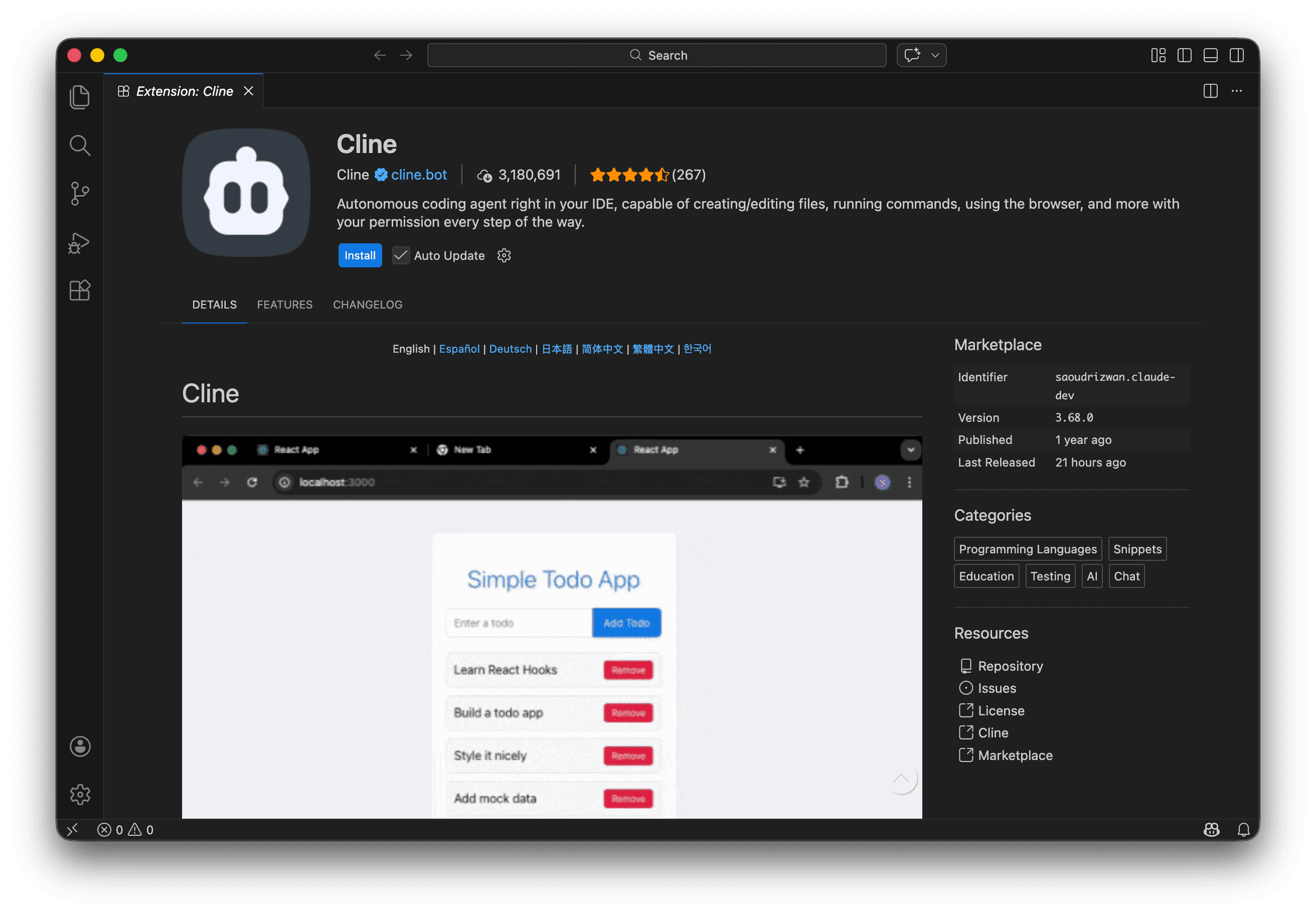
Click the newly added Cline icon in your Activity Bar to open the Cline sidebar. If the Cline icon is not showing in the Activity Bar, click the dropdown to see more options.

Select “Bring my own API key” and press the Continue button.
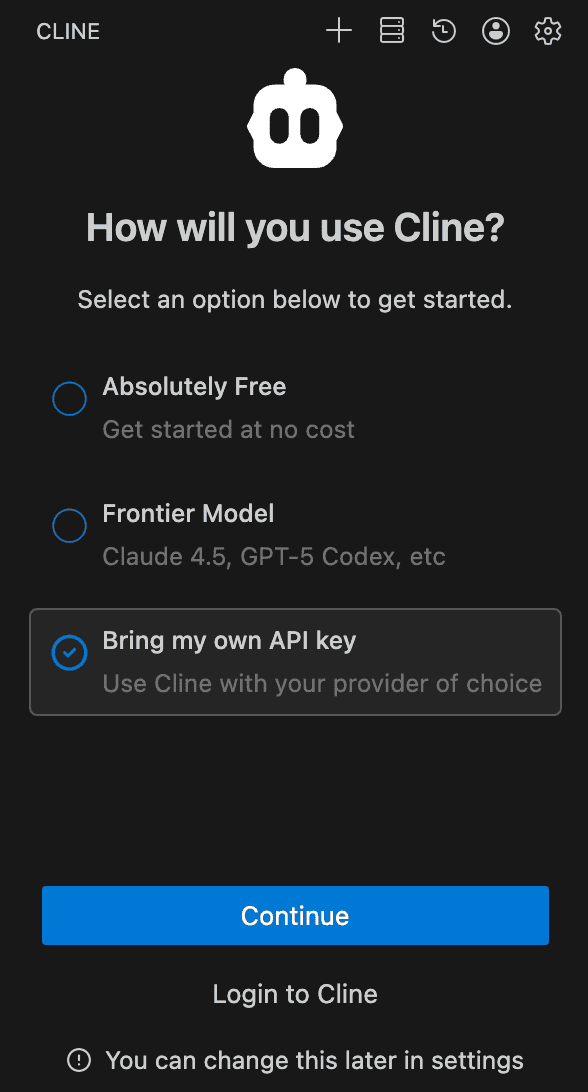
Specify the following values, substituting <your_api_key> with your W&B API key:
| Setting | Value |
|---|---|
| API Provider | OpenAI Compatible |
| Base URL | https://api.inference.wandb.ai/v1 |
| OpenAI Compatible API Key | <your_api_key> |
| Model ID | moonshotai/Kimi-K2.5 |
Pricing can be specified by expanding Model Configuration. For model availability and pricing, see our model catalog.
Click the Continue button.
Try submitting a prompt like “Write a Python program to compute the first 10 Fibonacci Numbers”.
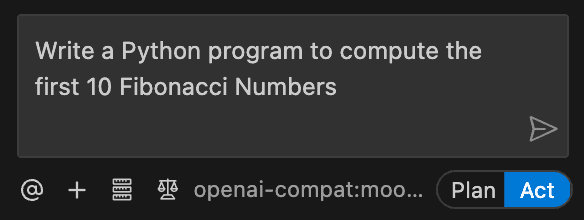
For more information on using Cline, see the Cline Documentation.