UI Guide ↗
noOriginal Documentation
Documentation Index#
Fetch the complete documentation index at: https://docs.wandb.ai/llms.txt Use this file to discover all available pages before exploring further.
Access W&B Inference models through the web interface
Learn how to use the W&B Inference service through the web UI. Before using the UI, complete the prerequisites.
Access the Inference service#
You can access the Inference service from three places:
Direct link#
Go to https://wandb.ai/inference.
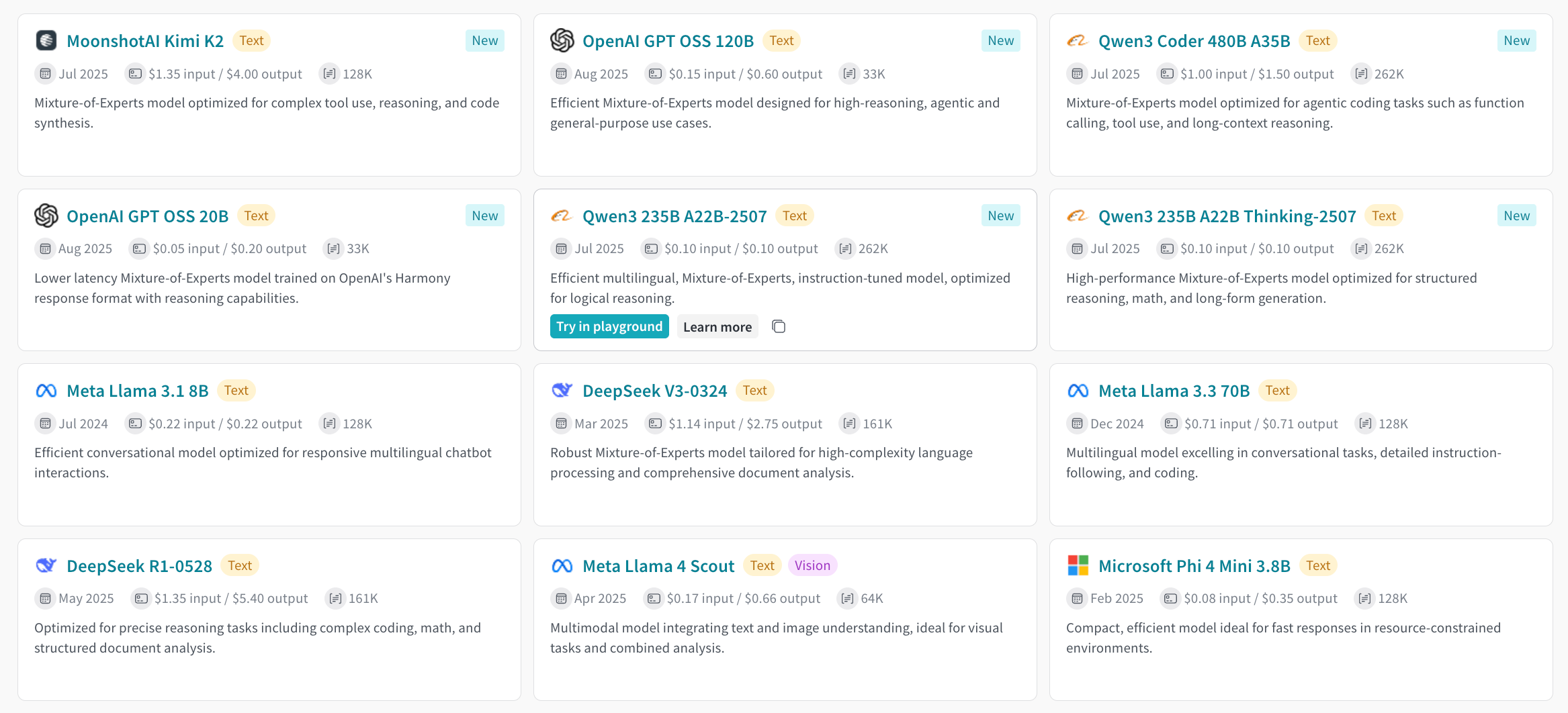
From the Inference tab#
- Go to your W&B account at https://wandb.ai/
- Select Inference from the left sidebar
- A page displays with available models and model information
From the Playground tab#
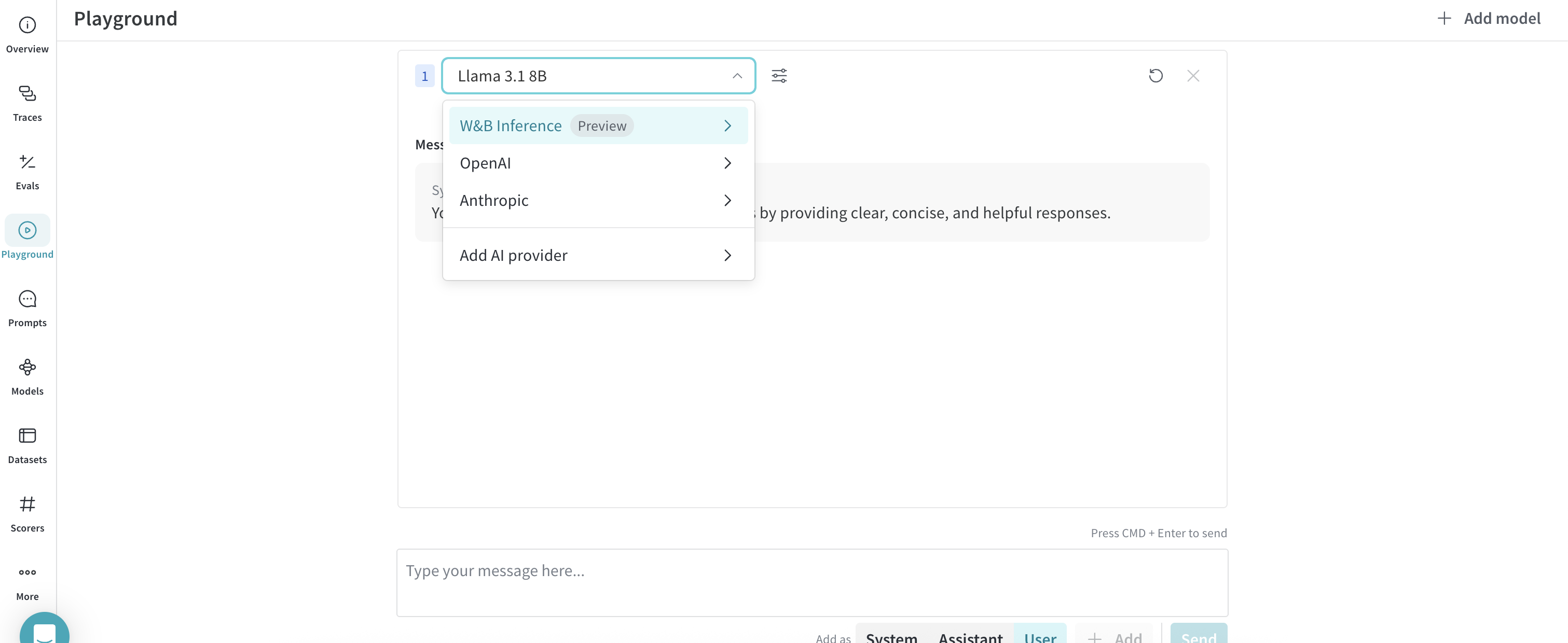
- Select Playground from the left sidebar. The Playground chat UI appears
- Hover over W&B Inference in the LLM dropdown list. A dropdown with available models appears on the right
- From the models dropdown, you can:
- Click any model name to try it in the Playground
- Compare multiple models
Try a model in the Playground#
After selecting a model, you can test it in the Playground. Available actions include:
- Customize model settings and parameters
- Add, retry, edit, and delete messages
- Save and reuse a model with custom settings
- Compare multiple models
Compare multiple models#
You can compare Inference models side by side in the Playground. Access the Compare view from two places:
From the Inference tab#
- Select Inference from the left sidebar. The available models page appears
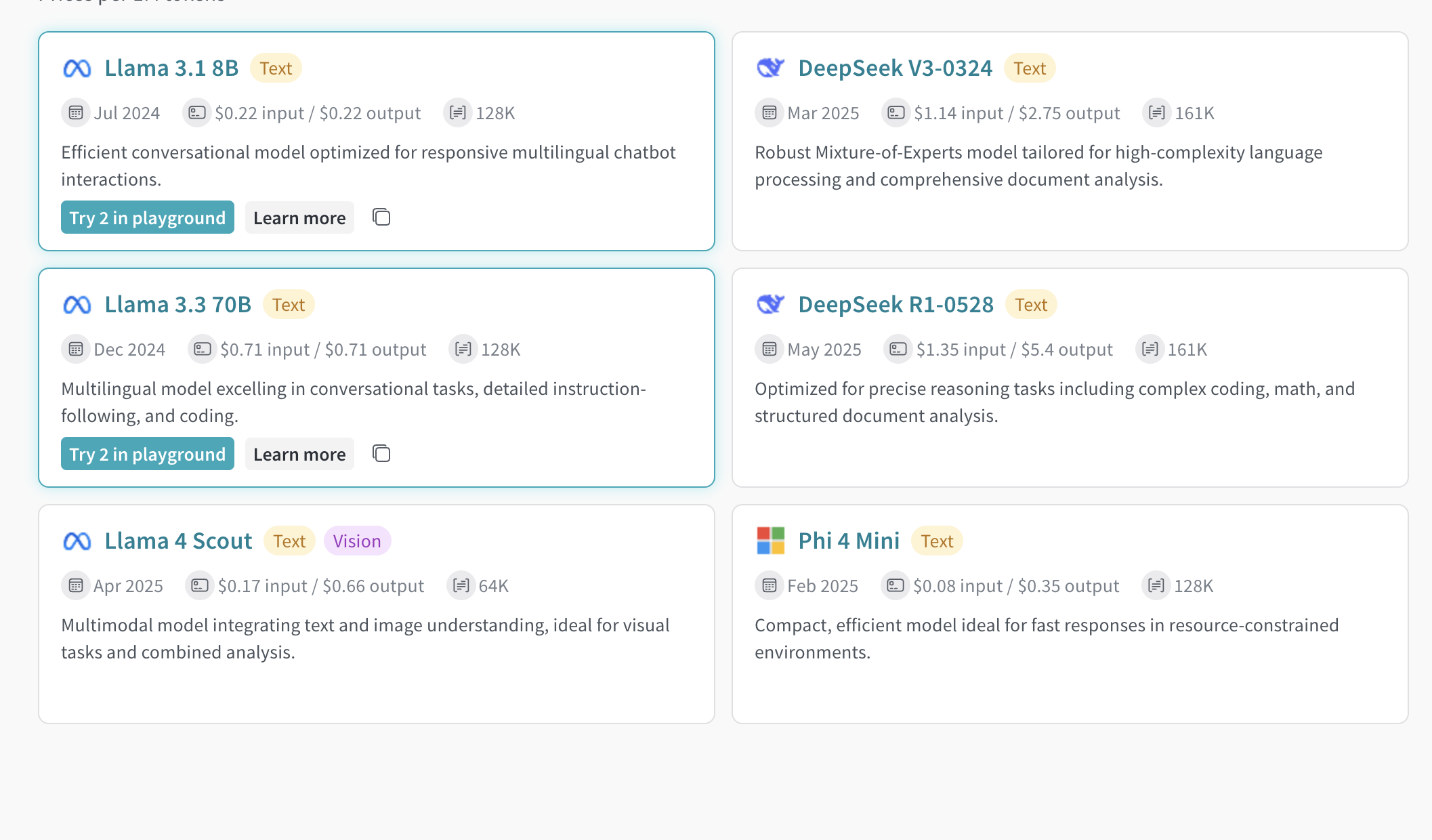
- Click anywhere on a model card (except the model name) to select it. The card border turns blue
- Repeat for each model you want to compare
- Click Compare N models in the Playground on any selected card.
Nshows the number of models selected - The comparison view opens
Now you can compare models and use all features from Try a model in the Playground.
From the Playground tab#
- Select Playground from the left sidebar. The Playground chat UI appears
- Hover over W&B Inference in the LLM dropdown list. The models dropdown appears on the right
- Select Compare from the dropdown. The Inference tab appears
- Click anywhere on a model card (except the model name) to select it. The card border turns blue
- Repeat for each model you want to compare
- Click Compare N models in the Playground on any selected card. The comparison view opens
Now you can compare models and use all features from Try a model in the Playground.
View billing and usage information#
Organization admins can track credit balance, usage history, and upcoming bills from the W&B UI:
- Go to the W&B Billing page in the UI
- Find the Inference billing information card in the bottom right corner
- From here you can:
- Click View usage to see your usage over time
- View upcoming inference charges (for paid plans)
Visit the Inference pricing page for per-model pricing details.
Next steps#
- Review available models to find the best one for your needs
- Try the API for programmatic access
- See usage examples for code samples