Manage artifact data retention ↗
noOriginal Documentation
Documentation Index#
Fetch the complete documentation index at: https://docs.wandb.ai/llms.txt Use this file to discover all available pages before exploring further.
Time to live policies (TTL)
export const ColabLink = ({url}) => Try in Colab ;
Schedule when artifacts are deleted from W&B with a W&B Artifact time-to-live (TTL) policy. When you delete an artifact, W&B marks that artifact as a soft-delete. In other words, the artifact is marked for deletion but files are not immediately deleted from storage. For more information on how W&B deletes artifacts, see the Delete artifacts page.
Watch a Managing data retention with Artifacts TTL video tutorial to learn how to manage data retention with Artifacts TTL in the W&B App.
W&B deactivates the option to set a TTL policy for artifacts linked to the Registry. This is to help ensure that linked artifacts do not accidentally expire if used in production workflows.
- Only team admins can view a team’s settings and access team level TTL settings such as (1) permitting who can set or edit a TTL policy or (2) setting a team default TTL.
- If you do not see the option to set or edit a TTL policy in an artifact’s details in the W&B App UI or if setting a TTL programmatically does not successfully change an artifact’s TTL property, your team admin has not given you permissions to do so.
Auto-generated Artifacts#
Only user-generated artifacts can use TTL policies. Artifacts auto-generated by W&B cannot have TTL policies set for them.
The following Artifact types indicate an auto-generated Artifact:
run_tablecodejob- Any Artifact type starting with:
wandb-*
You can check an Artifact’s type on the W&B platform or programmatically:
import wandb

with wandb.init(project="<my-project-name>") as run:
    artifact = run.use_artifact(artifact_or_name="<my-artifact-name>")
    print(artifact.type)
Replace the values enclosed with <> with your own.
Define who can edit and set TTL policies#
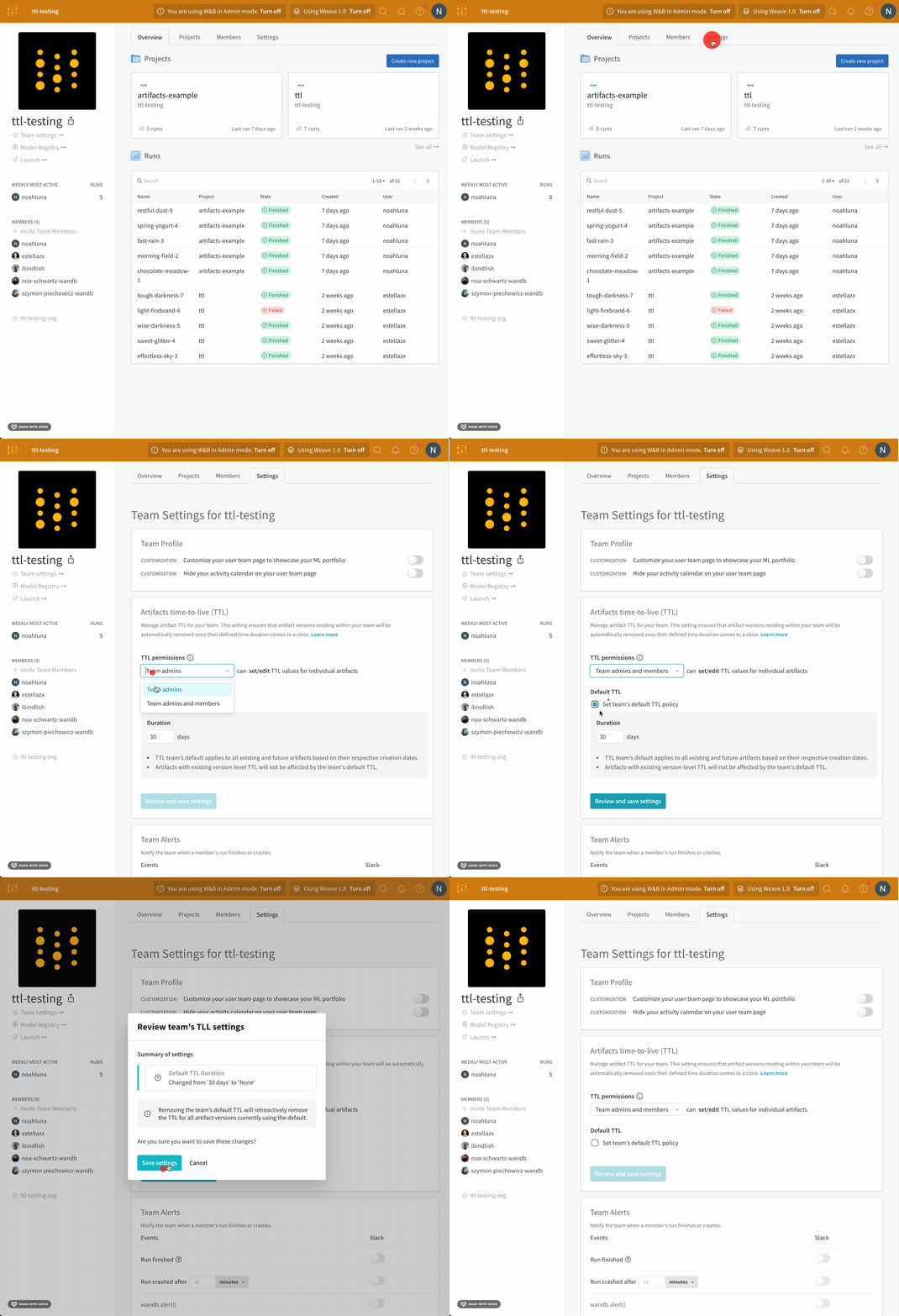
Define who can set and edit TTL policies within a team. You can either grant TTL permissions only to team admins, or you can grant both team admins and team members TTL permissions.
Only team admins can define who can set or edit a TTL policy.
- Navigate to your team’s profile page.
- Select the Settings tab.
- Navigate to the Artifacts time-to-live (TTL) section.
- From the TTL permissions dropdown, select who can set and edit TTL policies.
- Click on Review and save settings.
- Confirm the changes and select Save settings.
Create a TTL policy#
Set a TTL policy for an artifact either when you create the artifact or retroactively after the artifact is created.
For all the code snippets below, replace the content wrapped in <> with your information to use the code snippet.
Set a TTL policy when you create an artifact#
Use the W&B Python SDK to define a TTL policy when you create an artifact. TTL policies are typically defined in days.
Defining a TTL policy when you create an artifact is similar to how you normally create an artifact. With the exception that you pass in a time delta to the artifact’s ttl attribute.
The steps are as follows:
- Create an artifact.
- Add content to the artifact such as files, a directory, or a reference.
- Define a TTL time limit with the
datetime.timedeltadata type that is part of Python’s standard library. - Log the artifact.
The following code snippet demonstrates how to create an artifact and set a TTL policy.
import wandb
from datetime import timedelta

with wandb.init(project="<my-project-name>", entity="<my-entity>") as run:
    artifact = wandb.Artifact(name="<artifact-name>", type="<type>")
    artifact.add_file("<my_file>")

    artifact.ttl = timedelta(days=30)  # Set TTL policy
    run.log_artifact(artifact)
The preceding code snippet sets the TTL policy for the artifact to 30 days. In other words, W&B deletes the artifact after 30 days.
Set or edit a TTL policy after you create an artifact#
Use the W&B App UI or the W&B Python SDK to define a TTL policy for an artifact that already exists.
When you modify an artifact’s TTL, the time the artifact takes to expire is still calculated using the artifact’s createdAt timestamp.
- Fetch your artifact.
- Pass in a time delta to the artifact’s
ttlattribute. - Update the artifact with the
savemethod.
The following code snippet shows how to set a TTL policy for an artifact:
    import wandb
    from datetime import timedelta

    artifact = run.use_artifact("<my-entity/my-project/my-artifact:alias>")
    artifact.ttl = timedelta(days=365 * 2)  # Delete in two years
    artifact.save()
    ```

The preceding code example sets the TTL policy to two years.
  <span class="tab-end"></span>

  <span class="tab-start" data-tab-title="W&B App"></span>
1. Navigate to your W\&B project in the W\&B App UI.
2. Select the artifact icon in the project sidebar.
3. From the list of artifacts, expand the artifact type you
4. Select on the artifact version you want to edit the TTL policy for.
5. Click on the **Version** tab.
6. From the dropdown, select **Edit TTL policy**.
7. Within the modal that appears, select **Custom** from the TTL policy dropdown.
8. Within the **TTL duration** field, set the TTL policy in units of days.
9. Select the **Update TTL** button to save your changes.


  <img src="https://mintcdn.com/wb-21fd5541/wKCrMJZKG3PxyJhv/images/artifacts/edit_ttl_ui.gif?s=122e57ef7a39d1e5704905254187e689" alt="Editing TTL policy" data-og-width="2678" width="2678" data-og-height="2072" height="2072" data-path="images/artifacts/edit_ttl_ui.gif" data-optimize="true" data-opv="3" />

  <span class="tab-end"></span>
<span class="tab-group-end"></span>

### Set default TTL policies for a team

<span class="callout-start" data-callout-type="note"></span>
  Only team admins can set a default TTL policy for a team.
<span class="callout-end"></span>

Set a default TTL policy for your team. Default TTL policies apply to all existing and future artifacts based on their respective creation dates. Artifacts with existing version-level TTL policies are not affected by the team's default TTL.

1. Navigate to your team’s profile page.
2. Select the **Settings** tab.
3. Navigate to the **Artifacts time-to-live (TTL) section**.
4. Click on the **Set team's default TTL policy**.
5. Within the **Duration** field, set the TTL policy in units of days.
6. Click on **Review and save settings**.
   7/ Confirm the changes and then select **Save settings**.


  <img src="https://mintcdn.com/wb-21fd5541/wKCrMJZKG3PxyJhv/images/artifacts/set_default_ttl.gif?s=768028aad37ace11f6175f4f709163ff" alt="Setting default TTL policy" data-og-width="2326" width="2326" data-og-height="2254" height="2254" data-path="images/artifacts/set_default_ttl.gif" data-optimize="true" data-opv="3" />


### Set a TTL policy outside of a run

Use the public API to retrieve an artifact without fetching a run, and set the TTL policy. TTL policies are typically defined in days.

The following code sample shows how to fetch an artifact using the public API and set the TTL policy.

```python
api = wandb.Api()

artifact = api.artifact("entity/project/artifact:alias")

artifact.ttl = timedelta(days=365)  # Delete in one year

artifact.save()
Deactivate a TTL policy#
Use the W&B Python SDK or W&B App UI to deactivate a TTL policy for a specific artifact version.
- Fetch your artifact.
- Set the artifact’s
ttlattribute toNone. - Update the artifact with the
savemethod.
The following code snippet shows how to turn off a TTL policy for an artifact:
    artifact = run.use_artifact("<my-entity/my-project/my-artifact:alias>")
    artifact.ttl = None
    artifact.save()
    ```
  <span class="tab-end"></span>

  <span class="tab-start" data-tab-title="W&B App"></span>
1. Navigate to your W\&B project in the W\&B App UI.
2. Select the artifact icon in the project sidebar.
3. From the list of artifacts, expand the artifact type you
4. Select on the artifact version you want to edit the TTL policy for.
5. Click on the Version tab.
6. Click on the meatball UI icon next to the **Link to registry** button.
7. From the dropdown, select **Edit TTL policy**.
8. Within the modal that appears, select **Deactivate** from the TTL policy dropdown.
9. Select the **Update TTL** button to save your changes.


  <img src="https://mintcdn.com/wb-21fd5541/wKCrMJZKG3PxyJhv/images/artifacts/remove_ttl_polilcy.gif?s=ba302facbabcece978e6ad2be7466d32" alt="Removing TTL policy" data-og-width="2678" width="2678" data-og-height="1892" height="1892" data-path="images/artifacts/remove_ttl_polilcy.gif" data-optimize="true" data-opv="3" />

  <span class="tab-end"></span>
<span class="tab-group-end"></span>

## View TTL policies

View TTL policies for artifacts with the Python SDK or with the W\&B App UI.

<span class="tab-group-start"></span>
  <span class="tab-start" data-tab-title="Python SDK"></span>
Use a print statement to view an artifact's TTL policy. The following example shows how to retrieve an artifact and view its TTL policy:

```python
    artifact = run.use_artifact("<my-entity/my-project/my-artifact:alias>")
    print(artifact.ttl)
    ```
  <span class="tab-end"></span>

  <span class="tab-start" data-tab-title="W&B App"></span>
View a TTL policy for an artifact with the W\&B App UI.

1. Navigate to the [W\&B App](https://wandb.ai).
2. Go to your W\&B Project.
3. Within your project, select the Artifacts tab in the project sidebar.
4. Click on a collection.

Within the collection view you can see all of the artifacts in the selected collection. Within the `Time to Live` column you will see the TTL policy assigned to that artifact.


  <img src="https://mintcdn.com/wb-21fd5541/wKCrMJZKG3PxyJhv/images/artifacts/ttl_collection_panel_ui.png?fit=max&auto=format&n=wKCrMJZKG3PxyJhv&q=85&s=f272a57be017a5aaa53fefc0cb04acda" alt="TTL collection view" data-og-width="1610" width="1610" data-og-height="831" height="831" data-path="images/artifacts/ttl_collection_panel_ui.png" data-optimize="true" data-opv="3" srcset="https://mintcdn.com/wb-21fd5541/wKCrMJZKG3PxyJhv/images/artifacts/ttl_collection_panel_ui.png?w=280&fit=max&auto=format&n=wKCrMJZKG3PxyJhv&q=85&s=edc850ab0bafbdcb4def1ec178f10981 280w, https://mintcdn.com/wb-21fd5541/wKCrMJZKG3PxyJhv/images/artifacts/ttl_collection_panel_ui.png?w=560&fit=max&auto=format&n=wKCrMJZKG3PxyJhv&q=85&s=dcec668b9d63fd960191280a93f536c3 560w, https://mintcdn.com/wb-21fd5541/wKCrMJZKG3PxyJhv/images/artifacts/ttl_collection_panel_ui.png?w=840&fit=max&auto=format&n=wKCrMJZKG3PxyJhv&q=85&s=547a67262b896bc5a92eb677b079d5b9 840w, https://mintcdn.com/wb-21fd5541/wKCrMJZKG3PxyJhv/images/artifacts/ttl_collection_panel_ui.png?w=1100&fit=max&auto=format&n=wKCrMJZKG3PxyJhv&q=85&s=c6ed6b5d365d1f600dd164141edddebc 1100w, https://mintcdn.com/wb-21fd5541/wKCrMJZKG3PxyJhv/images/artifacts/ttl_collection_panel_ui.png?w=1650&fit=max&auto=format&n=wKCrMJZKG3PxyJhv&q=85&s=cad2f109b2fb40f8882bde4320b9ec99 1650w, https://mintcdn.com/wb-21fd5541/wKCrMJZKG3PxyJhv/images/artifacts/ttl_collection_panel_ui.png?w=2500&fit=max&auto=format&n=wKCrMJZKG3PxyJhv&q=85&s=2525fe0daeba5e1a47f0faa09235efe4 2500w" />

  <span class="tab-end"></span>
<span class="tab-group-end"></span>