PyTorch Geometric ↗
noOriginal Documentation
Documentation Index#
Fetch the complete documentation index at: https://docs.wandb.ai/llms.txt Use this file to discover all available pages before exploring further.
PyTorch Geometric or PyG is one of the most popular libraries for geometric deep learning and W&B works extremely well with it for visualizing graphs and tracking experiments.
After you have installed Pytorch Geometric, follow these steps to get started.
Sign up and create an API key#
An API key authenticates your machine to W&B. You can generate an API key from your user profile.
For a more streamlined approach, create an API key by going directly to User Settings. Copy the newly created API key immediately and save it in a secure location such as a password manager.
- Click your user profile icon in the upper right corner.
- Select User Settings, then scroll to the API Keys section.
Install the wandb library and log in#
To install the wandb library locally and log in:
Set the
WANDB_API_KEYenvironment variable to your API key.export WANDB_API_KEY=<your_api_key> ```Install the
wandblibrary and log in.pip install wandb wandb login ```
    pip install wandb
    ```

```python
    import wandb
    wandb.login()
    ```
  <span class="tab-end"></span>

  <span class="tab-start" data-tab-title="Python notebook"></span>
```notebook
    !pip install wandb

    import wandb
    wandb.login()
    ```
  <span class="tab-end"></span>
<span class="tab-group-end"></span>

## Visualize the graphs

You can save details about the input graphs including number of edges, number of nodes and more. W\&B supports logging plotly charts and HTML panels so any visualizations you create for your graph can then also be logged to W\&B.

### Use PyVis

The following snippet shows how you could do that with PyVis and HTML.

```python
from pyvis.network import Network
import wandb

with wandb.init(project=’graph_vis’) as run:
    net = Network(height="750px", width="100%", bgcolor="#222222", font_color="white")

    # Add the edges from the PyG graph to the PyVis network
    for e in tqdm(g.edge_index.T):
        src = e[0].item()
        dst = e[1].item()

        net.add_node(dst)
        net.add_node(src)

        net.add_edge(src, dst, value=0.1)

    # Save the PyVis visualisation to a HTML file
    net.show("graph.html")
    run.log({"eda/graph": wandb.Html("graph.html")})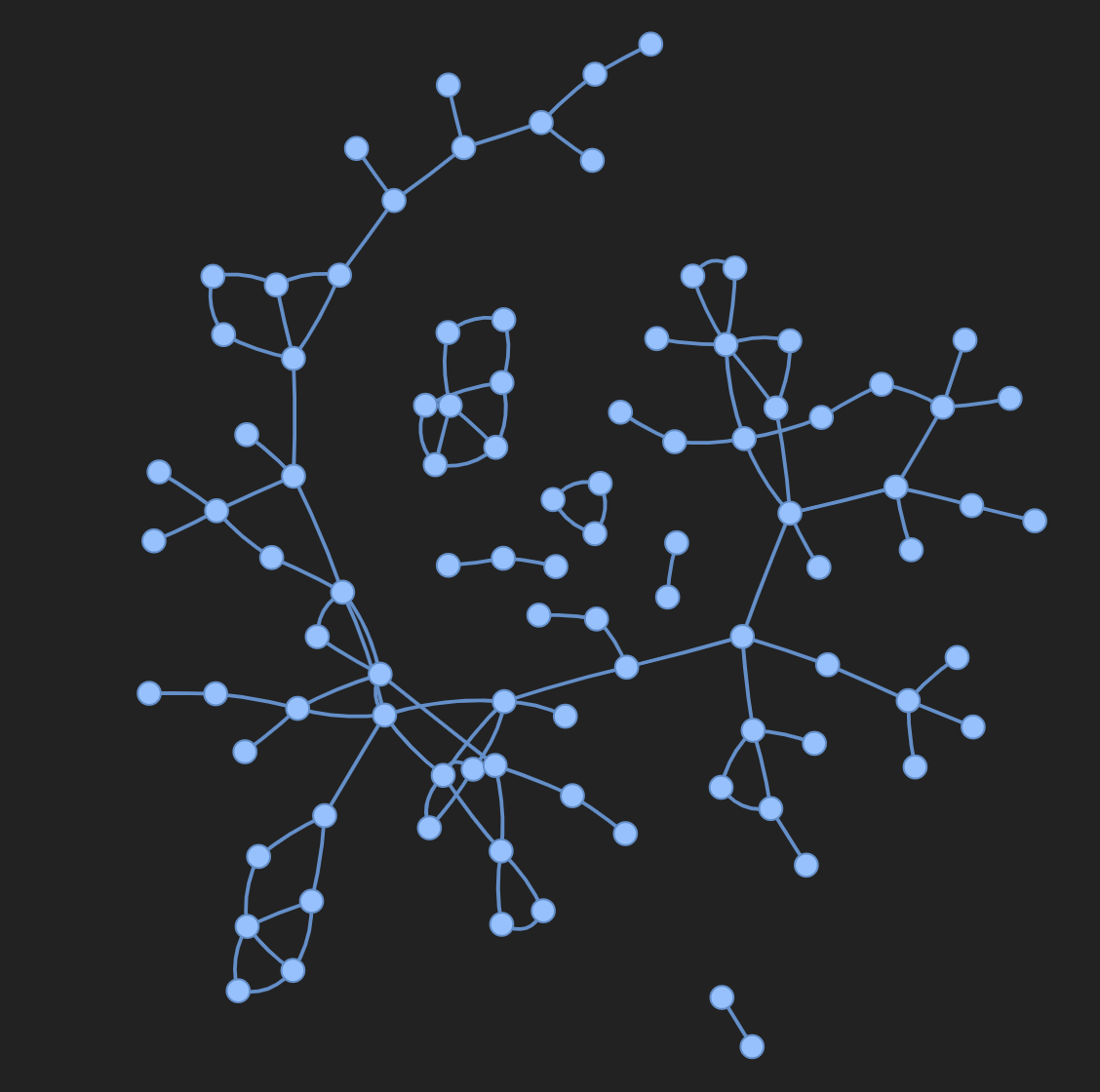
Use Plotly#
To use plotly to create a graph visualization, first you need to convert the PyG graph to a networkx object. Following this you will need to create Plotly scatter plots for both nodes and edges. The snippet below can be used for this task.
def create_vis(graph):
    G = to_networkx(graph)
    pos = nx.spring_layout(G)

    edge_x = []
    edge_y = []
    for edge in G.edges():
        x0, y0 = pos[edge[0]]
        x1, y1 = pos[edge[1]]
        edge_x.append(x0)
        edge_x.append(x1)
        edge_x.append(None)
        edge_y.append(y0)
        edge_y.append(y1)
        edge_y.append(None)

    edge_trace = go.Scatter(
        x=edge_x, y=edge_y,
        line=dict(width=0.5, color='#888'),
        hoverinfo='none',
        mode='lines'
    )

    node_x = []
    node_y = []
    for node in G.nodes():
        x, y = pos[node]
        node_x.append(x)
        node_y.append(y)

    node_trace = go.Scatter(
        x=node_x, y=node_y,
        mode='markers',
        hoverinfo='text',
        line_width=2
    )

    fig = go.Figure(data=[edge_trace, node_trace], layout=go.Layout())

    return fig


with wandb.init(project=’visualize_graph’) as run:
    run.log({‘graph’: wandb.Plotly(create_vis(graph))})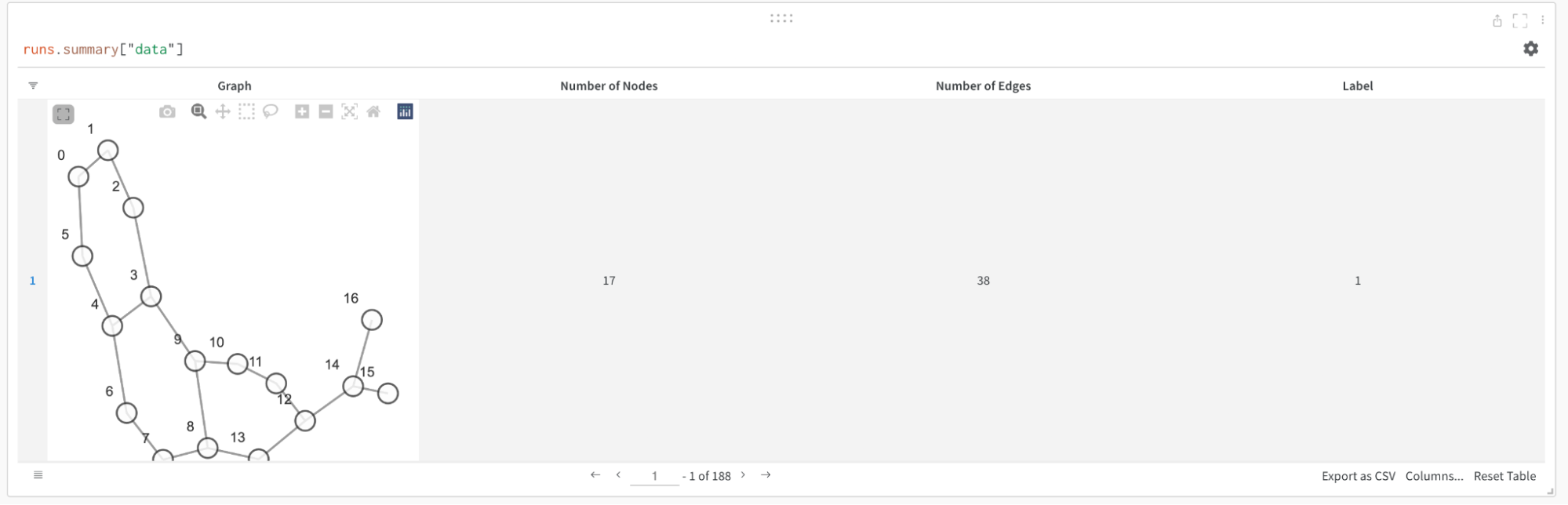
Log metrics#
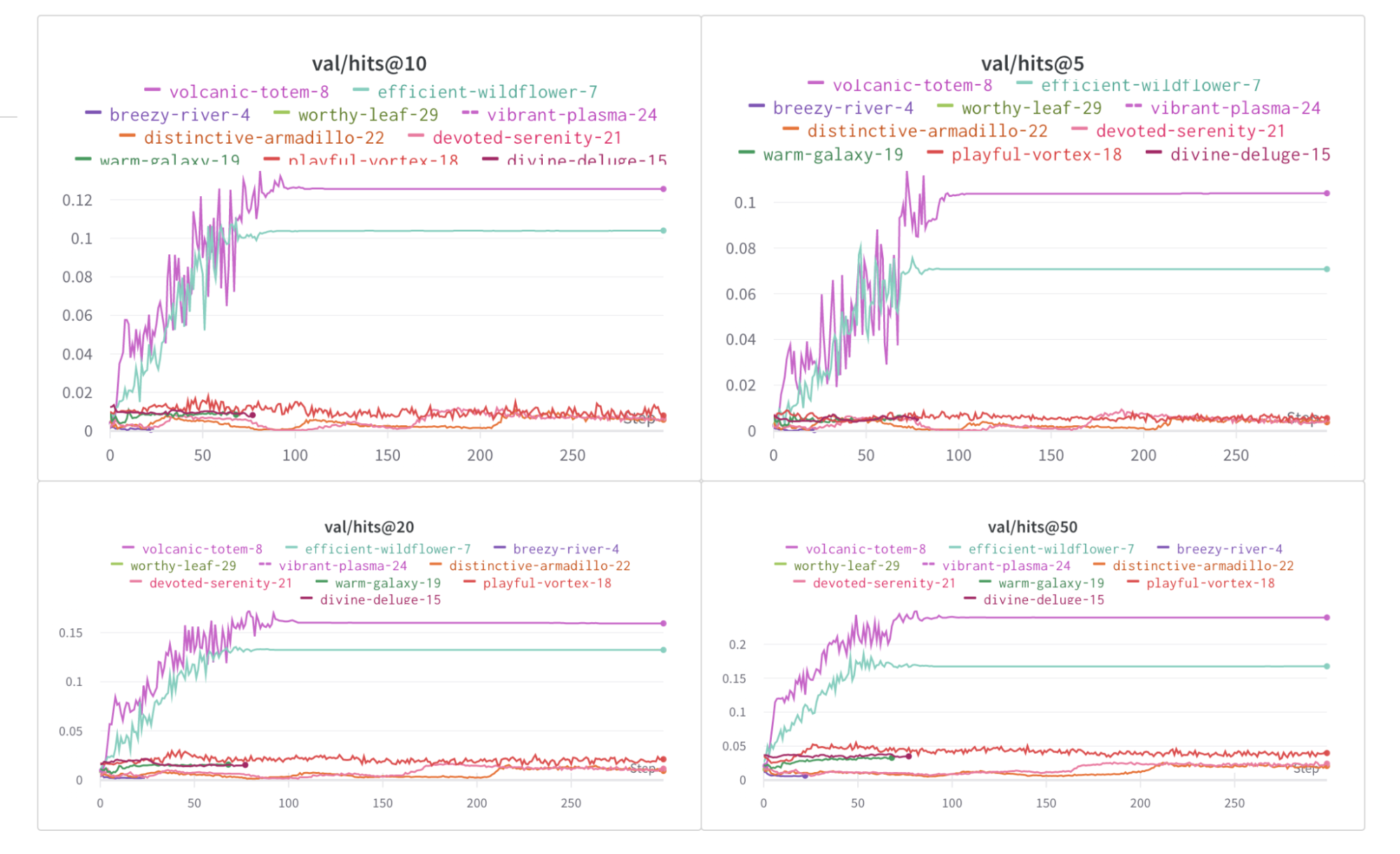
You can use W&B to track your experiments and related metrics, such as loss functions, accuracy, and more. Add the following line to your training loop:
with wandb.init(project="my_project", entity="my_entity") as run:
    run.log({
        'train/loss': training_loss,
        'train/acc': training_acc,
        'val/loss': validation_loss,
        'val/acc': validation_acc
        })