Lineage graphs and audit history ↗
noOriginal Documentation
Documentation Index#
Fetch the complete documentation index at: https://docs.wandb.ai/llms.txt Use this file to discover all available pages before exploring further.
Use lineage graphs to visualize a linked artifact’s history and audit a collection’s history.
Use a lineage graph to visualize a linked artifact’s history. Audit a collection’s history to track changes made to artifacts in that collection.
Lineage graphs#
Within a collection in the W&B Registry, you can view a history of the artifacts that an ML experiment uses. This history is called a lineage graph.
A lineage graph shows:
- Artifacts used as inputs to a run.
- Artifacts created as outputs from a run.
In other words, a lineage graph shows the input and output of a run.
For example, the following image shows a typical lineage graph for artifacts created and used throughout an ML experiment:
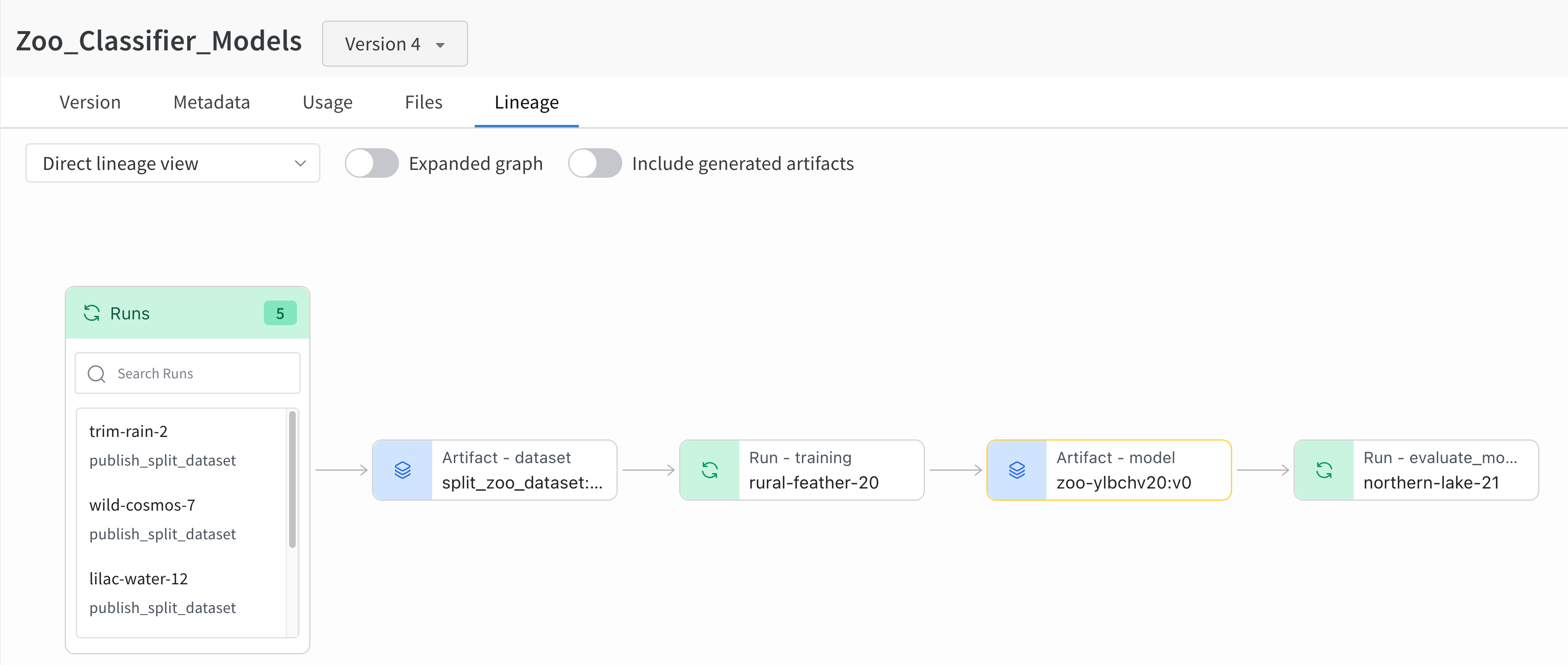
From left to right, the image shows:
- Multiple runs log the
split_zoo_dataset:v4artifact. - The “rural-feather-20” run uses the
split_zoo_dataset:v4artifact for training. - The output of the “rural-feather-20” run is a model artifact called
zoo-ylbchv20:v0. - A run called “northern-lake-21” uses the model artifact
zoo-ylbchv20:v0to evaluate the model.
To view a lineage graph for an artifact in a collection:
- Navigate to the W&B Registry.
- Select the collection that contains the artifact.
- From the dropdown, select the artifact version you want to view its lineage graph.
- Select the Lineage tab.
- Select a node to view detailed information about the run or artifact.
See Enable lineage graph tracking to learn how to track the input and output of a run using the W&B Python SDK.
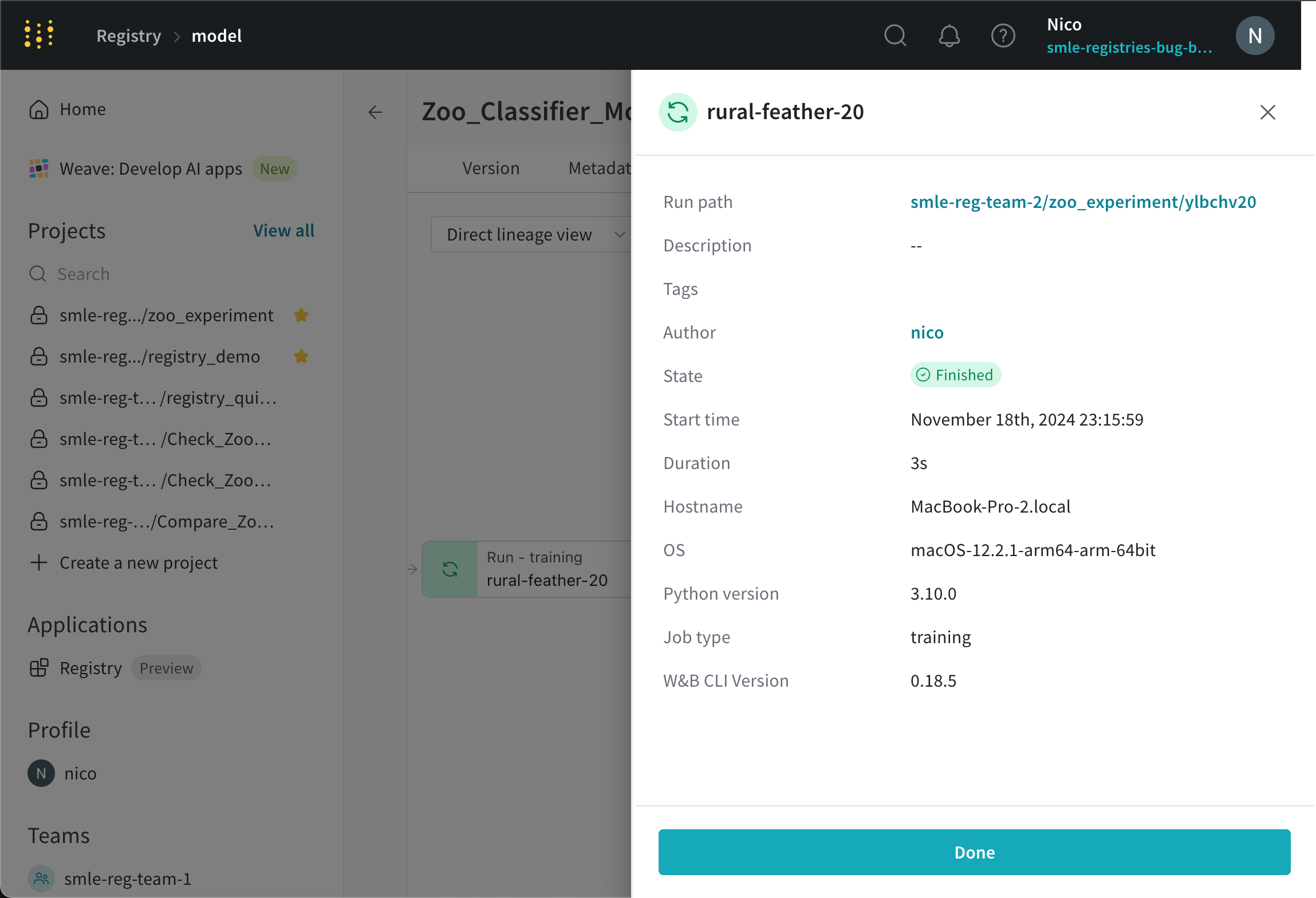
The following image shows the expanded detailed view of a run (rural-feather-20) when you select a node in the lineage graph:
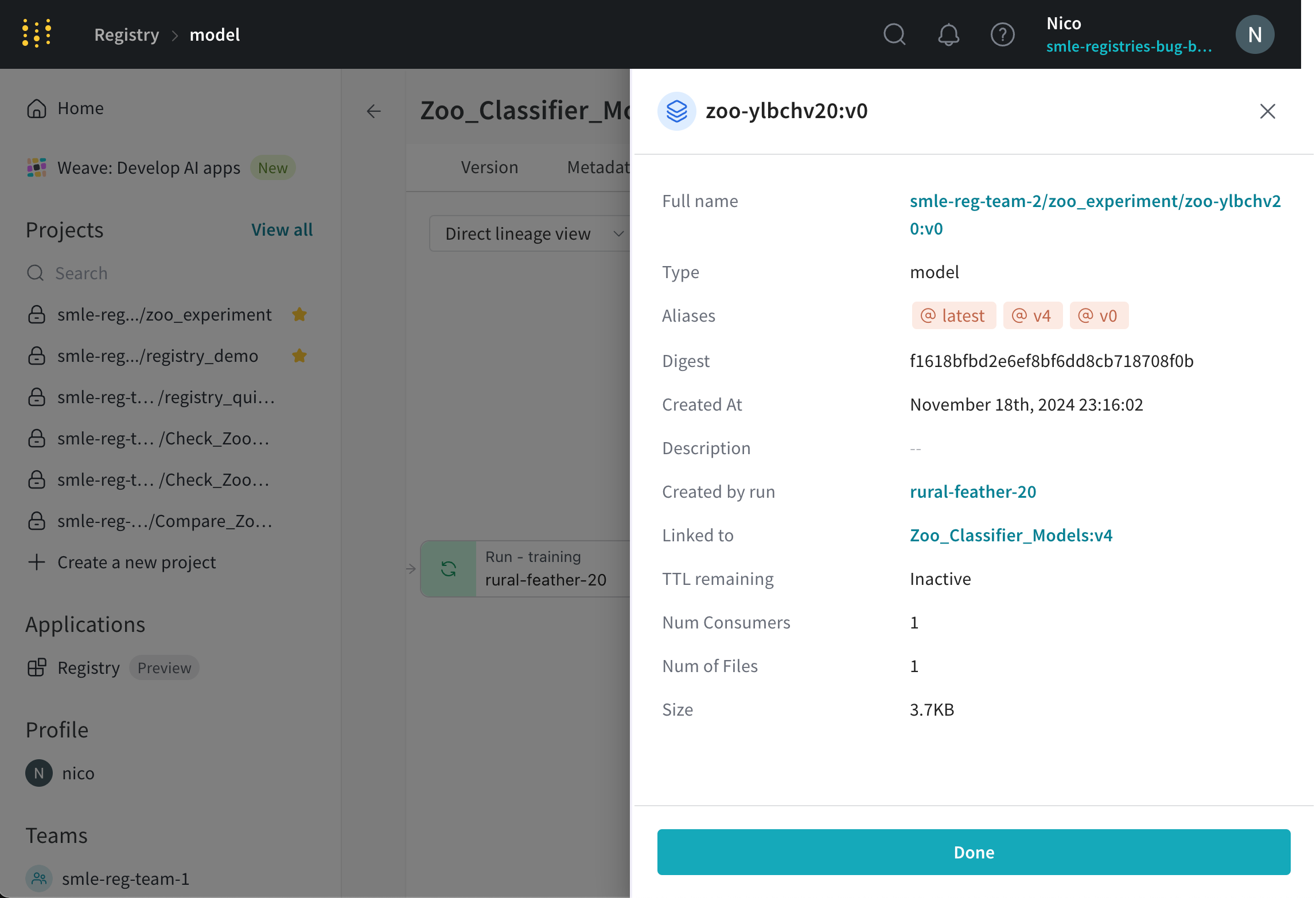
The following image shows the expanded detailed view of an artifact (zoo-ylbchv20:v0) when you select an artifact node in the lineage graph:
You can also view lineage graphs for artifacts you log to W&B that are not part of a collection. See Explore artifact graphs for more information.
Audit a collection’s history#
View actions that members of your organization take on that collection. You can view:
- If an alias was added or removed from an artifact version.
- If an artifact version was added or removed from a collection.
For both actions, you can view the user that performed the action and the date the action occurred.
To view a collection’s action history:
- Navigate to the W&B Registry.
- Select the collection you want to view its action history.
- Select the dropdown menu next to the collection name.
- Select the Action History option.