Find and customize a run's ID or name ↗
noOriginal Documentation
Documentation Index#
Fetch the complete documentation index at: https://docs.wandb.ai/llms.txt Use this file to discover all available pages before exploring further.
Learn how to find a run’s unique identifier and run name, how to create a custom run ID, and how to customize a run’s name.
When you initialize a W&B Run, W&B assigns that run a unique identifier known as a run ID. Each run also has a human-readable non-unique run name that you can customize.
Run ID#
A run’s ID uniquely identifies the run. By default, W&B generates a random and unique run ID automatically when you initialize a new run, unless you specify your own unique run ID when you initialize the run.
Find a run’s ID#
Find a run’s unique ID programmatically with the W&B Python SDK or interactively in the W&B App.
When you initialize a run, W&B returns the unique run ID in the terminal. For example, consider the following code snippet that initializes a W&B run:
    import wandb
    entity = "nico"  # Replace with your W&B entity
    project = "awesome-project"
    with wandb.init(entity=entity, project=project) as run:
        # Your code here
    ```

Within the terminal, W\&B returns:

```bash
    wandb: Syncing run earnest-sunset-1
    wandb: ⭐️ View project at https://wandb.ai/nico/awesome-project
    wandb: 🚀 View run at https://wandb.ai/nico/awesome-project/runs/1jx1ud12
    ```

The last part of the run URL (`1jx1ud12`) is the unique run ID.
  <span class="tab-end"></span>

  <span class="tab-start" data-tab-title="W&B App"></span>
You can also find a run's unique ID in the W\&B App:

1. Navigate to the [W\&B App](https://wandb.ai/home).
2. Navigate to the W\&B project you specified when you initialized the run.
3. Within your project's workspace, select either the  **Workspace** or **Runs** tab.
4. Select the run you want to view.
5. Choose the **Overview** tab.

W\&B displays the run ID in the **Run path** field. The run path consists of the name of your team, the name of the project, and the run ID. The unique ID is the last part of the run path.

For example, in the following image, the unique run ID is `9mxi1arc`:


  <img src="https://mintcdn.com/wb-21fd5541/LD8pTCCVb674rgbV/images/runs/unique-run-id.png?fit=max&auto=format&n=LD8pTCCVb674rgbV&q=85&s=6795a7f1738b5075cbd36717f03aacbe" alt="Run ID location" data-og-width="2048" width="2048" data-og-height="1958" height="1958" data-path="images/runs/unique-run-id.png" data-optimize="true" data-opv="3" srcset="https://mintcdn.com/wb-21fd5541/LD8pTCCVb674rgbV/images/runs/unique-run-id.png?w=280&fit=max&auto=format&n=LD8pTCCVb674rgbV&q=85&s=c995d92eeed034fe122682dee06718ba 280w, https://mintcdn.com/wb-21fd5541/LD8pTCCVb674rgbV/images/runs/unique-run-id.png?w=560&fit=max&auto=format&n=LD8pTCCVb674rgbV&q=85&s=e257c873d1770f9be3d7a299f336a98e 560w, https://mintcdn.com/wb-21fd5541/LD8pTCCVb674rgbV/images/runs/unique-run-id.png?w=840&fit=max&auto=format&n=LD8pTCCVb674rgbV&q=85&s=b37b19962af202e21f8ca61f133d4384 840w, https://mintcdn.com/wb-21fd5541/LD8pTCCVb674rgbV/images/runs/unique-run-id.png?w=1100&fit=max&auto=format&n=LD8pTCCVb674rgbV&q=85&s=0795f863c65f7343654431bbdc159198 1100w, https://mintcdn.com/wb-21fd5541/LD8pTCCVb674rgbV/images/runs/unique-run-id.png?w=1650&fit=max&auto=format&n=LD8pTCCVb674rgbV&q=85&s=5c714e2dd08e485f4771a2929e5bebdc 1650w, https://mintcdn.com/wb-21fd5541/LD8pTCCVb674rgbV/images/runs/unique-run-id.png?w=2500&fit=max&auto=format&n=LD8pTCCVb674rgbV&q=85&s=06076f9e398cb4b4e3ad0d09c443b90a 2500w" />

  <span class="tab-end"></span>
<span class="tab-group-end"></span>

<span class="callout-start" data-callout-type="tip"></span>
  Use a run's unique ID to directly navigate to that run's overview page in the W\&B App. The following code block shows the format of a URL path for a run:

  ```text
  https://wandb.ai/<entity>/<project>/<run-id>
Replace values enclosed in angle brackets (< >) with the actual values of the entity, project, and run ID.
Create a custom run ID#
Pass your desired run ID as a string to the id paramater when you initialize a run:
import wandb

with wandb.init(entity="<project>", project="<project>", id="<run-id>") as run:
    # Your code here
Run name#
Each run has a human-readable, non-unique run name. By default, W&B generates a random run name when you initialize a new run if you do not specify a run name for it. The name of a run appears within your project’s workspace and at the top of the run’s Overview page.
Continuing from the previous example, the name of the run is glowing-shadows-8.
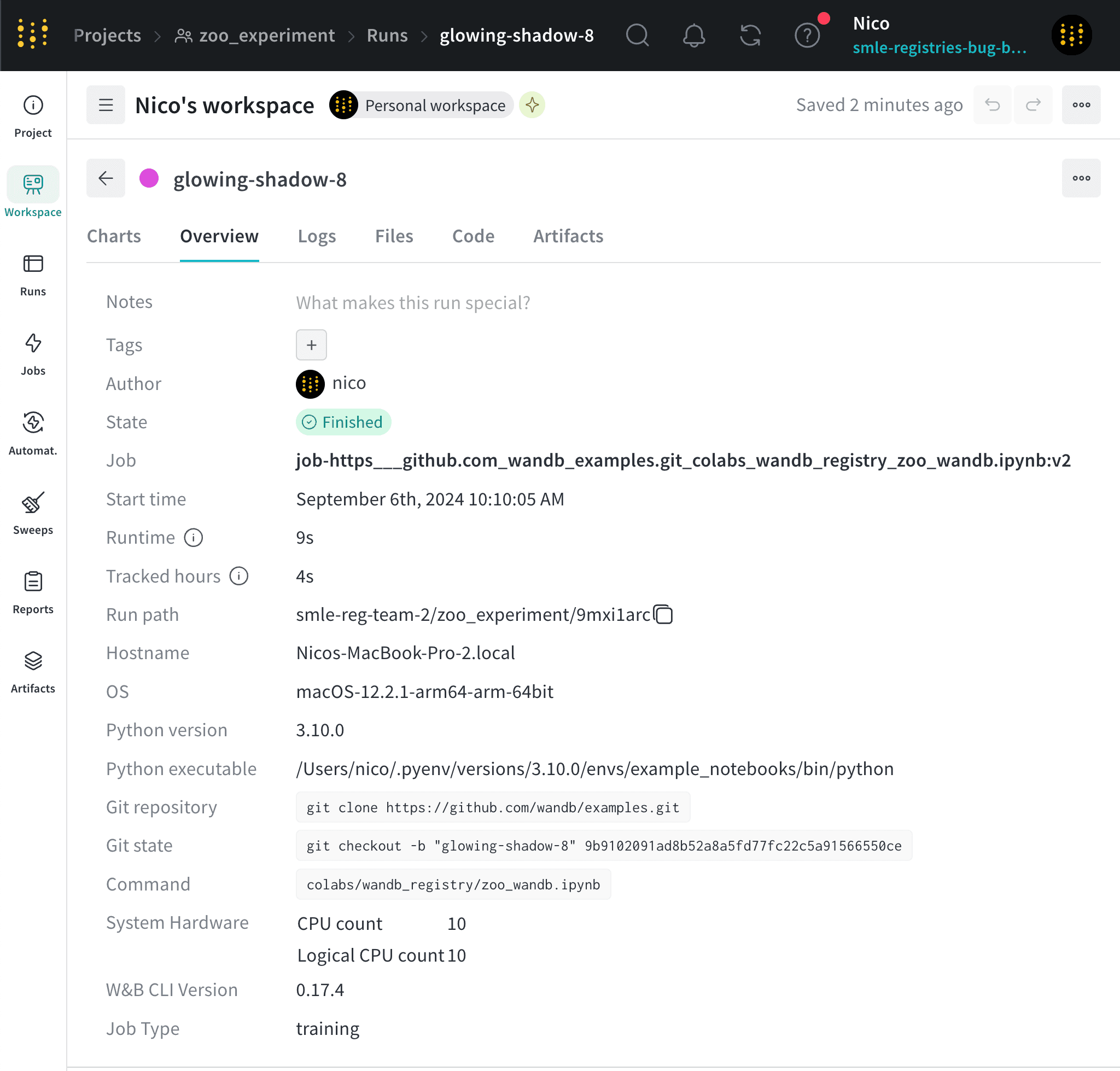
You can name your run when you initialize it or rename it at a later time.
Create a custom run name#
Specify a name for your run by passing the name parameter to the wandb.init() method.
import wandb

with wandb.init(entity="<project>", project="<project>", name="<run-name>") as run:
    # Your code here
Rename a run#
Rename a run after initializing it programmatically with the Python SDK or interactively in the W&B App.
Use wandb.Api.Run to access a run logged to W&B. This method returns a run object that you can use to update the run name. Call wandb.Api.Run.update() method to persist changes.
Replace the values enclosed in angle brackets (< >) with your own values.
    import wandb

    api = wandb.Api()

    # Access run by its path
    run = api.run(path = "<entity>/<project>/<run-id>")

    # Specify a new run name
    run.name = "<new-run-name>"
    run.update()
    ```
  <span class="tab-end"></span>

  <span class="tab-start" data-tab-title="W&B App"></span>
1. Navigate to your W\&B project.
2. Select the **Workspace** or **Runs** tab.
3. Search or scroll to the run you want to rename.
4. Hover over the run name, click the three vertical dots, then click **Rename run**.
5. To change the run name, update the **Run name** field.
6. Click **Save**.
  <span class="tab-end"></span>
<span class="tab-group-end"></span>

## Run display name

Each run also has a *run display name* that you can customize for each workspace.

<span class="callout-start" data-callout-type="note"></span>
  If you change a run's display name in one workspace, the display name changes only for that workspace, not in other workspaces or projects.
<span class="callout-end"></span>

The display name defaults to the same value as the run name. The display name appears in the run's workspace and runs table.

Use the run display name to override the run name displayed in that workspace without renaming the run in the project.

### Rename a run's display name

Change a run's display name from the W\&B App:

1. Navigate to your W\&B project.
2. Select the **Workspace** or **Runs** tab.
3. Search or scroll to the run you want to rename.
4. Hover over the run name, click the three vertical dots, then click **Rename run**.
5. Specify a new value for the **Display name** field.
6. Click **Save**.

## Customize run name truncation

By default, long run names are truncated in the middle for readability. To customize the truncation of run names:

1. Click the action `...` menu at the top of the list of runs.
2. Set **Run name cropping** to crop the end, middle, or beginning.

{/*
  <span class="tab-group-start"></span>
  <span class="tab-start" data-tab-title="Workspace"></span>

  <span class="tab-end"></span>
  <span class="tab-start" data-tab-title="Report"></span>
  To rename a run from a run set in a [report](/models/reports/edit-a-report/):

  1. Click the pencil icon to open the report editor.
  1. In the run set, find the run to rename. Hover over the report name, click the three vertical dots, then click **Edit run name**.
  1. To change the run name, update the **Run name** field. To customize the run display name in this workspace, update the **Display name** field.
  1. Click **Save**.
  1. Click **Publish report**.

  A customized run display name displays in italic font, and an information icon appears next to a customized run display name. Hover over the icon for details.
  <span class="tab-end"></span>
  <span class="tab-group-end"></span> */}