Log media and objects ↗
noOriginal Documentation
Documentation Index#
Fetch the complete documentation index at: https://docs.wandb.ai/llms.txt Use this file to discover all available pages before exploring further.
Log rich media, from 3D point clouds and molecules to HTML and histograms
export const ColabLink = ({url}) => Try in Colab ;
We support images, video, audio, and more. Log rich media to explore your results and visually compare your runs, models, and datasets. Read on for examples and how-to guides.
For details, see the Data types reference.
For more details, check out a demo report about visualize model predictions or watch a video walkthrough.
Pre-requisites#
In order to log media objects with the W&B SDK, you may need to install additional dependencies. You can install these dependencies by running the following command:
pip install wandb[media]Images#
Log images to track inputs, outputs, filter weights, activations, and more.
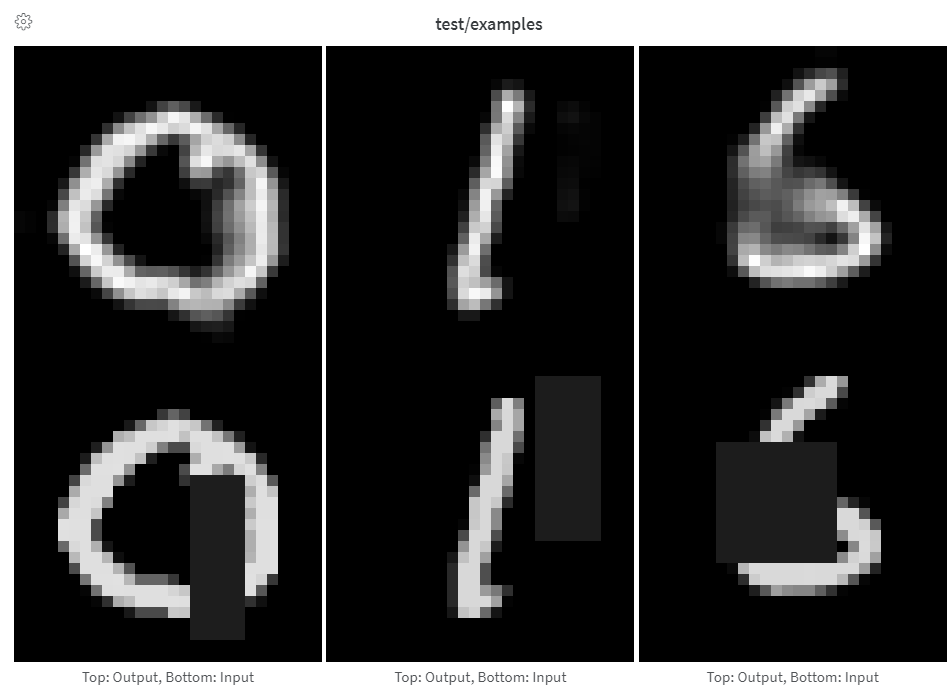
Images can be logged directly from NumPy arrays, as PIL images, or from the filesystem.
Each time you log images from a step, we save them to show in the UI. Expand the image panel, and use the step slider to look at images from different steps. This makes it easy to compare how a model’s output changes during training.
It’s recommended to log fewer than 50 images per step to prevent logging from becoming a bottleneck during training and image loading from becoming a bottleneck when viewing results.
Provide arrays directly when constructing images manually, such as by using make_grid from torchvision.
Arrays are converted to png using Pillow.
    import wandb

    with wandb.init(project="image-log-example") as run:

        images = wandb.Image(image_array, caption="Top: Output, Bottom: Input")

        run.log({"examples": images})
    ```

We assume the image is gray scale if the last dimension is 1, RGB if it's 3, and RGBA if it's 4. If the array contains floats, we convert them to integers between `0` and `255`. If you want to normalize your images differently, you can specify the [`mode`](https://pillow.readthedocs.io/en/stable/handbook/concepts.html#modes) manually or just supply a [`PIL.Image`](https://pillow.readthedocs.io/en/stable/reference/Image.html), as described in the "Logging PIL Images" tab of this panel.
  <span class="tab-end"></span>

  <span class="tab-start" data-tab-title="Logging PIL Images"></span>
For full control over the conversion of arrays to images, construct the [`PIL.Image`](https://pillow.readthedocs.io/en/stable/reference/Image.html) yourself and provide it directly.

```python
    from PIL import Image

    with wandb.init(project="") as run:
        # Create a PIL image from a NumPy array
        image = Image.fromarray(image_array)

        # Optionally, convert to RGB if needed
        if image.mode != "RGB":
            image = image.convert("RGB")

        # Log the image
        run.log({"example": wandb.Image(image, caption="My Image")})
    ```
  <span class="tab-end"></span>

  <span class="tab-start" data-tab-title="Logging Images from Files"></span>
For even more control, create images however you like, save them to disk, and provide a filepath.

```python
    import wandb
    from PIL import Image

    with wandb.init(project="") as run:

        im = Image.fromarray(...)
        rgb_im = im.convert("RGB")
        rgb_im.save("myimage.jpg")

        run.log({"example": wandb.Image("myimage.jpg")})
    ```
  <span class="tab-end"></span>
<span class="tab-group-end"></span>

## Image overlays

<span class="tab-group-start"></span>
  <span class="tab-start" data-tab-title="Segmentation Masks"></span>
Log semantic segmentation masks and interact with them (altering opacity, viewing changes over time, and more) via the W\&B UI.


  <img src="https://mintcdn.com/wb-21fd5541/_OEDykSS2PIumrEw/images/track/semantic_segmentation.gif?s=0bb466013d20e5a83c50431fd10dfb7f" alt="Interactive mask viewing" data-og-width="2114" width="2114" data-og-height="1128" height="1128" data-path="images/track/semantic_segmentation.gif" data-optimize="true" data-opv="3" />


To log an overlay, provide a dictionary with the following keys and values to the `masks` keyword argument of `wandb.Image`:

* one of two keys representing the image mask:
  * `"mask_data"`: a 2D NumPy array containing an integer class label for each pixel
  * `"path"`: (string) a path to a saved image mask file
* `"class_labels"`: (optional) a dictionary mapping the integer class labels in the image mask to their readable class names

To log multiple masks, log a mask dictionary with multiple keys, as in the code snippet below.

[See a live example](https://app.wandb.ai/stacey/deep-drive/reports/Image-Masks-for-Semantic-Segmentation--Vmlldzo4MTUwMw)

[Sample code](https://colab.research.google.com/drive/1SOVl3EvW82Q4QKJXX6JtHye4wFix_P4J)

```python
    mask_data = np.array([[1, 2, 2, ..., 2, 2, 1], ...])

    class_labels = {1: "tree", 2: "car", 3: "road"}

    mask_img = wandb.Image(
        image,
        masks={
            "predictions": {"mask_data": mask_data, "class_labels": class_labels},
            "ground_truth": {
                # ...
            },
            # ...
        },
    )
    ```

Segmentation masks for a key are defined at each step (each call to `run.log()`).

* If steps provide different values for the same mask key, only the most recent value for the key is applied to the image.
* If steps provide different mask keys, all values for each key are shown, but only those defined in the step being viewed are applied to the image. Toggling the visibility of masks not defined in the step do not change the image.
  <span class="tab-end"></span>

  <span class="tab-start" data-tab-title="Bounding Boxes"></span>
Log bounding boxes with images, and use filters and toggles to dynamically visualize different sets of boxes in the UI.


  <img src="https://mintcdn.com/wb-21fd5541/6bJLb4DIApn2yeFO/images/track/bb-docs.jpeg?fit=max&auto=format&n=6bJLb4DIApn2yeFO&q=85&s=c3bc5a867497610d39416c43a4308e31" alt="Bounding box example" data-og-width="1400" width="1400" data-og-height="880" height="880" data-path="images/track/bb-docs.jpeg" data-optimize="true" data-opv="3" srcset="https://mintcdn.com/wb-21fd5541/6bJLb4DIApn2yeFO/images/track/bb-docs.jpeg?w=280&fit=max&auto=format&n=6bJLb4DIApn2yeFO&q=85&s=66671d6bc48badd646dec82a2592b1da 280w, https://mintcdn.com/wb-21fd5541/6bJLb4DIApn2yeFO/images/track/bb-docs.jpeg?w=560&fit=max&auto=format&n=6bJLb4DIApn2yeFO&q=85&s=455ccc21c678c4948b82966eacd409c8 560w, https://mintcdn.com/wb-21fd5541/6bJLb4DIApn2yeFO/images/track/bb-docs.jpeg?w=840&fit=max&auto=format&n=6bJLb4DIApn2yeFO&q=85&s=23fe3fb158d78aaaa3bfaec0c16e6314 840w, https://mintcdn.com/wb-21fd5541/6bJLb4DIApn2yeFO/images/track/bb-docs.jpeg?w=1100&fit=max&auto=format&n=6bJLb4DIApn2yeFO&q=85&s=65c8e8d86a751b818b6d7dcb5cc00c86 1100w, https://mintcdn.com/wb-21fd5541/6bJLb4DIApn2yeFO/images/track/bb-docs.jpeg?w=1650&fit=max&auto=format&n=6bJLb4DIApn2yeFO&q=85&s=3e59ba82638bb3e7dda9bacd8f80a232 1650w, https://mintcdn.com/wb-21fd5541/6bJLb4DIApn2yeFO/images/track/bb-docs.jpeg?w=2500&fit=max&auto=format&n=6bJLb4DIApn2yeFO&q=85&s=3ba85db16aac7f6c773bd2eae19e71b4 2500w" />


[See a live example](https://app.wandb.ai/stacey/yolo-drive/reports/Bounding-Boxes-for-Object-Detection--Vmlldzo4Nzg4MQ)

To log a bounding box, you'll need to provide a dictionary with the following keys and values to the boxes keyword argument of `wandb.Image`:

* `box_data`: a list of dictionaries, one for each box. The box dictionary format is described below.
  * `position`: a dictionary representing the position and size of the box in one of two formats, as described below. Boxes need not all use the same format.
    * *Option 1:* `{"minX", "maxX", "minY", "maxY"}`. Provide a set of coordinates defining the upper and lower bounds of each box dimension.
    * *Option 2:* `{"middle", "width", "height"}`. Provide a set of coordinates specifying the `middle` coordinates as `[x,y]`, and `width` and `height` as scalars.
  * `class_id`: an integer representing the class identity of the box. See `class_labels` key below.
  * `scores`: a dictionary of string labels and numeric values for scores. Can be used for filtering boxes in the UI.
  * `domain`: specify the units/format of the box coordinates. **Set this to "pixel"** if the box coordinates are expressed in pixel space, such as integers within the bounds of the image dimensions. By default, the domain is assumed to be a fraction/percentage of the image, expressed as a floating point number between 0 and 1.
  * `box_caption`: (optional) a string to be displayed as the label text on this box
* `class_labels`: (optional) A dictionary mapping `class_id`s to strings. By default we will generate class labels `class_0`, `class_1`, etc.

Check out this example:

```python
    import wandb

    class_id_to_label = {
        1: "car",
        2: "road",
        3: "building",
        # ...
    }

    img = wandb.Image(
        image,
        boxes={
            "predictions": {
                "box_data": [
                    {
                        # one box expressed in the default relative/fractional domain
                        "position": {"minX": 0.1, "maxX": 0.2, "minY": 0.3, "maxY": 0.4},
                        "class_id": 2,
                        "box_caption": class_id_to_label[2],
                        "scores": {"acc": 0.1, "loss": 1.2},
                        # another box expressed in the pixel domain
                        # (for illustration purposes only, all boxes are likely
                        # to be in the same domain/format)
                        "position": {"middle": [150, 20], "width": 68, "height": 112},
                        "domain": "pixel",
                        "class_id": 3,
                        "box_caption": "a building",
                        "scores": {"acc": 0.5, "loss": 0.7},
                        # ...
                        # Log as many boxes an as needed
                    }
                ],
                "class_labels": class_id_to_label,
            },
            # Log each meaningful group of boxes with a unique key name
            "ground_truth": {
                # ...
            },
        },
    )

    with wandb.init(project="my_project") as run:
        run.log({"driving_scene": img})
    ```
  <span class="tab-end"></span>
<span class="tab-group-end"></span>

## Image overlays in Tables

<span class="tab-group-start"></span>
  <span class="tab-start" data-tab-title="Segmentation Masks"></span>

  <img src="https://mintcdn.com/wb-21fd5541/6bJLb4DIApn2yeFO/images/track/Segmentation_Masks.gif?s=17923289b8621d78dcb8de898b9550da" alt="Interactive Segmentation Masks in Tables" data-og-width="1622" width="1622" data-og-height="1416" height="1416" data-path="images/track/Segmentation_Masks.gif" data-optimize="true" data-opv="3" />


To log Segmentation Masks in tables, you will need to provide a `wandb.Image` object for each row in the table.

An example is provided in the Code snippet below:

```python
    table = wandb.Table(columns=["ID", "Image"])

    for id, img, label in zip(ids, images, labels):
        mask_img = wandb.Image(
            img,
            masks={
                "prediction": {"mask_data": label, "class_labels": class_labels}
                # ...
            },
        )

        table.add_data(id, mask_img)

    with wandb.init(project="my_project") as run:
        run.log({"Table": table})
    ```
  <span class="tab-end"></span>

  <span class="tab-start" data-tab-title="Bounding Boxes"></span>

  <img src="https://mintcdn.com/wb-21fd5541/6bJLb4DIApn2yeFO/images/track/Bounding_Boxes.gif?s=e9ec93168fb55d82a3a180794850c0c5" alt="Interactive Bounding Boxes in Tables" data-og-width="1616" width="1616" data-og-height="1414" height="1414" data-path="images/track/Bounding_Boxes.gif" data-optimize="true" data-opv="3" />


To log Images with Bounding Boxes in tables, you will need to provide a `wandb.Image` object for each row in the table.

An example is provided in the code snippet below:

```python
    table = wandb.Table(columns=["ID", "Image"])

    for id, img, boxes in zip(ids, images, boxes_set):
        box_img = wandb.Image(
            img,
            boxes={
                "prediction": {
                    "box_data": [
                        {
                            "position": {
                                "minX": box["minX"],
                                "minY": box["minY"],
                                "maxX": box["maxX"],
                                "maxY": box["maxY"],
                            },
                            "class_id": box["class_id"],
                            "box_caption": box["caption"],
                            "domain": "pixel",
                        }
                        for box in boxes
                    ],
                    "class_labels": class_labels,
                }
            },
        )
    ```
  <span class="tab-end"></span>
<span class="tab-group-end"></span>

## Histograms

<span class="tab-group-start"></span>
  <span class="tab-start" data-tab-title="Basic Histogram Logging"></span>
If a sequence of numbers, such as a list, array, or tensor, is provided as the first argument, we will construct the histogram automatically by calling `np.histogram`. All arrays/tensors are flattened. You can use the optional `num_bins` keyword argument to override the default of `64` bins. The maximum number of bins supported is `512`.

In the UI, histograms are plotted with the training step on the x-axis, the metric value on the y-axis, and the count represented by color, to ease comparison of histograms logged throughout training. See the "Histograms in Summary" tab of this panel for details on logging one-off histograms.

```python
    run.log({"gradients": wandb.Histogram(grads)})
    ```


  <img src="https://mintcdn.com/wb-21fd5541/_OEDykSS2PIumrEw/images/track/histograms.png?fit=max&auto=format&n=_OEDykSS2PIumrEw&q=85&s=b3fd41dbdce072f3692ac7e0d566fdad" alt="GAN discriminator gradients" data-og-width="943" width="943" data-og-height="986" height="986" data-path="images/track/histograms.png" data-optimize="true" data-opv="3" srcset="https://mintcdn.com/wb-21fd5541/_OEDykSS2PIumrEw/images/track/histograms.png?w=280&fit=max&auto=format&n=_OEDykSS2PIumrEw&q=85&s=fe30760e7af8f834c58e456a0a46ce3e 280w, https://mintcdn.com/wb-21fd5541/_OEDykSS2PIumrEw/images/track/histograms.png?w=560&fit=max&auto=format&n=_OEDykSS2PIumrEw&q=85&s=f16904185c9f296e5274b36629381794 560w, https://mintcdn.com/wb-21fd5541/_OEDykSS2PIumrEw/images/track/histograms.png?w=840&fit=max&auto=format&n=_OEDykSS2PIumrEw&q=85&s=f880c2966807985df4f8f3242c8903e6 840w, https://mintcdn.com/wb-21fd5541/_OEDykSS2PIumrEw/images/track/histograms.png?w=1100&fit=max&auto=format&n=_OEDykSS2PIumrEw&q=85&s=208961b8aeb28eebb24bd779229fc33a 1100w, https://mintcdn.com/wb-21fd5541/_OEDykSS2PIumrEw/images/track/histograms.png?w=1650&fit=max&auto=format&n=_OEDykSS2PIumrEw&q=85&s=547e1796a188bf1a666ce8cd7ec3e302 1650w, https://mintcdn.com/wb-21fd5541/_OEDykSS2PIumrEw/images/track/histograms.png?w=2500&fit=max&auto=format&n=_OEDykSS2PIumrEw&q=85&s=bbc15f0b4728e3752fbc030c37c46be0 2500w" />

  <span class="tab-end"></span>

  <span class="tab-start" data-tab-title="Flexible Histogram Logging"></span>
If you want more control, call `np.histogram` and pass the returned tuple to the `np_histogram` keyword argument.

```python
    np_hist_grads = np.histogram(grads, density=True, range=(0.0, 1.0))
    run.log({"gradients": wandb.Histogram(np_hist_grads)})
    ```
  <span class="tab-end"></span>
<span class="tab-group-end"></span>

If histograms are in your summary they will appear on the Overview tab of the [Run Page](/models/runs/). If they are in your history, we plot a heatmap of bins over time on the Charts tab.

## 3D visualizations

Log 3D point clouds and Lidar scenes with bounding boxes. Pass in a NumPy array containing coordinates and colors for the points to render.

```python
point_cloud = np.array([[0, 0, 0, COLOR]])

run.log({"point_cloud": wandb.Object3D(point_cloud)})
The W&B UI truncates the data at 300,000 points.
NumPy array formats#
Three different formats of NumPy arrays are supported for flexible color schemes.
[[x, y, z], ...]nx3[[x, y, z, c], ...]nx4| c is a categoryin the range[1, 14](Useful for segmentation)[[x, y, z, r, g, b], ...]nx6 | r,g,bare values in the range[0,255]for red, green, and blue color channels.
Python object#
Using this schema, you can define a Python object and pass it in to the from_point_cloud method.
pointsis a NumPy array containing coordinates and colors for the points to render using the same formats as the simple point cloud renderer shown above.boxesis a NumPy array of python dictionaries with three attributes:corners- a list of eight cornerslabel- a string representing the label to be rendered on the box (Optional)color- rgb values representing the color of the boxscore- a numeric value that will be displayed on the bounding box that can be used to filter the bounding boxes shown (for example, to only show bounding boxes wherescore>0.75). (Optional)
typeis a string representing the scene type to render. Currently the only supported value islidar/beta
point_list = [
    [
        2566.571924017235, # x
        746.7817289698219, # y
        -15.269245470863748,# z
        76.5, # red
        127.5, # green
        89.46617199365393 # blue
    ],
    [ 2566.592983606823, 746.6791987335685, -15.275803826279521, 76.5, 127.5, 89.45471117247024 ],
    [ 2566.616361739416, 746.4903185513501, -15.28628929674075, 76.5, 127.5, 89.41336375503832 ],
    [ 2561.706014951675, 744.5349468458361, -14.877496818222781, 76.5, 127.5, 82.21868245418283 ],
    [ 2561.5281847916694, 744.2546118233013, -14.867862032341005, 76.5, 127.5, 81.87824684536432 ],
    [ 2561.3693562897465, 744.1804761656741, -14.854129178142523, 76.5, 127.5, 81.64137897587152 ],
    [ 2561.6093071504515, 744.0287526628543, -14.882135189841177, 76.5, 127.5, 81.89871499537098 ],
    # ... and so on
]

run.log({"my_first_point_cloud": wandb.Object3D.from_point_cloud(
     points = point_list,
     boxes = [{
         "corners": [
                [ 2601.2765123137915, 767.5669506323393, -17.816764802288663 ],
                [ 2599.7259021588347, 769.0082337923552, -17.816764802288663 ],
                [ 2599.7259021588347, 769.0082337923552, -19.66876480228866 ],
                [ 2601.2765123137915, 767.5669506323393, -19.66876480228866 ],
                [ 2604.8684867834395, 771.4313904894723, -17.816764802288663 ],
                [ 2603.3178766284827, 772.8726736494882, -17.816764802288663 ],
                [ 2603.3178766284827, 772.8726736494882, -19.66876480228866 ],
                [ 2604.8684867834395, 771.4313904894723, -19.66876480228866 ]
        ],
         "color": [0, 0, 255], # color in RGB of the bounding box
         "label": "car", # string displayed on the bounding box
         "score": 0.6 # numeric displayed on the bounding box
     }],
     vectors = [
        {"start": [0, 0, 0], "end": [0.1, 0.2, 0.5], "color": [255, 0, 0]}, # color is optional
     ],
     point_cloud_type = "lidar/beta",
)})
When viewing a point cloud, you can hold control and use the mouse to move around inside the space.
Point cloud files#
You can use the from_file method to load in a JSON file full of point cloud data.
run.log({"my_cloud_from_file": wandb.Object3D.from_file(
     "./my_point_cloud.pts.json"
)})
An example of how to format the point cloud data is shown below.
{
    "boxes": [
        {
            "color": [
                0,
                255,
                0
            ],
            "score": 0.35,
            "label": "My label",
            "corners": [
                [
                    2589.695869075582,
                    760.7400443552185,
                    -18.044831294622487
                ],
                [
                    2590.719039645323,
                    762.3871153874499,
                    -18.044831294622487
                ],
                [
                    2590.719039645323,
                    762.3871153874499,
                    -19.54083129462249
                ],
                [
                    2589.695869075582,
                    760.7400443552185,
                    -19.54083129462249
                ],
                [
                    2594.9666662674313,
                    757.4657929961453,
                    -18.044831294622487
                ],
                [
                    2595.9898368371723,
                    759.1128640283766,
                    -18.044831294622487
                ],
                [
                    2595.9898368371723,
                    759.1128640283766,
                    -19.54083129462249
                ],
                [
                    2594.9666662674313,
                    757.4657929961453,
                    -19.54083129462249
                ]
            ]
        }
    ],
    "points": [
        [
            2566.571924017235,
            746.7817289698219,
            -15.269245470863748,
            76.5,
            127.5,
            89.46617199365393
        ],
        [
            2566.592983606823,
            746.6791987335685,
            -15.275803826279521,
            76.5,
            127.5,
            89.45471117247024
        ],
        [
            2566.616361739416,
            746.4903185513501,
            -15.28628929674075,
            76.5,
            127.5,
            89.41336375503832
        ]
    ],
    "type": "lidar/beta"
}
NumPy arrays#
Using the same array formats defined above, you can use numpy arrays directly with the from_numpy method to define a point cloud.
run.log({"my_cloud_from_numpy_xyz": wandb.Object3D.from_numpy(
     np.array(
        [
            [0.4, 1, 1.3], # x, y, z
            [1, 1, 1],
            [1.2, 1, 1.2]
        ]
    )
)})run.log({"my_cloud_from_numpy_cat": wandb.Object3D.from_numpy(
np.array(
[
[0.4, 1, 1.3, 1], # x, y, z, category
[1, 1, 1, 1],
[1.2, 1, 1.2, 12],
[1.2, 1, 1.3, 12],
[1.2, 1, 1.4, 12],
[1.2, 1, 1.5, 12],
[1.2, 1, 1.6, 11],
[1.2, 1, 1.7, 11],
]
)
)})run.log({"my_cloud_from_numpy_rgb": wandb.Object3D.from_numpy(
np.array(
[
[0.4, 1, 1.3, 255, 0, 0], # x, y, z, r, g, b
[1, 1, 1, 0, 255, 0],
[1.2, 1, 1.3, 0, 255, 255],
[1.2, 1, 1.4, 0, 255, 255],
[1.2, 1, 1.5, 0, 0, 255],
[1.2, 1, 1.1, 0, 0, 255],
[1.2, 1, 0.9, 0, 0, 255],
]
)
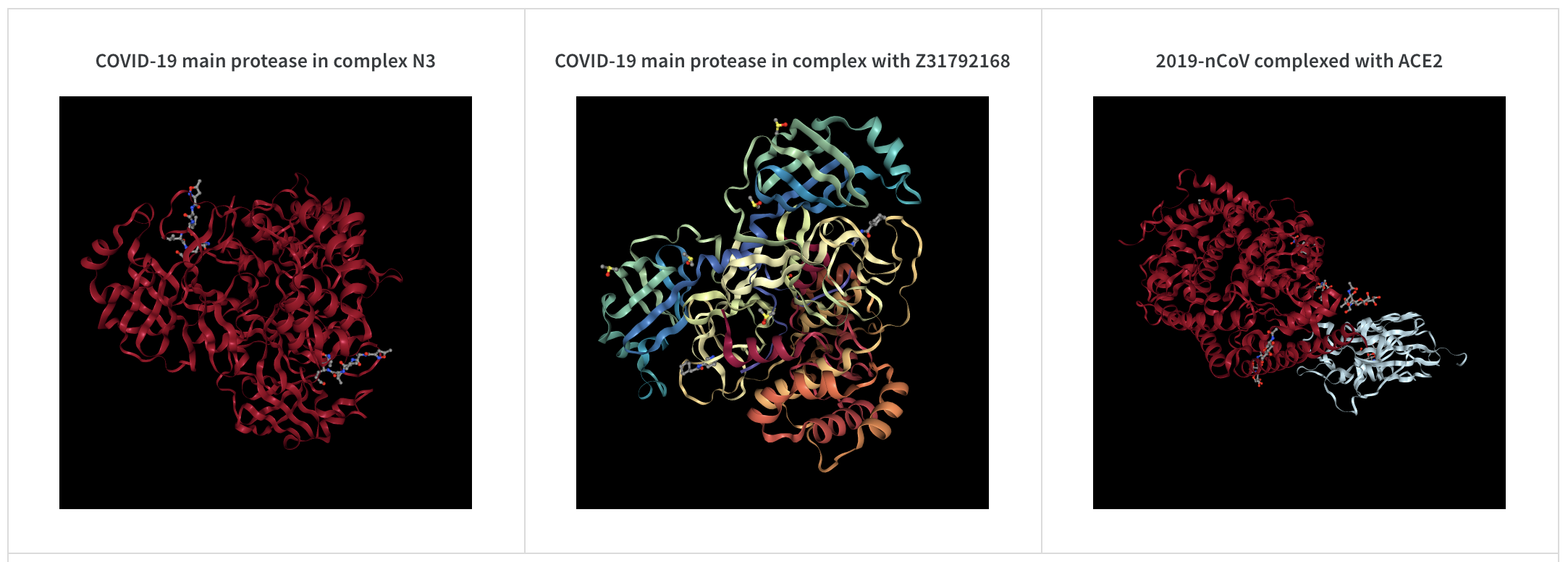
)})run.log({"protein": wandb.Molecule("6lu7.pdb")})Log molecular data in any of 10 file types:pdb, pqr, mmcif, mcif, cif, sdf, sd, gro, mol2, or mmtf.
W&B also supports logging molecular data from SMILES strings, rdkit mol files, and rdkit.Chem.rdchem.Mol objects.
resveratrol = rdkit.Chem.MolFromSmiles("Oc1ccc(cc1)C=Cc1cc(O)cc(c1)O")

run.log(
    {
        "resveratrol": wandb.Molecule.from_rdkit(resveratrol),
        "green fluorescent protein": wandb.Molecule.from_rdkit("2b3p.mol"),
        "acetaminophen": wandb.Molecule.from_smiles("CC(=O)Nc1ccc(O)cc1"),
    }
)
When your run finishes, you’ll be able to interact with 3D visualizations of your molecules in the UI.
See a live example using AlphaFold
PNG image#
wandb.Image converts numpy arrays or instances of PILImage to PNGs by default.
run.log({"example": wandb.Image(...)})
# Or multiple images
run.log({"example": [wandb.Image(...) for img in images]})Video#
Videos are logged using the wandb.Video data type:
run.log({"example": wandb.Video("myvideo.mp4")})Now you can view videos in the media browser. Go to your project workspace, run workspace, or report and click Add visualization to add a rich media panel.
2D view of a molecule#
You can log a 2D view of a molecule using the wandb.Image data type and rdkit:
molecule = rdkit.Chem.MolFromSmiles("CC(=O)O")
rdkit.Chem.AllChem.Compute2DCoords(molecule)
rdkit.Chem.AllChem.GenerateDepictionMatching2DStructure(molecule, molecule)
pil_image = rdkit.Chem.Draw.MolToImage(molecule, size=(300, 300))

run.log({"acetic_acid": wandb.Image(pil_image)})
Other media#
W&B also supports logging of a variety of other media types.
Audio#
run.log({"whale songs": wandb.Audio(np_array, caption="OooOoo", sample_rate=32)})A maximum of 100 audio clips can be logged per step. For more usage information, see audio-file.
Video#
run.log({"video": wandb.Video(numpy_array_or_path_to_video, fps=4, format="gif")})If a numpy array is supplied we assume the dimensions are, in order: time, channels, width, height. By default we create a 4 fps gif image (ffmpeg and the moviepy python library are required when passing numpy objects). Supported formats are "gif", "mp4", "webm", and "ogg". If you pass a string to wandb.Video we assert the file exists and is a supported format before uploading to wandb. Passing a BytesIO object will create a temporary file with the specified format as the extension.
On the W&B Run and Project Pages, you will see your videos in the Media section.
For more usage information, see video-file.
Text#
Use wandb.Table to log text in tables to show up in the UI. By default, the column headers are ["Input", "Output", "Expected"]. To ensure optimal UI performance, the default maximum number of rows is set to 10,000. However, users can explicitly override the maximum with wandb.Table.MAX_ROWS = {DESIRED_MAX}.
with wandb.init(project="my_project") as run:
    columns = ["Text", "Predicted Sentiment", "True Sentiment"]
    # Method 1
    data = [["I love my phone", "1", "1"], ["My phone sucks", "0", "-1"]]
    table = wandb.Table(data=data, columns=columns)
    run.log({"examples": table})

    # Method 2
    table = wandb.Table(columns=columns)
    table.add_data("I love my phone", "1", "1")
    table.add_data("My phone sucks", "0", "-1")
    run.log({"examples": table})
You can also pass a pandas DataFrame object.
table = wandb.Table(dataframe=my_dataframe)For more usage information, see string.
HTML#
run.log({"custom_file": wandb.Html(open("some.html"))})
run.log({"custom_string": wandb.Html('<a href="https://mysite">Link</a>')})
Custom HTML can be logged at any key, and this exposes an HTML panel on the run page. By default, we inject default styles; you can turn off default styles by passing inject=False.
run.log({"custom_file": wandb.Html(open("some.html"), inject=False)})For more usage information, see html-file.