Projects ↗
noOriginal Documentation
Documentation Index#
Fetch the complete documentation index at: https://docs.wandb.ai/llms.txt Use this file to discover all available pages before exploring further.
Compare versions of your model, explore results in a scratch workspace, and export findings to a report to save notes and visualizations
A project is a central location where you visualize results, compare experiments, view and download artifacts, create an automation, and more.
Each project has a visibility setting that determines who can access it. For more information about who can access a project, see Project visibility.
Each project contains the following tabs:
- Overview: snapshot of your project
- Workspace: personal visualization sandbox
- Runs: A table that lists all the runs in your project
- Automations: Automations configured in your project
- Sweeps: automated exploration and optimization
- Reports: saved snapshots of notes, runs, and graphs
- Artifacts: Contains all runs and the artifacts associated with that run
Overview tab#
W&B creates a project for you when you initialize a run with the name you provide for the project field.
From the Overview tab, you can find the project name and manage the project.
- To change the project’s name, description, or team, click Edit in the upper right corner.
- To undelete recently deleted runs, click … in the upper right corner, then click Undelete recently deleted runs.
- To delete the project, click … in the upper right corner, then click Delete project. Read the confirmation dialog and follow the instructions. Deleting a project is not reversible.
The rest of the Overview page is divided into Details and Project Roles tabs.
Details#
Details about the project include:
- Project visibility: The visibility of the project. The visibility setting that determines who can access it. See Project visibility for more information.
- Last active: Timestamp of the last time data is logged to this project
- Contributors: The number of users that contribute to this project
- Total runs: The total number of runs in this project
- Total compute: we add up all the run times in your project to get this total
The Details tab also includes instructions for accessing and exporting the project’s data and metrics, downloading the best model from a sweep, and more.
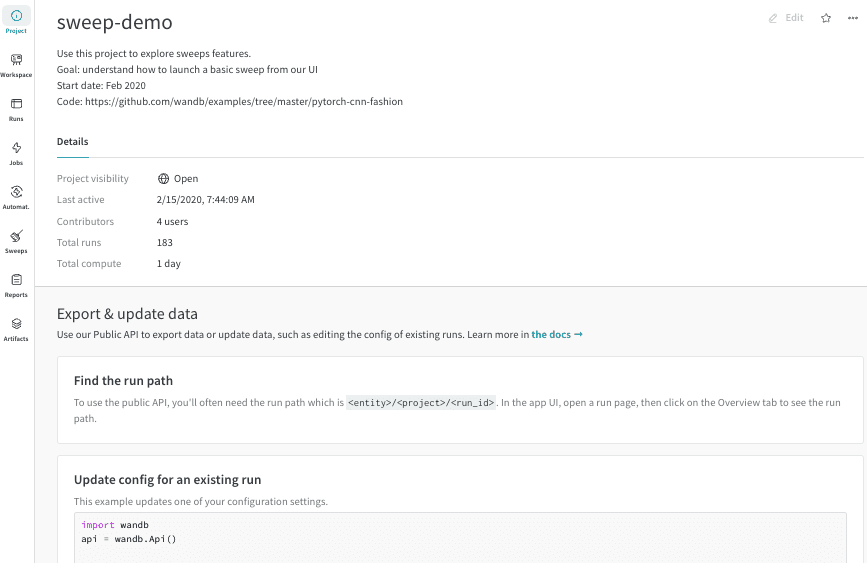
To change a project’s privacy from the Overview tab:
In the W&B App, from any page in the project, click Overview in the left navigation.
At the top right, click Edit.
Choose a new value for Project visibility:
- Team (default): Only your team can view and edit the project.
- Restricted: Only invited members can access the project, and public access is turned off.
- Open: Anyone can submit runs or create reports, but only your team can edit it. Appropriate only for classroom settings, public benchmark competitions, or other non-durable contexts.
- Public: Anyone can view the project, but only your team can edit it.
If your W&B admins have turned off Public visibility, you cannot choose it. Instead, you can share a view-only W&B Report, or contact your W&B organization’s admins for assistance. 4. Click Save.
If you update a project to a more strict privacy setting, you may need to re-invite individual users to restore their ability to access the project.
Project roles#
The Project roles tab is visible only to the project owner and those with the Admin role. List and search for users with access to the project or change a member’s role.
Workspace tab#
A project’s workspace gives you a personal sandbox to compare experiments. Use projects to organize models that can be compared, working on the same problem with different architectures, hyperparameters, datasets, preprocessing etc.
Runs Sidebar: list of all the runs in your project.
- Dot menu: hover over a row in the sidebar to see the menu appear on the left side. Use this menu to rename a run, delete a run, or stop and active run.
- Visibility icon: click the eye to turn on and off runs on graphs
- Color: change the run color to another one of our presets or a custom color
- Search: search runs by name. This also filters visible runs in the plots.
- Filter: use the sidebar filter to narrow down the set of runs visible
- Group: select a config column to dynamically group your runs, for example by architecture. Grouping makes plots show up with a line along the mean value, and a shaded region for the variance of points on the graph.
- Sort: pick a value to sort your runs by, for example runs with the lowest loss or highest accuracy. Sorting will affect which runs show up on the graphs.
- Expand button: expand the sidebar into the full table
- Run count: the number in parentheses at the top is the total number of runs in the project. The number (N visualized) is the number of runs that have the eye turned on and are available to be visualized in each plot. In the example below, the graphs are only showing the first 10 of 183 runs. Edit a graph to increase the max number of runs visible.
If you pin, hide, or change the order of columns in the Runs tab, the Runs sidebar reflects these customizations.
Panels layout: use this scratch space to explore results, add and remove charts, and compare versions of your models based on different metrics
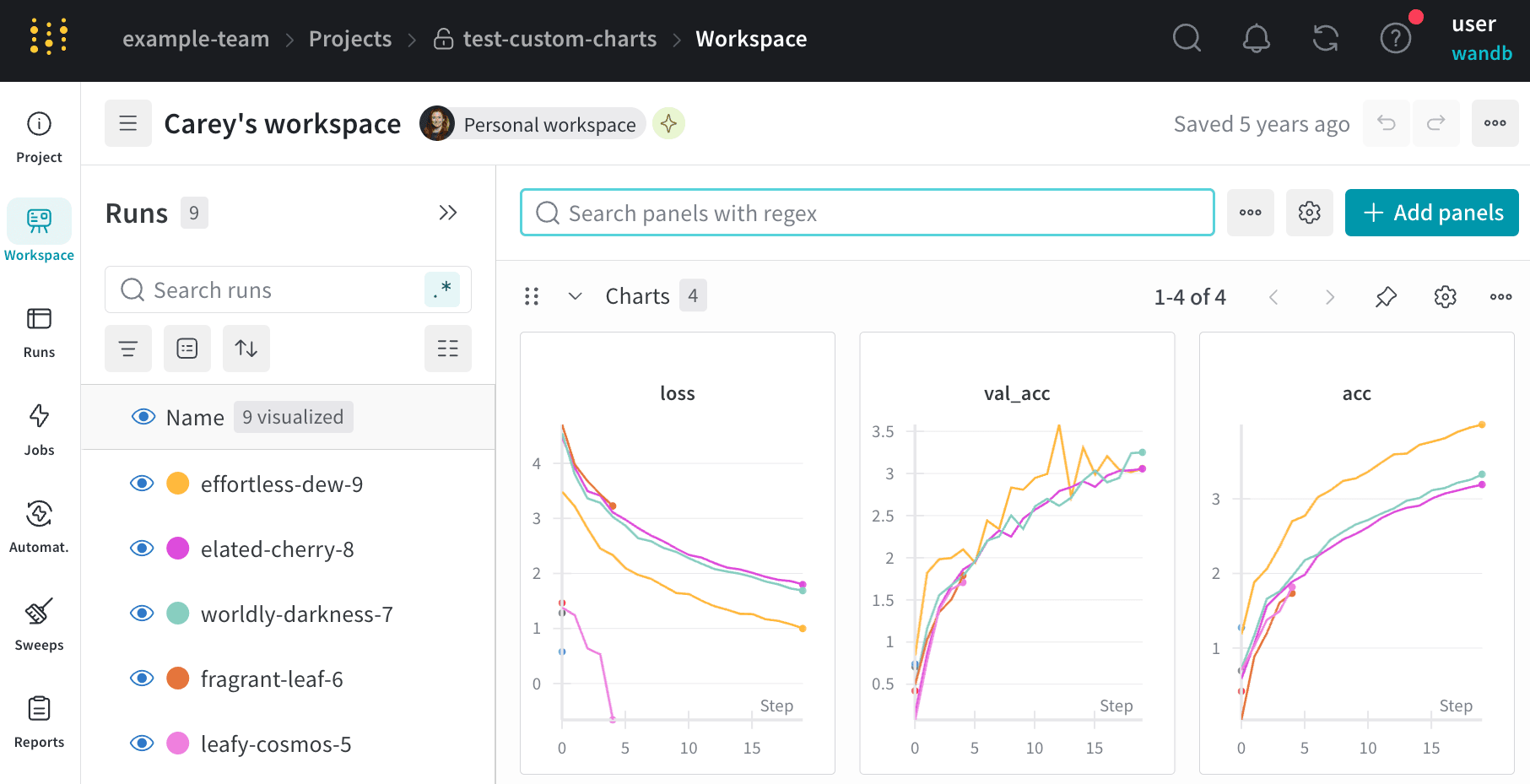
Add a section of panels#
Click the section dropdown menu and click “Add section” to create a new section for panels. You can rename sections, drag them to reorganize them, and expand and collapse sections.
Each section has options in the upper right corner:
- Add section: Add a section above or below from the dropdown menu, or click the button at the bottom of the page to add a new section.
- Rename section: Change the title for your section.
- Export section to report: Save this section of panels to a new report.
- Delete section: Remove the whole section and all the charts. This can be undone with the undo button at the bottom of the page in the workspace bar.
- Add panel: Click the plus button to add a panel to the section.
Move panels between sections#
Drag and drop panels to reorder and organize into sections. You can also click the “Move” button in the upper right corner of a panel to select a section to move the panel to.
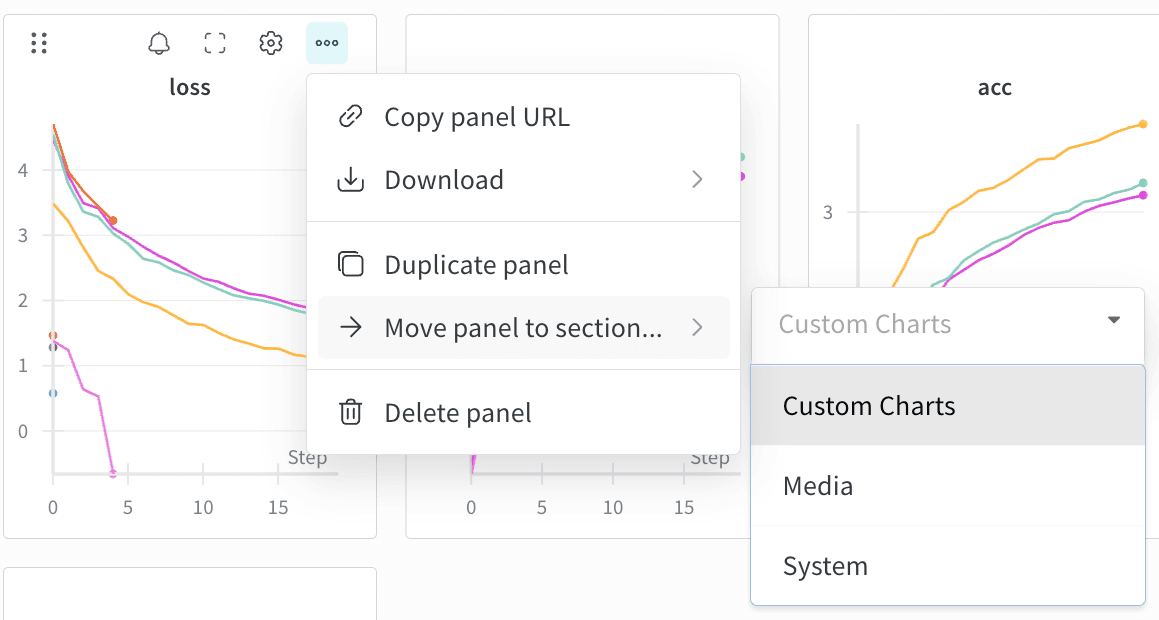
Resize panels#
All panels maintain the same size, and there are pages of panels. Resize the section by clicking and dragging the lower right corner of the section, which will display a corner icon when hovering.
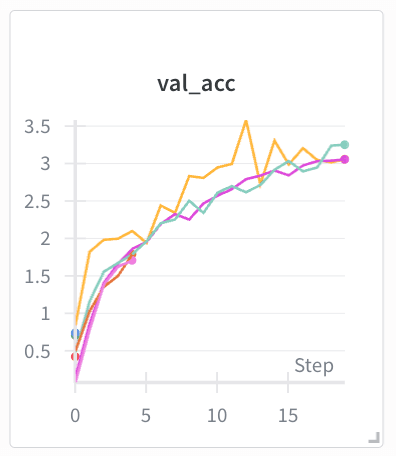
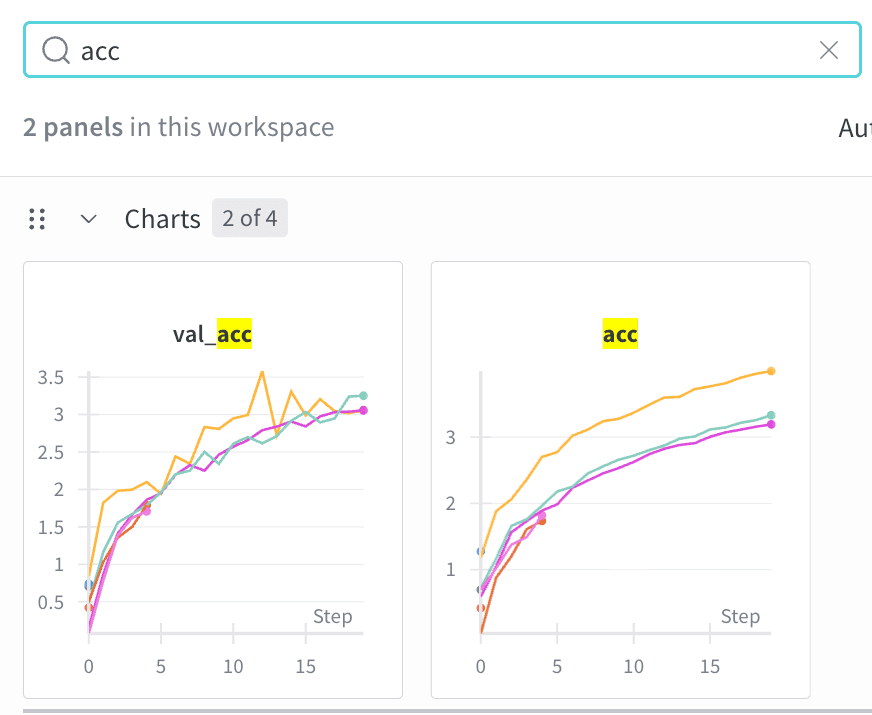
Search for metrics#
Use the search box in the workspace to filter down the panels. This search matches the panel titles, which are by default the name of the metrics visualized.
Runs tab#
Use the Runs tab to filter, group, and sort your runs.
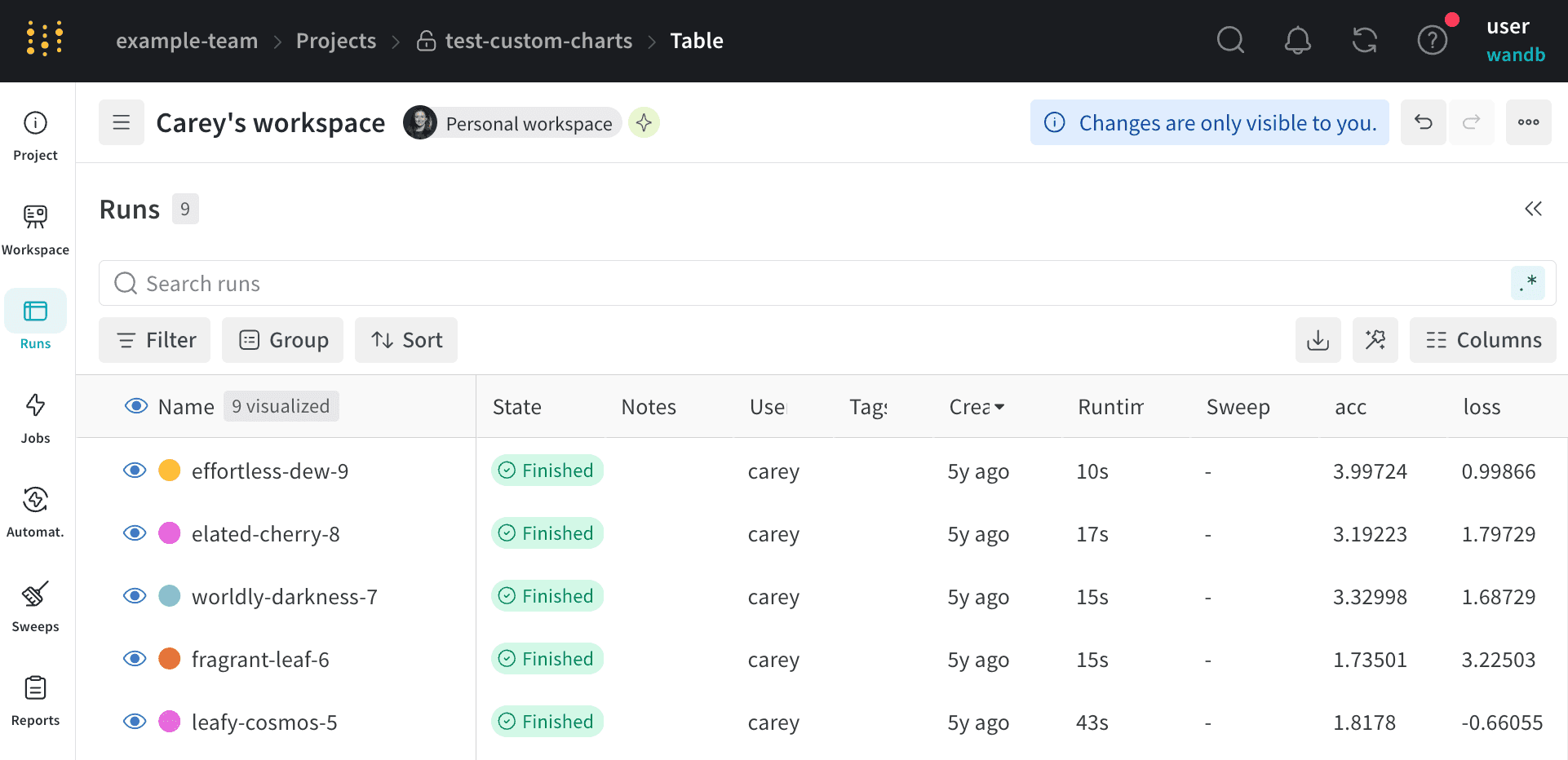
The proceeding tabs demonstrate some common actions you can take in the Runs tab.
The Runs tab shows details about runs in the project. It shows a large number of columns by default.
When you customize the Runs tab, the customization is also reflected in the Runs selector of the Workspace tab.
To view all visible columns, scroll the page horizontally.
To change the order of the columns, drag a column to the left or right.
To pin a column, hover over the column name, click the action menu
.... that appears, then click Pin column. Pinned columns appear near the left of the page, after the Name column. To unpin a pinned column, choose Unpin column.To hide a column, hover over the column name, click the action menu
.... that appears, then click Hide column. To view all columns that are currently hidden, click Columns.To show, hide, pin, and unpin multiple columns at once, click Columns.
- Click the name of a hidden column to unhide it.
- Click the name of a visible column to hide it.
- Click the pin icon next to a visible column to pin it.
Sort all rows in a Table by the value in a given column using one of these options:
- Click on the kebab (three vertical dot) menu when hovering over any column header to quickly sort the table by that column’s values.
- Click the Sort button and select the desired columns from the drop-down. You can use this panel to sort by multiple columns in priority order.
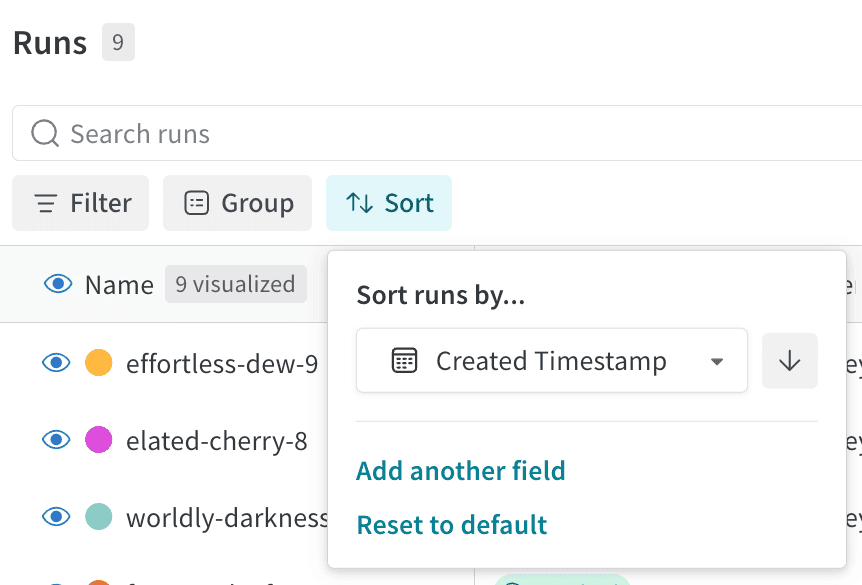
The preceding image demonstrates how to view sorting options for a Table column called val_acc.
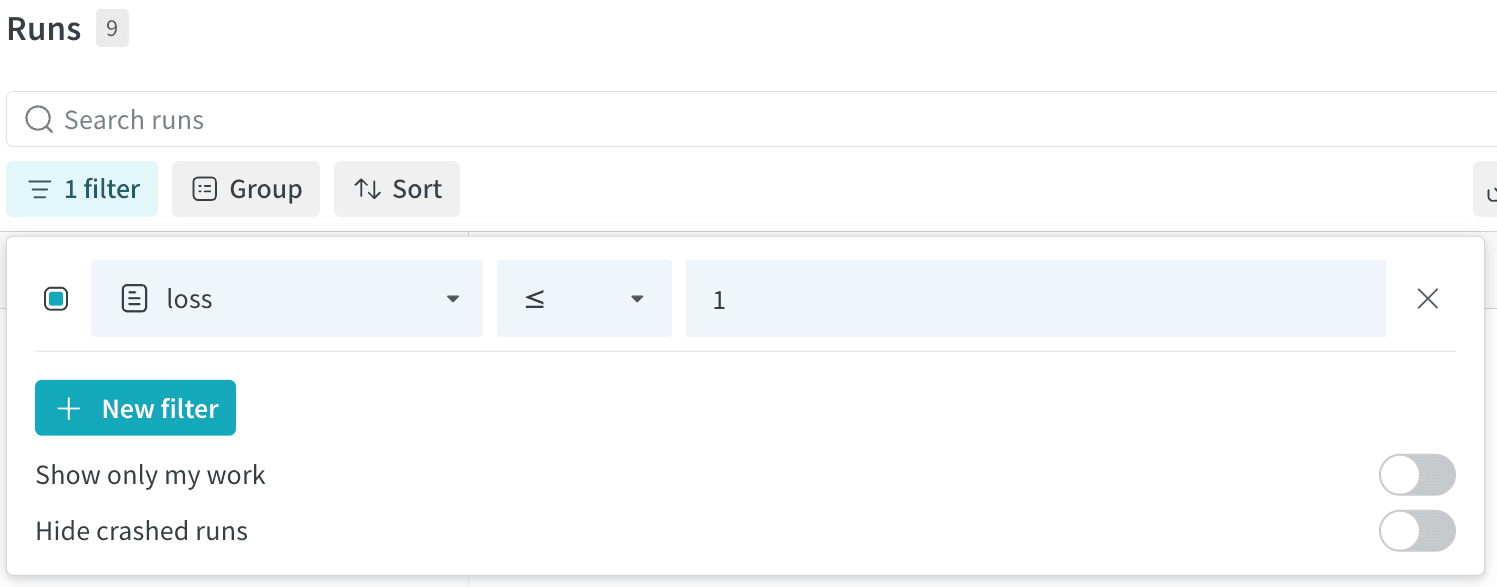
Filter all rows by an expression with the Filter button on the top left of the dashboard.
Click New filter to add one or more filters to your rows. Three dropdown menus will appear that enable the configuration of a filter. From left to right they are: column name, operator, and the filter value.
Click the Group button above the table to group all rows by the value in a particular column. For more information on how to group runs, see Organize runs into groups.
Automations tab#
Automate downstream actions for versioning artifacts. To create an automation, define trigger events and resulting actions. Actions include executing a webhook or launching a W&B job. For more information, see Automations.
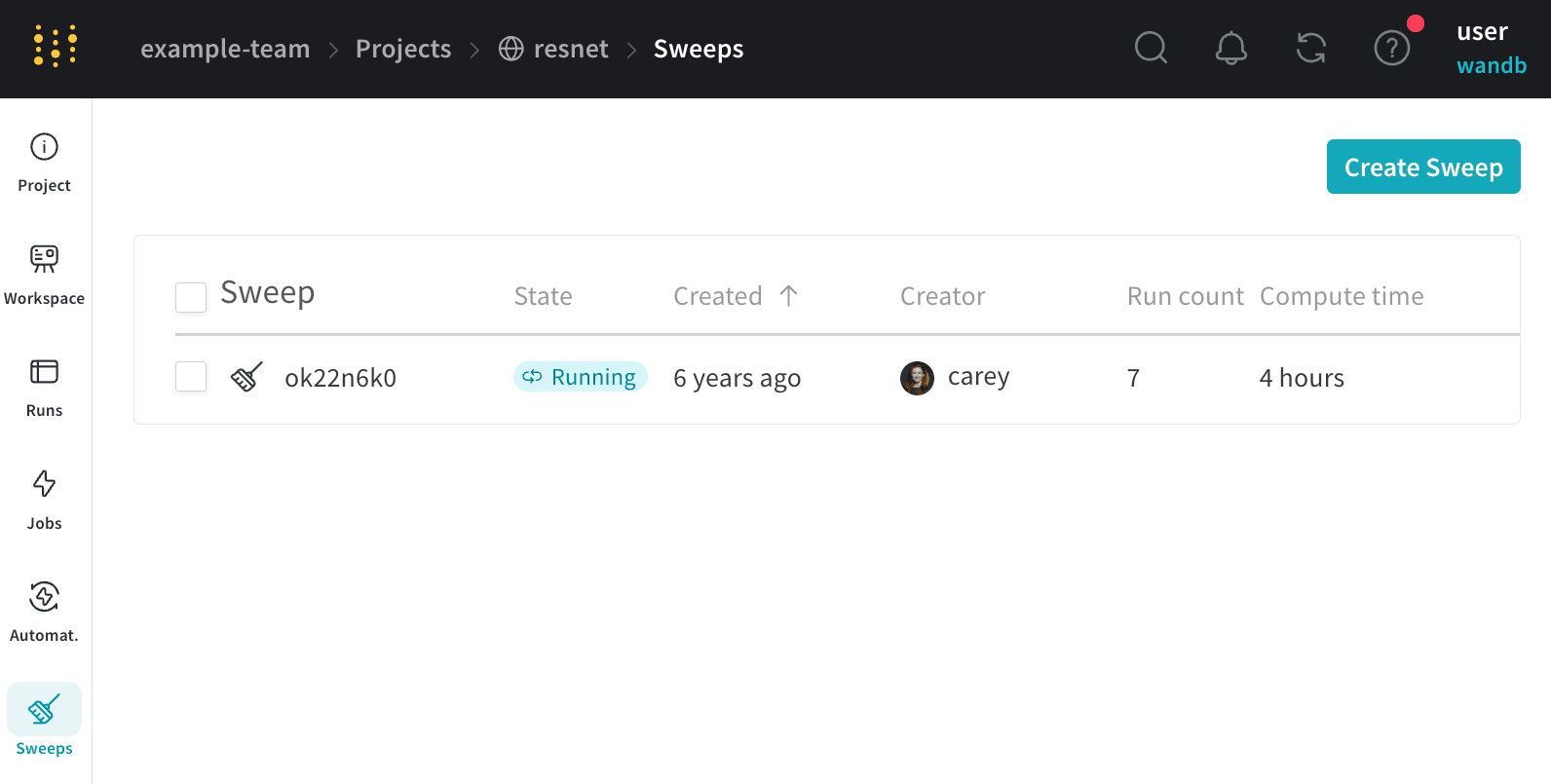
Sweeps tab#
Start a new sweep from your project.
Reports tab#
See all the snapshots of results in one place, and share findings with your team.
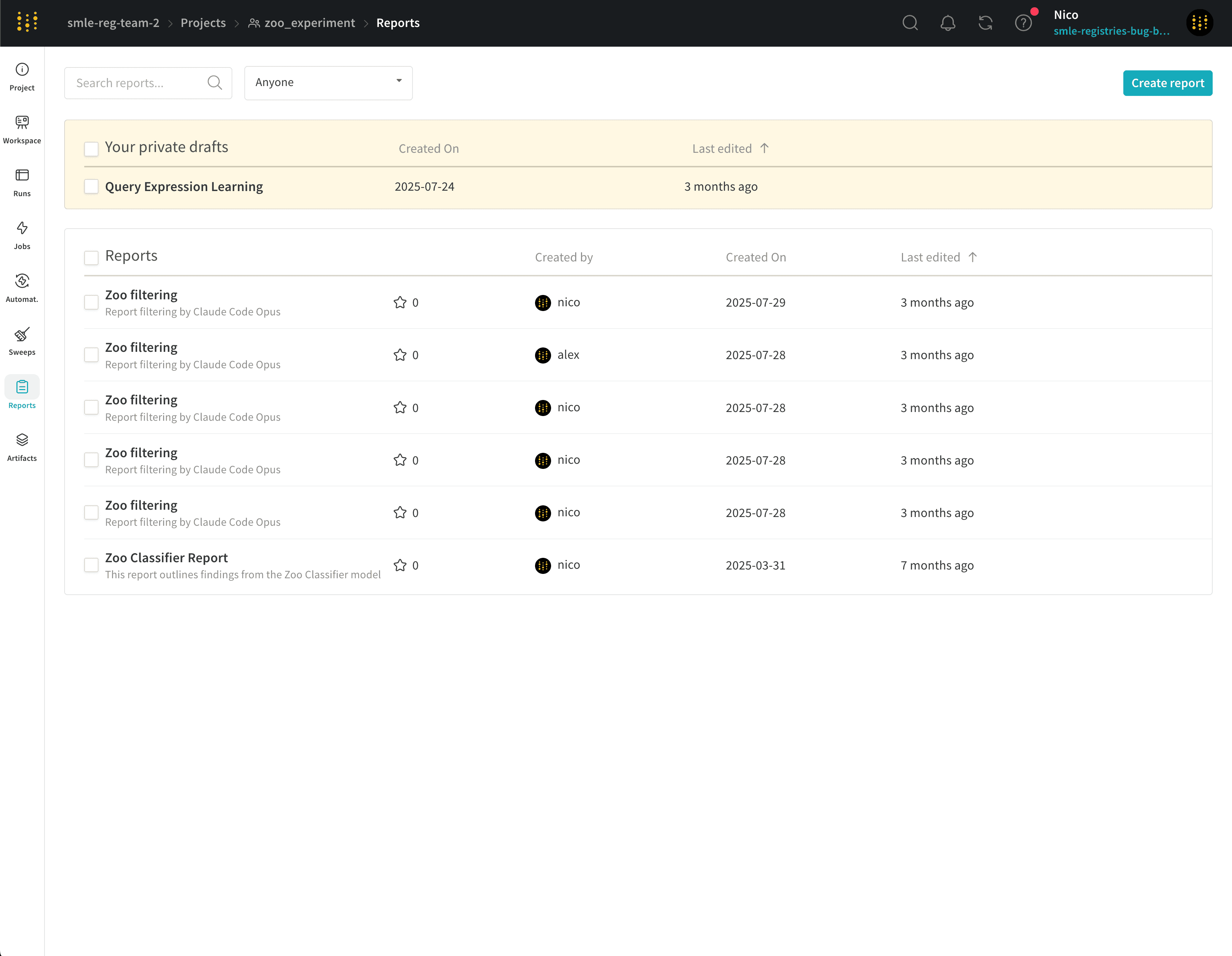
To view a report, select the Reports tab from the project sidebar, then select a report from the list.
Artifacts tab#
View all artifacts associated with a project, from training datasets and fine-tuned models to tables of metrics and media.
Metadata panel#
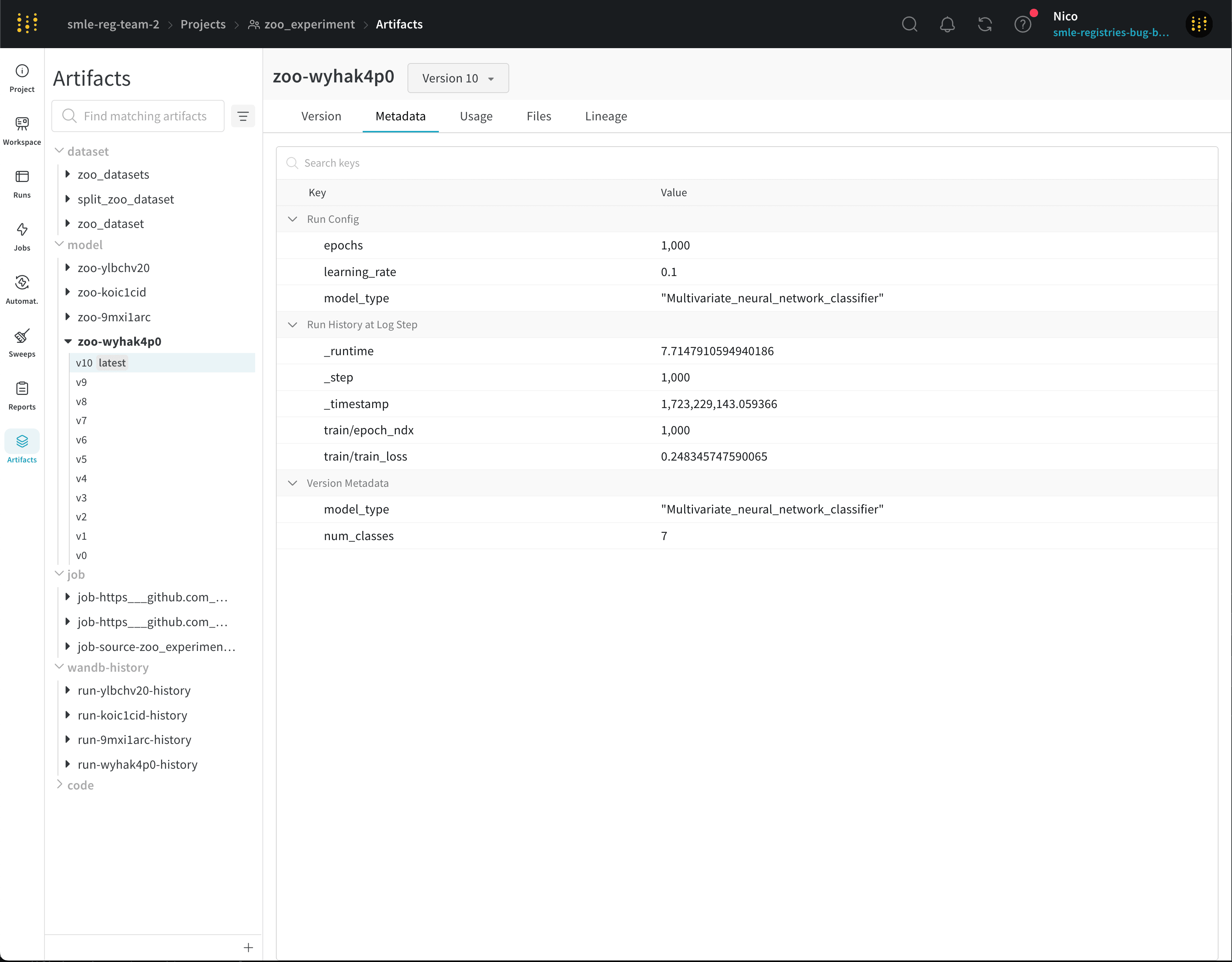
The metadata panel provides access to the artifact’s metadata. This metadata might include configuration arguments required to reconstruct the artifact, URLs where more information can be found, or metrics produced during the run which logged the artifact. View the configuration for the run that produced the artifact as well as history metrics.
To view an artifact’s metadata:
- Select the Artifacts tab from the project sidebar.
- Select an artifact from the list to view the details page for the latest version of that artifact.
- Select the Metadata tab to view the metadata associated with that artifact.
Usage panel#
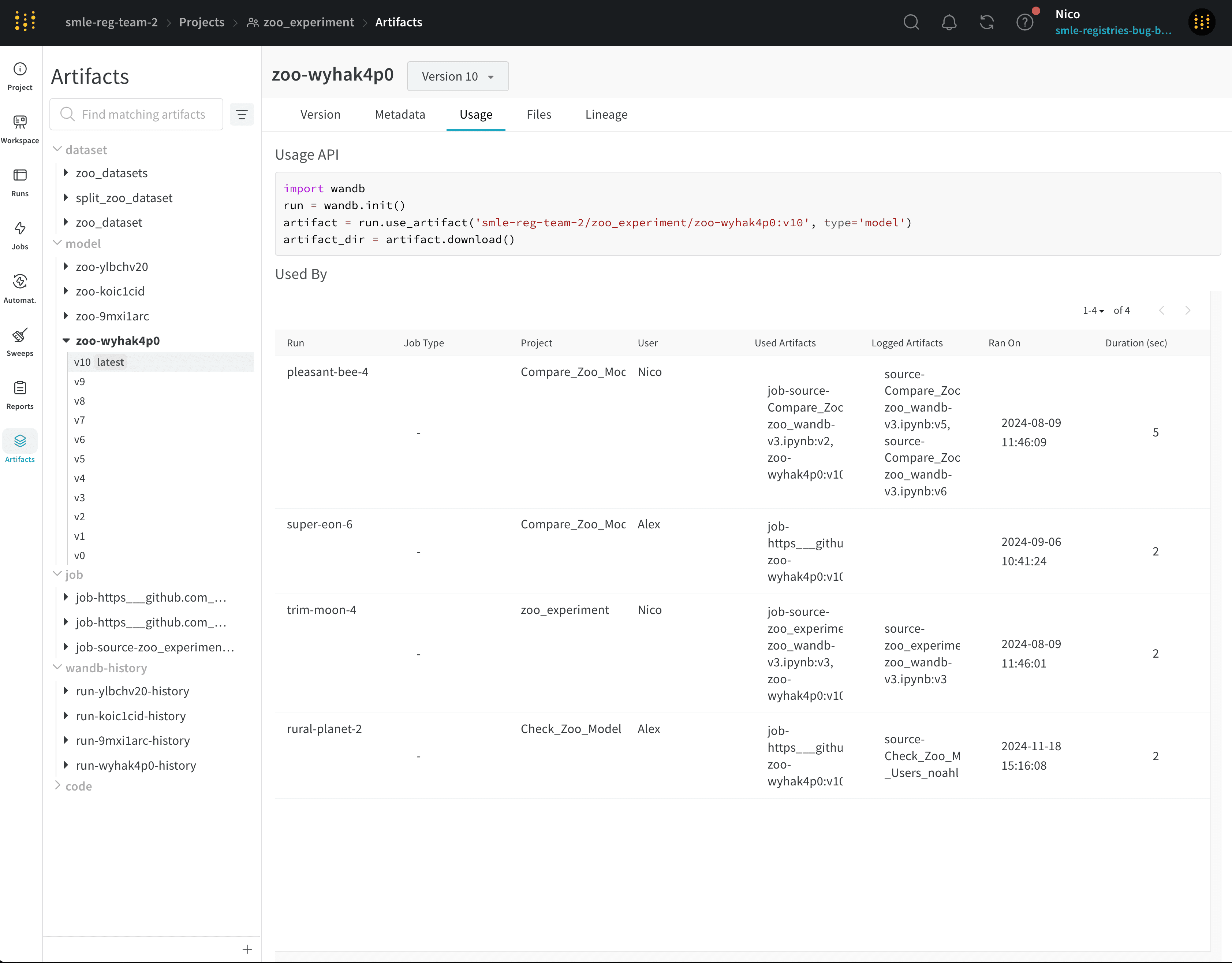
The usage panel provides a code snippet for downloading the artifact for use outside of the web app, for example on a local machine. This section also indicates and links to the run which output the artifact and any runs which use the artifact as an input.
To view the art
- Select the Artifacts tab from the project sidebar.
- Select an artifact from the list to view the details page for the latest version of that artifact.
- Select the Usage tab to view the code snippet and related runs.
Files panel#
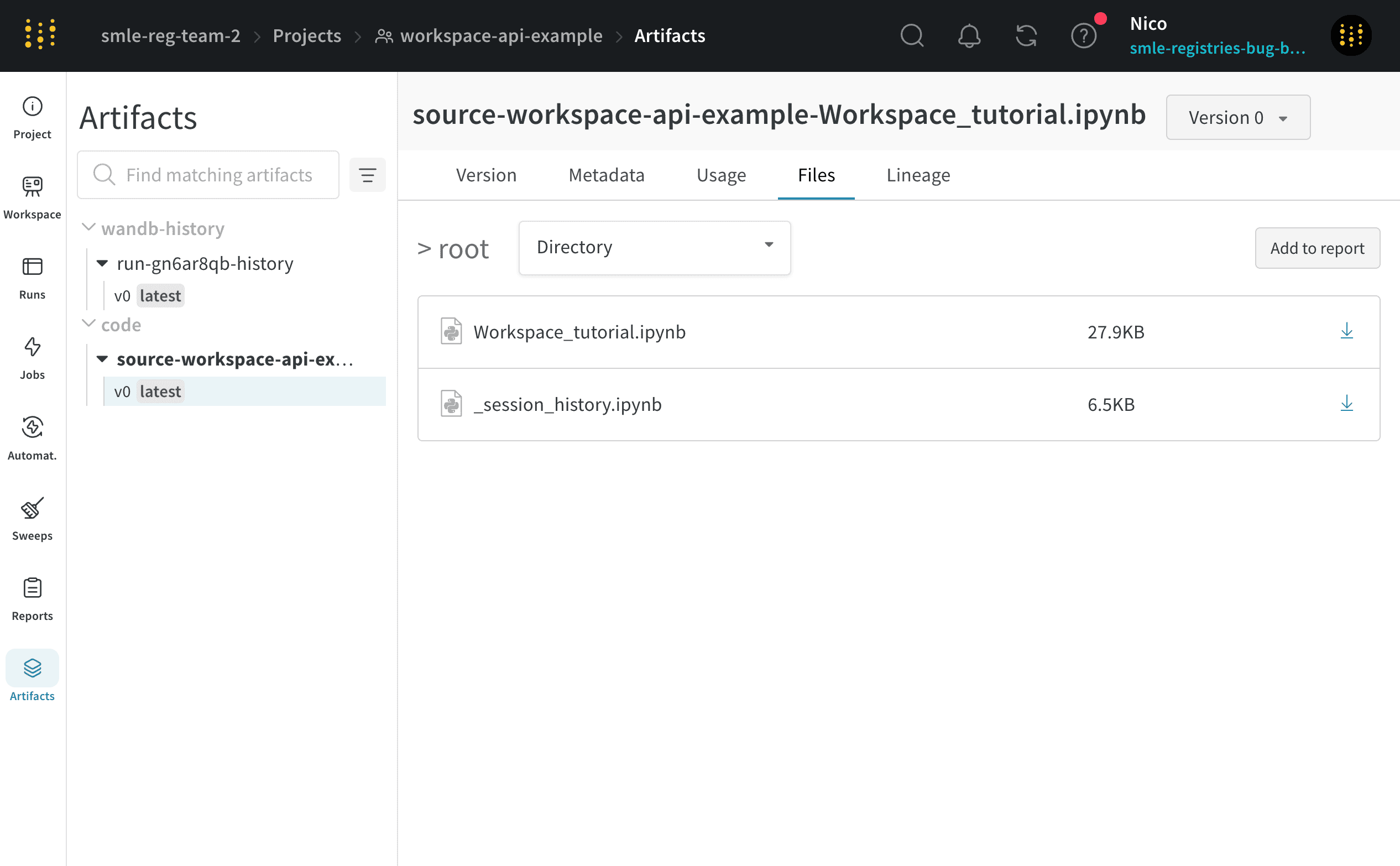
The files panel lists the files and folders associated with the artifact. W&B uploads certain files for a run automatically. For example, requirements.txt shows the versions of each library the run used, and wandb-metadata.json, and wandb-summary.json include information about the run. Other files may be uploaded, such as artifacts or media, depending on the run’s configuration.
To view files logged to an artifact:
- Select the Artifacts tab from the project sidebar.
- Select an artifact from the list to view the details page for the latest version of that artifact.
- Select the Files tab to view all files associated with that artifact.
Lineage panel#
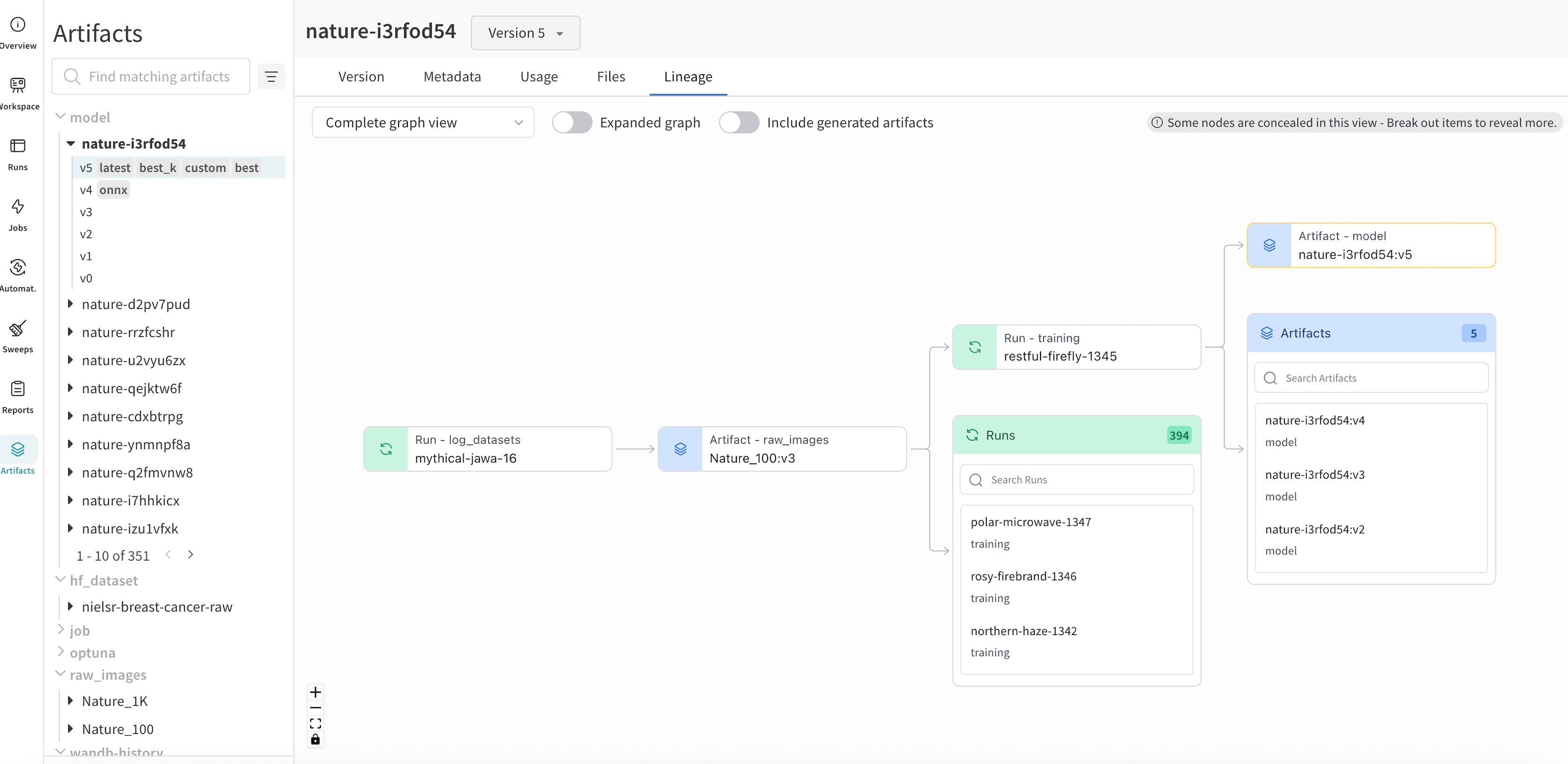
The lineage panel provides a view of all of the artifacts associated with a project and the runs that connect them to each other. It shows run types as blocks and artifacts as circles, with arrows to indicate when a run of a given type consumes or produces an artifact of a given type. The type of the particular artifact selected in the left-hand column is highlighted.
Click the Explode toggle to view all of the individual artifact versions and the specific runs that connect them.
Versions tab#
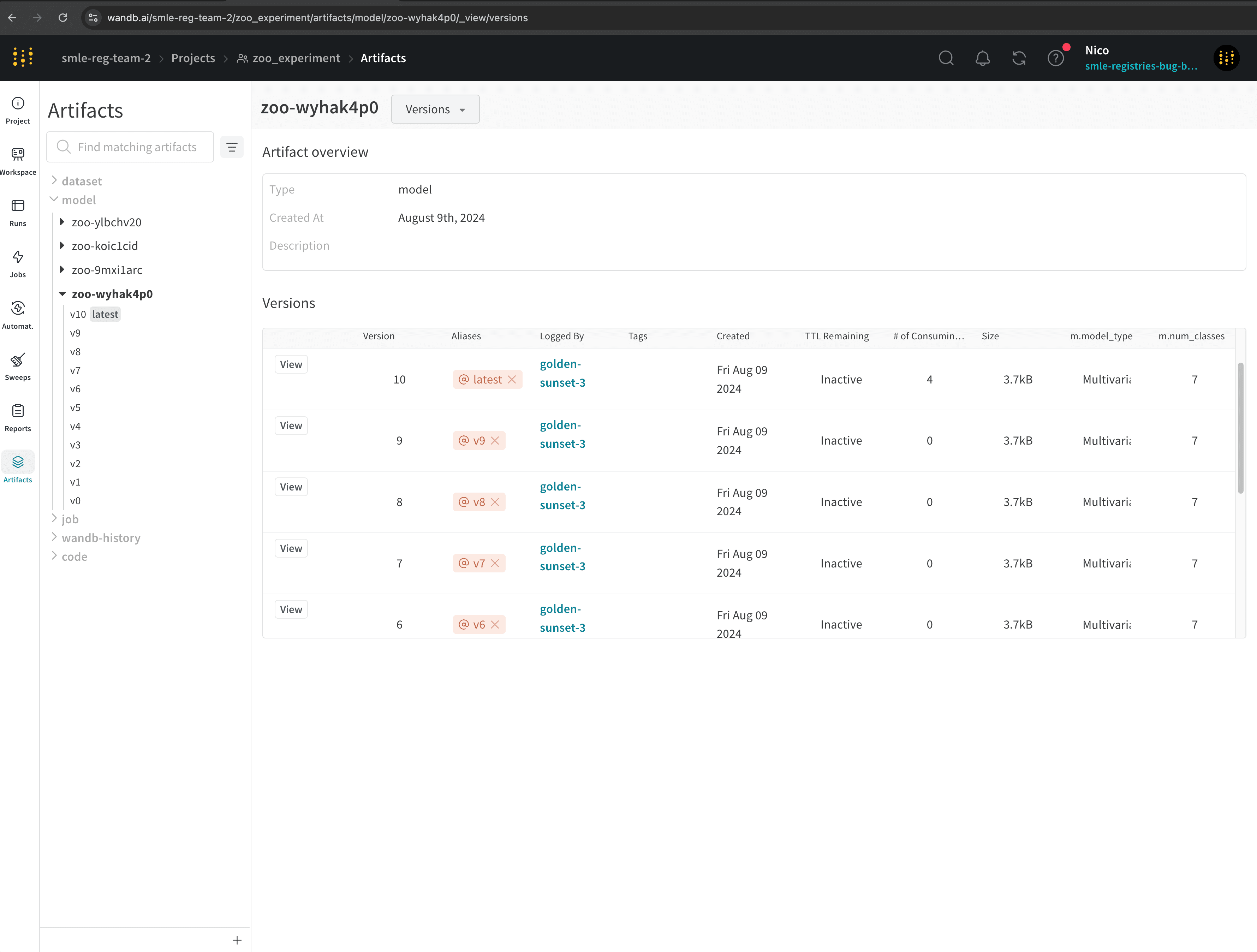
The versions tab shows all versions of the artifact. Select an artifact to view the details for that specific version.
- Select the Artifacts tab from the project sidebar.
- Select an artifact from the list to view the details page for the latest version of that artifact.
- Select the Versions tab to view all versions of that artifact.
- From the dropdown (next to the artifact name), select All Versions.
For example, the previous image shows different model artifact versions for a model artifact named "zoo-wyhak4p0".
Create a project#
You can create a project in the W&B App or programmatically by specifying a project in a call to wandb.init().
In the W&B App, you can create a project from the Projects page or from a team’s landing page.
From the Projects page:
- Click the global navigation icon in the upper left. The project sidebar opens.
- In the Projects section of the navigation, click View all to open the project overview page.
- Click Create new project.
- Set Team to the name of the team that will own the project.
- Specify a name for your project using the Name field.
- Set Project visibility, which defaults to Team.
- Optionally, provide a Description.
- Click Create project.
From a team’s landing page:
- Click the global navigation icon in the upper left. The project sidebar opens.
- In the Teams section of the navigation, click the name of a team to open its landing page.
- In the landing page, click Create new project.
- Team is automatically set to the team that owns the landing page you were viewing. If necessary, change the team.
- Specify a name for your project using the Name field.
- Set Project visibility, which defaults to Team.
- Optionally, provide a Description.
- Click Create project.
To create a project programmatically, specify a project when calling wandb.init(). If the project does not yet exist, it is created automatically, and is owned by the specified entity. For example:
    import wandb with wandb.init(entity="<entity>", project="<project_name>") as run: run.log({"accuracy": .95})
    ```

Refer to the [`wandb.init()` API reference](/models/ref/python/functions/init/#examples).
  <span class="tab-end"></span>
<span class="tab-group-end"></span>

## Star a project

Add a star to a project to mark that project as important. Projects that you and your team mark as important with stars appear at the top of your organization's homepage.

For example, the following image shows two projects that are marked as important, the `zoo_experiment` and `registry_demo`. Both projects appear within the top of the organization's homepage within the **Starred projects** section.


  <img src="https://mintcdn.com/wb-21fd5541/_OEDykSS2PIumrEw/images/track/star-projects.png?fit=max&auto=format&n=_OEDykSS2PIumrEw&q=85&s=8cfc4d3e4a706b9a6b4a319c58a54420" alt="Starred projects section" data-og-width="3292" width="3292" data-og-height="2456" height="2456" data-path="images/track/star-projects.png" data-optimize="true" data-opv="3" srcset="https://mintcdn.com/wb-21fd5541/_OEDykSS2PIumrEw/images/track/star-projects.png?w=280&fit=max&auto=format&n=_OEDykSS2PIumrEw&q=85&s=f6cd50ca772991bb18131f4768b0afff 280w, https://mintcdn.com/wb-21fd5541/_OEDykSS2PIumrEw/images/track/star-projects.png?w=560&fit=max&auto=format&n=_OEDykSS2PIumrEw&q=85&s=6dc41df1bf62d4143c8d0379b541af5f 560w, https://mintcdn.com/wb-21fd5541/_OEDykSS2PIumrEw/images/track/star-projects.png?w=840&fit=max&auto=format&n=_OEDykSS2PIumrEw&q=85&s=2b7bcc39fa7f8e20f2c071b8d357f576 840w, https://mintcdn.com/wb-21fd5541/_OEDykSS2PIumrEw/images/track/star-projects.png?w=1100&fit=max&auto=format&n=_OEDykSS2PIumrEw&q=85&s=c4a182608d4ddf5057d8cbc074d073f7 1100w, https://mintcdn.com/wb-21fd5541/_OEDykSS2PIumrEw/images/track/star-projects.png?w=1650&fit=max&auto=format&n=_OEDykSS2PIumrEw&q=85&s=309f44be1c08967de841970470adc6a4 1650w, https://mintcdn.com/wb-21fd5541/_OEDykSS2PIumrEw/images/track/star-projects.png?w=2500&fit=max&auto=format&n=_OEDykSS2PIumrEw&q=85&s=995445b87d3d6a2760b5e131b9cf7c90 2500w" />


There are two ways to mark a project as important: within a project's overview tab or within your team's profile page.

<span class="tab-group-start"></span>
  <span class="tab-start" data-tab-title="Project overview"></span>
1. Navigate to your W\&B project on the W\&B App at `https://wandb.ai/<team>/<project-name>`.
2. Select the **Overview** tab from the project sidebar.
3. Choose the star icon in the upper right corner next to the **Edit** button.


  <img src="https://mintcdn.com/wb-21fd5541/_OEDykSS2PIumrEw/images/track/star-project-overview-tab.png?fit=max&auto=format&n=_OEDykSS2PIumrEw&q=85&s=ad665bd036359eef5a621ee75bc15bef" alt="Star project from overview" data-og-width="3270" width="3270" data-og-height="1380" height="1380" data-path="images/track/star-project-overview-tab.png" data-optimize="true" data-opv="3" srcset="https://mintcdn.com/wb-21fd5541/_OEDykSS2PIumrEw/images/track/star-project-overview-tab.png?w=280&fit=max&auto=format&n=_OEDykSS2PIumrEw&q=85&s=c474b5825f71315cb9e4febc133d8bd2 280w, https://mintcdn.com/wb-21fd5541/_OEDykSS2PIumrEw/images/track/star-project-overview-tab.png?w=560&fit=max&auto=format&n=_OEDykSS2PIumrEw&q=85&s=8f1cb548d7585d407574ec0fa9318a63 560w, https://mintcdn.com/wb-21fd5541/_OEDykSS2PIumrEw/images/track/star-project-overview-tab.png?w=840&fit=max&auto=format&n=_OEDykSS2PIumrEw&q=85&s=6ac32d97689567a419252ab4d3e7c815 840w, https://mintcdn.com/wb-21fd5541/_OEDykSS2PIumrEw/images/track/star-project-overview-tab.png?w=1100&fit=max&auto=format&n=_OEDykSS2PIumrEw&q=85&s=07e16fc9fee18f9a1ccc9bf09dfe5bce 1100w, https://mintcdn.com/wb-21fd5541/_OEDykSS2PIumrEw/images/track/star-project-overview-tab.png?w=1650&fit=max&auto=format&n=_OEDykSS2PIumrEw&q=85&s=82b72c8b12deb8dfe71e69f59c9926ed 1650w, https://mintcdn.com/wb-21fd5541/_OEDykSS2PIumrEw/images/track/star-project-overview-tab.png?w=2500&fit=max&auto=format&n=_OEDykSS2PIumrEw&q=85&s=1aa8d4989c6fc4939537d575b627e804 2500w" />

  <span class="tab-end"></span>

  <span class="tab-start" data-tab-title="Team profile"></span>
1. Navigate to your team's profile page at `https://wandb.ai/<team>/projects`.
2. Select the **Projects** tab.
3. Hover your mouse next to the project you want to star. Click on star icon that appears.

For example, the proceeding image shows the star icon next to the "Compare\_Zoo\_Models" project.


  <img src="https://mintcdn.com/wb-21fd5541/_OEDykSS2PIumrEw/images/track/star-project-team-profile-page.png?fit=max&auto=format&n=_OEDykSS2PIumrEw&q=85&s=1588c85700c7e2a2d5fad0394f17aa9a" alt="Star project from team page" data-og-width="2908" width="2908" data-og-height="1862" height="1862" data-path="images/track/star-project-team-profile-page.png" data-optimize="true" data-opv="3" srcset="https://mintcdn.com/wb-21fd5541/_OEDykSS2PIumrEw/images/track/star-project-team-profile-page.png?w=280&fit=max&auto=format&n=_OEDykSS2PIumrEw&q=85&s=0d87c9330ef7dc06991483aa742f32ba 280w, https://mintcdn.com/wb-21fd5541/_OEDykSS2PIumrEw/images/track/star-project-team-profile-page.png?w=560&fit=max&auto=format&n=_OEDykSS2PIumrEw&q=85&s=8f4bf197ea8a0fede89cc12b0896e6ad 560w, https://mintcdn.com/wb-21fd5541/_OEDykSS2PIumrEw/images/track/star-project-team-profile-page.png?w=840&fit=max&auto=format&n=_OEDykSS2PIumrEw&q=85&s=1d9f44354e1249b84788181630222b9a 840w, https://mintcdn.com/wb-21fd5541/_OEDykSS2PIumrEw/images/track/star-project-team-profile-page.png?w=1100&fit=max&auto=format&n=_OEDykSS2PIumrEw&q=85&s=39c638620d8760253f957a69e94501d8 1100w, https://mintcdn.com/wb-21fd5541/_OEDykSS2PIumrEw/images/track/star-project-team-profile-page.png?w=1650&fit=max&auto=format&n=_OEDykSS2PIumrEw&q=85&s=78782877321b188b31832fd4128f183d 1650w, https://mintcdn.com/wb-21fd5541/_OEDykSS2PIumrEw/images/track/star-project-team-profile-page.png?w=2500&fit=max&auto=format&n=_OEDykSS2PIumrEw&q=85&s=a87cc49419697a6b71f8c9c23c0839cd 2500w" />

  <span class="tab-end"></span>
<span class="tab-group-end"></span>

Confirm that your project appears on the landing page of your organization by clicking on the organization name in the top left corner of the app.

## Delete a project

You can delete your project by clicking the three dots on the right of the overview tab.

1. Navigate to your W\&B project
2. Select the **Overview** tab from the project sidebar.
3. Choose the dot menu in the upper right hand corner.
4. Select **Delete project** from the dropdown menu.


  <img src="https://mintcdn.com/wb-21fd5541/e--pnXkF1UjDRE21/images/app_ui/delete_project.png?fit=max&auto=format&n=e--pnXkF1UjDRE21&q=85&s=ae9c77035f8bdb5757a2f427e2844290" alt="Project overview menu with delete project option in the dropdown" data-og-width="2984" width="2984" data-og-height="2328" height="2328" data-path="images/app_ui/delete_project.png" data-optimize="true" data-opv="3" srcset="https://mintcdn.com/wb-21fd5541/e--pnXkF1UjDRE21/images/app_ui/delete_project.png?w=280&fit=max&auto=format&n=e--pnXkF1UjDRE21&q=85&s=962bf99b9d2ced5a672055da5fdd5b2e 280w, https://mintcdn.com/wb-21fd5541/e--pnXkF1UjDRE21/images/app_ui/delete_project.png?w=560&fit=max&auto=format&n=e--pnXkF1UjDRE21&q=85&s=d8a51b1b4ff547843b269172f7840af8 560w, https://mintcdn.com/wb-21fd5541/e--pnXkF1UjDRE21/images/app_ui/delete_project.png?w=840&fit=max&auto=format&n=e--pnXkF1UjDRE21&q=85&s=0728e50b69613b55cb99bdc44b4cd0fb 840w, https://mintcdn.com/wb-21fd5541/e--pnXkF1UjDRE21/images/app_ui/delete_project.png?w=1100&fit=max&auto=format&n=e--pnXkF1UjDRE21&q=85&s=be8f7a0b1d39e980be128f0536f77a1c 1100w, https://mintcdn.com/wb-21fd5541/e--pnXkF1UjDRE21/images/app_ui/delete_project.png?w=1650&fit=max&auto=format&n=e--pnXkF1UjDRE21&q=85&s=e78939e354ec1d4dec7815337b3659fa 1650w, https://mintcdn.com/wb-21fd5541/e--pnXkF1UjDRE21/images/app_ui/delete_project.png?w=2500&fit=max&auto=format&n=e--pnXkF1UjDRE21&q=85&s=ad8cebef5c695c52b4e3d1a6efb646f4 2500w" />


<span class="callout-start" data-callout-type="warning"></span>
  W\&B does not terminate active [sweeps](/models/sweeps) or agents when you delete a project.
<span class="callout-end"></span>

## Add notes to a project

Add notes to your project either as a description overview or as a markdown panel within your workspace.

### Add description overview to a project

Descriptions you add to your page appear in the **Overview** tab of your profile.

1. Navigate to your W\&B project
2. Select the **Overview** tab from the project sidebar
3. Choose Edit in the upper right hand corner
4. Add your notes in the **Description** field
5. Select the **Save** button

<span class="callout-start" data-callout-type="note"></span>
  **Create reports to create descriptive notes comparing runs**

  You can also create a W\&B Report to add plots and markdown side by side. Use different sections to show different runs, and tell a story about what you worked on.
<span class="callout-end"></span>

### Add notes to run workspace

1. Navigate to your W\&B project
2. Select the **Workspace** tab from the project sidebar
3. Choose the **Add panels** button from the top right corner
4. Select the **TEXT AND CODE** dropdown from the modal that appears
5. Select **Markdown**
6. Add your notes in the markdown panel that appears in your workspace