Manage email settings ↗
noOriginal Documentation
Documentation Index#
Fetch the complete documentation index at: https://docs.wandb.ai/llms.txt Use this file to discover all available pages before exploring further.
Manage emails from the Settings page.
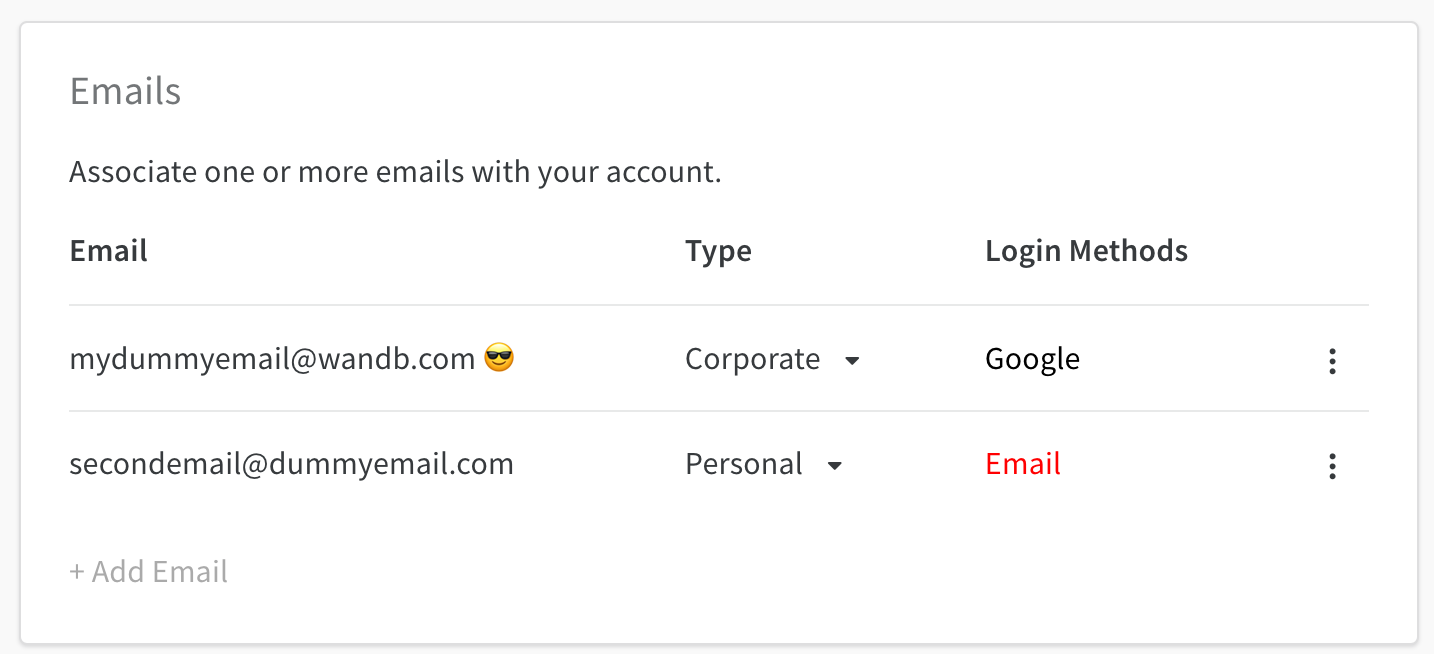
Add, delete, manage email types and primary email addresses in your W&B Profile Settings page. Select your profile icon in the upper right corner of the W&B dashboard. From the dropdown, select Settings. Within the Settings page, scroll down to the Emails dashboard:
Manage primary email#
The primary email is marked with a 😎 emoji. The primary email is automatically defined with the email you provided when you created a W&B account.
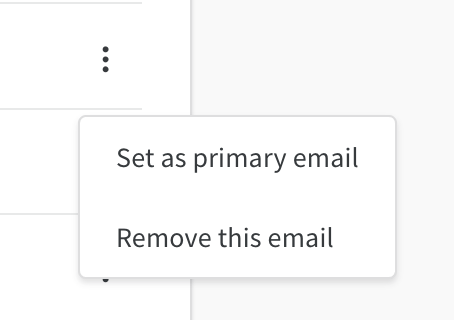
Select the kebab dropdown to change the primary email associated with your Weights And Biases account:
Only verified emails can be set as primary
Add emails#
Select + Add Email to add an email. This will take you to an Auth0 page. You can enter in the credentials for the new email or connect using single sign-on (SSO).
Delete emails#
Select the kebab dropdown and choose Delete Emails to delete an email that is registered to your W&B account
Primary emails cannot be deleted. You need to set a different email as a primary email before deleting.
Log in methods#
The Log in Methods column displays the log in methods that are associated with your account.
A verification email is sent to your email account when you create a W&B account. Your email account is considered unverified until you verify your email address. Unverified emails are displayed in red.
Attempt to log in with your email address again to retrieve a second verification email if you no longer have the original verification email that was sent to your email account.
Contact support@wandb.com for account log in issues.