Collect feedback and use annotations ↗
noOriginal Documentation
Documentation Index#
Fetch the complete documentation index at: https://docs.wandb.ai/llms.txt Use this file to discover all available pages before exploring further.
Collect and analyze feedback for LLM applications through UI and SDK
Efficiently evaluating LLM applications requires robust tooling to collect and analyze feedback. Weave provides an integrated feedback system, allowing users to provide call feedback directly through the UI or programmatically via the SDK. Various feedback types are supported, including emoji reactions, textual comments, and structured data, enabling teams to:
- Build evaluation datasets for performance monitoring.
- Identify and resolve LLM content issues effectively.
- Gather examples for advanced tasks like fine-tuning.
This guide covers how to use Weave’s feedback functionality in both the UI and SDK, query and manage feedback, and use human annotations for detailed evaluations.
Provide feedback in the UI#
In the Weave UI, you can add and view feedback from the call details page or using the icons.
From the call details page#
- In the sidebar, navigate to Traces.
- Find the row for the call that you want to add feedback to.
- Open the call details page.
- Select the Feedback column for the call.
- Add, view, or delete feedback:
- Add and view feedback using the icons located in the upper right corner of the call details feedback view.
- View and delete feedback from the call details feedback table. Delete feedback by clicking the trashcan icon in the rightmost column of the appropriate feedback row.
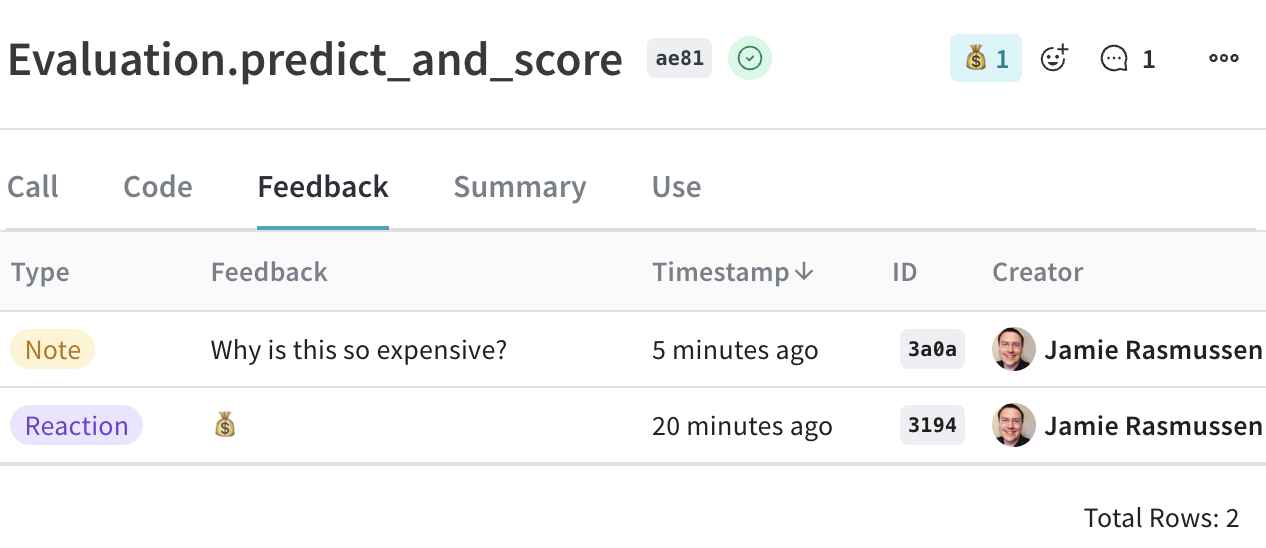
Use the icons#
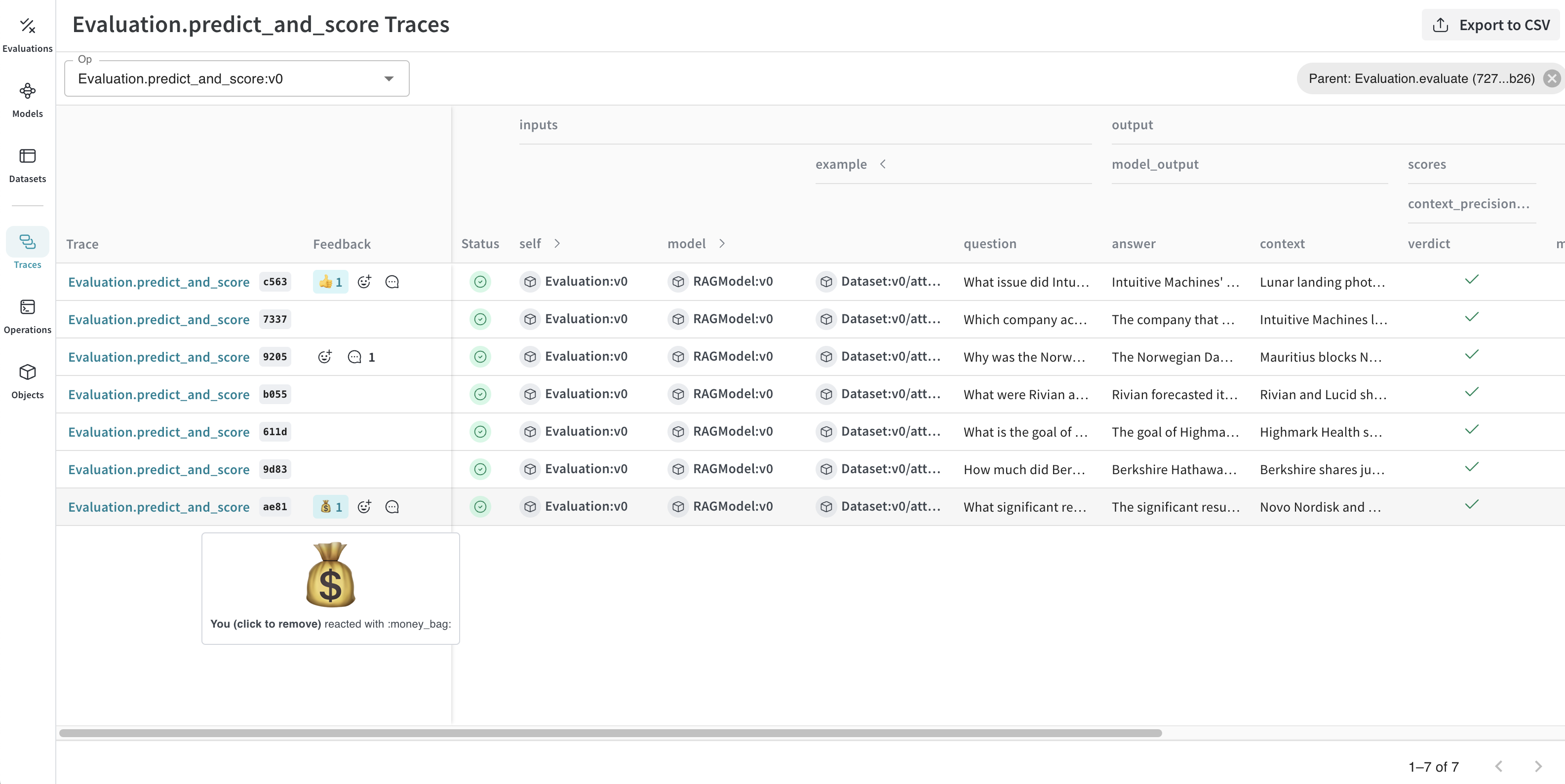
You can add or remove a reaction, and add a note using the icons that are located in both the call table and individual call details pages.
- Call table: Located in Feedback column in the appropriate row in the call table.
- Call details page: Located in the upper right corner of each call details page.
To add a reaction:
- Click the emoji icon.
- Add a thumbs up, thumbs down, or click the + icon for more emojis.
To remove a reaction:
- Hover over the emoji reaction you want to remove.
- Click the reaction to remove it.
You can also delete feedback from the Feedback column on the call details page..
To add a comment:
- Click the comment bubble icon.
- In the text box, add your note.
- To save the note, press the Enter key. You can add additional notes.
The maximum number of characters in a feedback note is 1024. If a note exceeds this limit, it will not be created.
Provide feedback via the SDK#
You can find SDK usage examples for feedback in the UI under the Use tab in the call details page.
You can use the Weave SDK to programmatically add, remove, and query feedback on calls.
Query a project’s feedback#
You can query the feedback for your Weave project using the SDK. The SDK supports the following feedback query operations:
client.get_feedback(): Returns all feedback in a project.client.get_feedback("<feedback_uuid>"): Return a specific feedback object specified by<feedback_uuid>as a collection.client.get_feedback(reaction="<reaction_type>"): Returns all feedback objects for a specific reaction type.
You can also get additional information for each feedback object in client.get_feedback():
id: The feedback object ID.created_at: The creation time information for the feedback object.feedback_type: The type of feedback (reaction, note, custom).payload: The feedback payload
    import weave
    client = weave.init('intro-example')

    # Get all feedback in a project
    all_feedback = client.get_feedback()

    # Fetch a specific feedback object by id.
    # The API returns a collection, which is expected to contain at most one item.
    one_feedback = client.get_feedback("<feedback_uuid>")[0]

    # Find all feedback objects with a specific reaction. You can specify offset and limit.
    thumbs_up = client.get_feedback(reaction="👍", limit=10)

    # After retrieval, view the details of individual feedback objects.
    for f in client.get_feedback():
        print(f.id)
        print(f.created_at)
        print(f.feedback_type)
        print(f.payload)
    ```
  <span class="tab-end"></span>

  <span class="tab-start" data-tab-title="TypeScript"></span>
```plaintext
    This feature is not available in TypeScript yet.
    ```
  <span class="tab-end"></span>
<span class="tab-group-end"></span>

### Add feedback to a call

You can add feedback to a call using the call's UUID. To use the UUID to get a particular call, [retrieve it during or after call execution](#retrieve-the-call-uuid). The SDK supports the following operations for adding feedback to a call:

* `call.feedback.add_reaction("<reaction_type>")`: Add one of the supported `<reaction_types>` (emojis), such as 👍.
* `call.feedback.add_note("<span class="callout-start" data-callout-type="note"></span>")`: Add a note.
* `call.feedback.add("<label>", <object>)`: Add a custom feedback `<object>` specified by `<label>`.

<span class="callout-start" data-callout-type="warning"></span>
  The maximum number of characters in a feedback note is 1024. If a note exceeds this limit, it will not be created.
<span class="callout-end"></span>

<span class="tab-group-start"></span>
  <span class="tab-start" data-tab-title="Python"></span>
```python
    import weave
    client = weave.init('intro-example')

    call = client.get_call("<call_uuid>")

    # Adding an emoji reaction
    call.feedback.add_reaction("👍")

    # Adding a note
    call.feedback.add_note("this is a note")

    # Adding custom key/value pairs.
    # The first argument is a user-defined "type" string.
    # Feedback must be JSON serializable and less than 1 KB when serialized.
    call.feedback.add("correctness", { "value": 5 })
    ```
  <span class="tab-end"></span>

  <span class="tab-start" data-tab-title="TypeScript"></span>
```plaintext
    This feature is not available in TypeScript yet.
    ```
  <span class="tab-end"></span>
<span class="tab-group-end"></span>

#### Retrieve the call UUID

For scenarios where you need to add feedback immediately after a call, you can retrieve the call UUID programmatically during or after the call execution.

* [During call execution](#during-call-execution)
* [After call execution](#after-call-execution)

##### During call execution

To retrieve the UUID during call execution, get the current call, and return the ID.

<span class="tab-group-start"></span>
  <span class="tab-start" data-tab-title="Python"></span>
```python

    import weave
    weave.init("uuid")

    @weave.op()
    def simple_operation(input_value):
        # Perform some simple operation
        output = f"Processed {input_value}"
        # Get the current call ID
        current_call = weave.require_current_call()
        call_id = current_call.id
        return output, call_id
    ```
  <span class="tab-end"></span>

  <span class="tab-start" data-tab-title="TypeScript"></span>
```plaintext
    This feature is not available in TypeScript yet.
    ```
  <span class="tab-end"></span>
<span class="tab-group-end"></span>

##### After call execution

Alternatively, you can use `call()` method to execute the operation and retrieve the ID after call execution:

<span class="tab-group-start"></span>
  <span class="tab-start" data-tab-title="Python"></span>
```python
    import weave
    weave.init("uuid")

    @weave.op()
    def simple_operation(input_value):
        return f"Processed {input_value}"

    # Execute the operation and retrieve the result and call ID
    result, call = simple_operation.call("example input")
    call_id = call.id
    ```
  <span class="tab-end"></span>

  <span class="tab-start" data-tab-title="TypeScript"></span>
```plaintext
    This feature is not available in TypeScript yet.
    ```
  <span class="tab-end"></span>
<span class="tab-group-end"></span>

### Delete feedback from a call

You can delete feedback from a particular call by specifying a UUID.

<span class="tab-group-start"></span>
  <span class="tab-start" data-tab-title="Python"></span>
```python
    call.feedback.purge("<feedback_uuid>")
    ```
  <span class="tab-end"></span>

  <span class="tab-start" data-tab-title="TypeScript"></span>
```plaintext
    This feature is not available in TypeScript yet.
    ```
  <span class="tab-end"></span>
<span class="tab-group-end"></span>

## Add human annotations

Human annotations are supported in the Weave UI. To make human annotations, you must first create a Human Annotation scorer using either the [UI](#create-a-human-annotation-scorer-in-the-ui) or the [API](#create-a-human-annotation-scorer-using-the-api). Then, you can [use the scorer in the UI to make annotations](#use-the-human-annotation-scorer-in-the-ui), and [modify your annotation scorers using the API](#modify-a-human-annotation-scorer-using-the-api).

### Create a human annotation scorer in the UI

To create a human annotation scorer in the UI, do the following:

1. In the sidebar, navigate to **Scorers**.
2. In the upper right corner, click **+ Create scorer**.
3. In the configuration page, set:
   * `Scorer type` to `Human annotation`
   * `Name`
   * `Description`
   * `Type`, which determines the type of feedback that will be collected, such as `boolean` or `integer`.
4. Click **Create scorer**. Now, you can [use your scorer to make annotations](#use-the-human-annotation-scorer-in-the-ui).

In the following example, a human annotator is asked to select which type of document the LLM ingested. As such, the `Type` selected for the score configuration is an `enum` containing the possible document types.


<img src="https://mintcdn.com/wb-21fd5541/4ANo4MV8FzCjYewG/weave/guides/tracking/imgs/human-annotation-scorer-form.png?fit=max&auto=format&n=4ANo4MV8FzCjYewG&q=85&s=1b3a4407620d55f1d4b159a19218d424" alt="Human Annotation scorer form" data-og-width="3454" width="3454" data-og-height="1862" height="1862" data-path="weave/guides/tracking/imgs/human-annotation-scorer-form.png" data-optimize="true" data-opv="3" srcset="https://mintcdn.com/wb-21fd5541/4ANo4MV8FzCjYewG/weave/guides/tracking/imgs/human-annotation-scorer-form.png?w=280&fit=max&auto=format&n=4ANo4MV8FzCjYewG&q=85&s=bca75fddf5e4b7474893ece318c147bc 280w, https://mintcdn.com/wb-21fd5541/4ANo4MV8FzCjYewG/weave/guides/tracking/imgs/human-annotation-scorer-form.png?w=560&fit=max&auto=format&n=4ANo4MV8FzCjYewG&q=85&s=cfece7c831470877925c8b78ce865ebe 560w, https://mintcdn.com/wb-21fd5541/4ANo4MV8FzCjYewG/weave/guides/tracking/imgs/human-annotation-scorer-form.png?w=840&fit=max&auto=format&n=4ANo4MV8FzCjYewG&q=85&s=d983622aae1554e5cca35a6f783281cc 840w, https://mintcdn.com/wb-21fd5541/4ANo4MV8FzCjYewG/weave/guides/tracking/imgs/human-annotation-scorer-form.png?w=1100&fit=max&auto=format&n=4ANo4MV8FzCjYewG&q=85&s=a72bf3f8a5f07a8f118b73447722ffc2 1100w, https://mintcdn.com/wb-21fd5541/4ANo4MV8FzCjYewG/weave/guides/tracking/imgs/human-annotation-scorer-form.png?w=1650&fit=max&auto=format&n=4ANo4MV8FzCjYewG&q=85&s=e16c5d2ee217f7e9f1c8d7ca8206bf60 1650w, https://mintcdn.com/wb-21fd5541/4ANo4MV8FzCjYewG/weave/guides/tracking/imgs/human-annotation-scorer-form.png?w=2500&fit=max&auto=format&n=4ANo4MV8FzCjYewG&q=85&s=3f8c241e37f5f566639e21a92fd5a2c5 2500w" />


### Use the human annotation scorer in the UI

Once you [create a human annotation scorer](#create-a-human-annotation-scorer-in-the-ui), it will automatically display in the **Feedback** sidebar of the call details page with the configured options. To use the scorer, do the following:

1. In the sidebar, navigate to **Traces**

2. Find the row for the call that you want to add a human annotation to.

3. Open the call details page.

4. In the upper right corner, click the **Show feedback** button.

   <img src="https://mintcdn.com/wb-21fd5541/4ANo4MV8FzCjYewG/weave/guides/tracking/imgs/marker-icon.png?fit=max&auto=format&n=4ANo4MV8FzCjYewG&q=85&s=cae1b79d0eec7f3310d6b1d928cea24d" alt="Marker icon in call header" data-og-width="306" width="306" data-og-height="84" height="84" data-path="weave/guides/tracking/imgs/marker-icon.png" data-optimize="true" data-opv="3" srcset="https://mintcdn.com/wb-21fd5541/4ANo4MV8FzCjYewG/weave/guides/tracking/imgs/marker-icon.png?w=280&fit=max&auto=format&n=4ANo4MV8FzCjYewG&q=85&s=267f231594f294ba3f0eb2e2fe352efc 280w, https://mintcdn.com/wb-21fd5541/4ANo4MV8FzCjYewG/weave/guides/tracking/imgs/marker-icon.png?w=560&fit=max&auto=format&n=4ANo4MV8FzCjYewG&q=85&s=06ccc3d44857180365aa3dfe01a64743 560w, https://mintcdn.com/wb-21fd5541/4ANo4MV8FzCjYewG/weave/guides/tracking/imgs/marker-icon.png?w=840&fit=max&auto=format&n=4ANo4MV8FzCjYewG&q=85&s=b3ee14986791accd84e1841f36f2b219 840w, https://mintcdn.com/wb-21fd5541/4ANo4MV8FzCjYewG/weave/guides/tracking/imgs/marker-icon.png?w=1100&fit=max&auto=format&n=4ANo4MV8FzCjYewG&q=85&s=0a4d2a86bb2fc639357df733d8e641b3 1100w, https://mintcdn.com/wb-21fd5541/4ANo4MV8FzCjYewG/weave/guides/tracking/imgs/marker-icon.png?w=1650&fit=max&auto=format&n=4ANo4MV8FzCjYewG&q=85&s=094aeff64bcae375570dcd1f5aef3d7a 1650w, https://mintcdn.com/wb-21fd5541/4ANo4MV8FzCjYewG/weave/guides/tracking/imgs/marker-icon.png?w=2500&fit=max&auto=format&n=4ANo4MV8FzCjYewG&q=85&s=32f953845bcf8e46924bea9b1132b1f9 2500w" />

   Your available human annotation scorers display in the sidebar.

   <img src="https://mintcdn.com/wb-21fd5541/4ANo4MV8FzCjYewG/weave/guides/tracking/imgs/full-feedback-sidebar.png?fit=max&auto=format&n=4ANo4MV8FzCjYewG&q=85&s=281c47385fc6c4358067d5c7f9b4c97a" alt="Human Annotation scorer feedback sidebar" data-og-width="3454" width="3454" data-og-height="1862" height="1862" data-path="weave/guides/tracking/imgs/full-feedback-sidebar.png" data-optimize="true" data-opv="3" srcset="https://mintcdn.com/wb-21fd5541/4ANo4MV8FzCjYewG/weave/guides/tracking/imgs/full-feedback-sidebar.png?w=280&fit=max&auto=format&n=4ANo4MV8FzCjYewG&q=85&s=7581de22a25986598a71cc5bee2907bd 280w, https://mintcdn.com/wb-21fd5541/4ANo4MV8FzCjYewG/weave/guides/tracking/imgs/full-feedback-sidebar.png?w=560&fit=max&auto=format&n=4ANo4MV8FzCjYewG&q=85&s=994743c0e2f3e58fd8f9947c56393579 560w, https://mintcdn.com/wb-21fd5541/4ANo4MV8FzCjYewG/weave/guides/tracking/imgs/full-feedback-sidebar.png?w=840&fit=max&auto=format&n=4ANo4MV8FzCjYewG&q=85&s=c2009308eaa8abef0833b62ff3d268e5 840w, https://mintcdn.com/wb-21fd5541/4ANo4MV8FzCjYewG/weave/guides/tracking/imgs/full-feedback-sidebar.png?w=1100&fit=max&auto=format&n=4ANo4MV8FzCjYewG&q=85&s=0d64ea6a1e7d37e3acc46864fa663ca5 1100w, https://mintcdn.com/wb-21fd5541/4ANo4MV8FzCjYewG/weave/guides/tracking/imgs/full-feedback-sidebar.png?w=1650&fit=max&auto=format&n=4ANo4MV8FzCjYewG&q=85&s=dcb7d5db82e52964cb3b0fc612a12299 1650w, https://mintcdn.com/wb-21fd5541/4ANo4MV8FzCjYewG/weave/guides/tracking/imgs/full-feedback-sidebar.png?w=2500&fit=max&auto=format&n=4ANo4MV8FzCjYewG&q=85&s=6ab627a01e47b7361df096a4d454a5f1 2500w" />

5. Make an annotation.

6. Click **Save**.

7. In the call details page, click **Feedback** to view the calls table. The new annotation displays in the table. You can also view the annotations in the **Annotations** column in the call table in **Traces**.

   > Refresh the call table to view the most up-to-date information.


<img src="https://mintcdn.com/wb-21fd5541/4ANo4MV8FzCjYewG/weave/guides/tracking/imgs/feedback-in-the-table.png?fit=max&auto=format&n=4ANo4MV8FzCjYewG&q=85&s=226efa32450b40914f3d32765481f058" alt="Human Annotation scorer feedback in calls table" data-og-width="3456" width="3456" data-og-height="1569" height="1569" data-path="weave/guides/tracking/imgs/feedback-in-the-table.png" data-optimize="true" data-opv="3" srcset="https://mintcdn.com/wb-21fd5541/4ANo4MV8FzCjYewG/weave/guides/tracking/imgs/feedback-in-the-table.png?w=280&fit=max&auto=format&n=4ANo4MV8FzCjYewG&q=85&s=1bef3aff2278c3fe4a9606db7c0029ba 280w, https://mintcdn.com/wb-21fd5541/4ANo4MV8FzCjYewG/weave/guides/tracking/imgs/feedback-in-the-table.png?w=560&fit=max&auto=format&n=4ANo4MV8FzCjYewG&q=85&s=4f6e52cb9180126860e15ca76aa78fd5 560w, https://mintcdn.com/wb-21fd5541/4ANo4MV8FzCjYewG/weave/guides/tracking/imgs/feedback-in-the-table.png?w=840&fit=max&auto=format&n=4ANo4MV8FzCjYewG&q=85&s=6b2dc88ef416787515676db212397590 840w, https://mintcdn.com/wb-21fd5541/4ANo4MV8FzCjYewG/weave/guides/tracking/imgs/feedback-in-the-table.png?w=1100&fit=max&auto=format&n=4ANo4MV8FzCjYewG&q=85&s=f44af573bbdcb9ea2c81fc506bee2c68 1100w, https://mintcdn.com/wb-21fd5541/4ANo4MV8FzCjYewG/weave/guides/tracking/imgs/feedback-in-the-table.png?w=1650&fit=max&auto=format&n=4ANo4MV8FzCjYewG&q=85&s=77d522f59271a955a04b42d775b60baa 1650w, https://mintcdn.com/wb-21fd5541/4ANo4MV8FzCjYewG/weave/guides/tracking/imgs/feedback-in-the-table.png?w=2500&fit=max&auto=format&n=4ANo4MV8FzCjYewG&q=85&s=cf569bc6588370c7cc6c1165c775dda6 2500w" />


### Create a human annotation scorer using the API

Human annotation scorers can also be created through the API. Each scorer is its own object, which is created and updated independently. To create a human annotation scorer programmatically, do the following:

1. Import the `AnnotationSpec` class from `weave.flow.annotation_spec`
2. Use the `publish` method from `weave` to create the scorer.

In the following example, two scorers are created. The first scorer, `Temperature`, is used to score the perceived temperature of the LLM call. The second scorer, `Tone`, is used to score the tone of the LLM response. Each scorer is created using `save` with an associated object ID (`temperature-scorer` and `tone-scorer`).

<span class="tab-group-start"></span>
  <span class="tab-start" data-tab-title="Python"></span>
```python
    import weave
    from weave.flow.annotation_spec import AnnotationSpec

    client = weave.init("feedback-example")

    spec1 = AnnotationSpec(
      name="Temperature",
      description="The perceived temperature of the llm call",
      field_schema={
        "type": "number",
        "minimum": -1,
        "maximum": 1,
      }
    )
    spec2 = AnnotationSpec(
      name="Tone",
      description="The tone of the llm response",
      field_schema={
        "type": "string",
        "enum": ["Aggressive", "Neutral", "Polite", "N/A"],
      },
    )
    weave.publish(spec1, "temperature-scorer")
    weave.publish(spec2, "tone-scorer")
    ```
  <span class="tab-end"></span>

  <span class="tab-start" data-tab-title="TypeScript"></span>
```plaintext
    This feature is not available in TypeScript yet.
    ```
  <span class="tab-end"></span>
<span class="tab-group-end"></span>

### Modify a human annotation scorer using the API

Expanding on [creating a human annotation scorer using the API](#create-a-human-annotation-scorer-using-the-api), the following example creates an updated version of the `Temperature` scorer, by using the original object ID (`temperature-scorer`) on `publish`. The result is an updated object, with a history of all versions.

> You can view human annotation scorer object history in the **Scorers** tab under **Human annotations**.

<span class="tab-group-start"></span>
  <span class="tab-start" data-tab-title="Python"></span>
```python
    import weave
    from weave.flow.annotation_spec import AnnotationSpec

    client = weave.init("feedback-example")

    # create a new version of the scorer
    spec1 = AnnotationSpec(
      name="Temperature",
      description="The perceived temperature of the llm call",
      field_schema={
        "type": "integer",  # <<- change type to integer
        "minimum": -1,
        "maximum": 1,
      }
    )
    weave.publish(spec1, "temperature-scorer")
    ```
  <span class="tab-end"></span>

  <span class="tab-start" data-tab-title="TypeScript"></span>
```plaintext
    This feature is not available in TypeScript yet.
    ```
  <span class="tab-end"></span>
<span class="tab-group-end"></span>


<img src="https://mintcdn.com/wb-21fd5541/4ANo4MV8FzCjYewG/weave/guides/tracking/imgs/human-annotation-scorer-history.png?fit=max&auto=format&n=4ANo4MV8FzCjYewG&q=85&s=457c3ed3707635dbc12217d895787af1" alt="Human Annotation scorer history" data-og-width="2686" width="2686" data-og-height="1434" height="1434" data-path="weave/guides/tracking/imgs/human-annotation-scorer-history.png" data-optimize="true" data-opv="3" srcset="https://mintcdn.com/wb-21fd5541/4ANo4MV8FzCjYewG/weave/guides/tracking/imgs/human-annotation-scorer-history.png?w=280&fit=max&auto=format&n=4ANo4MV8FzCjYewG&q=85&s=4027cf5f5cf2270dc16a80ce926544f8 280w, https://mintcdn.com/wb-21fd5541/4ANo4MV8FzCjYewG/weave/guides/tracking/imgs/human-annotation-scorer-history.png?w=560&fit=max&auto=format&n=4ANo4MV8FzCjYewG&q=85&s=e7ff224e95a30a84f318e5f170c530f1 560w, https://mintcdn.com/wb-21fd5541/4ANo4MV8FzCjYewG/weave/guides/tracking/imgs/human-annotation-scorer-history.png?w=840&fit=max&auto=format&n=4ANo4MV8FzCjYewG&q=85&s=7d73af7f98dbc597e425b12d9a4213ce 840w, https://mintcdn.com/wb-21fd5541/4ANo4MV8FzCjYewG/weave/guides/tracking/imgs/human-annotation-scorer-history.png?w=1100&fit=max&auto=format&n=4ANo4MV8FzCjYewG&q=85&s=dd703bf12c5ff2d915d0f23be229582c 1100w, https://mintcdn.com/wb-21fd5541/4ANo4MV8FzCjYewG/weave/guides/tracking/imgs/human-annotation-scorer-history.png?w=1650&fit=max&auto=format&n=4ANo4MV8FzCjYewG&q=85&s=59a2b0e9b8f179575e574ee6b55d7fcb 1650w, https://mintcdn.com/wb-21fd5541/4ANo4MV8FzCjYewG/weave/guides/tracking/imgs/human-annotation-scorer-history.png?w=2500&fit=max&auto=format&n=4ANo4MV8FzCjYewG&q=85&s=e262114f60e3aff5a5f85fb6992e5dde 2500w" />


### Use a human annotation scorer using the API

The feedback API allows you to use a human annotation scorer by specifying a specially constructed name and an `annotation_ref` field. You can obtain the `annotation_spec_ref` from the UI by selecting the appropriate tab, or during the creation of the `AnnotationSpec`.

<span class="tab-group-start"></span>
  <span class="tab-start" data-tab-title="Python"></span>
```python
    import weave

    client = weave.init("feedback-example")

    call = client.get_call("<call_id>")
    annotation_spec = weave.ref("<annotation_spec_ref_uri>")

    call.feedback.add(
      feedback_type="wandb.annotation." + annotation_spec.name,
      payload={"value": 1},
      annotation_ref=annotation_spec.uri(),
    )
    ```
  <span class="tab-end"></span>
<span class="tab-group-end"></span>