Tracing Basics ↗
noOriginal Documentation
Documentation Index#
Fetch the complete documentation index at: https://docs.wandb.ai/llms.txt Use this file to discover all available pages before exploring further.
Track and monitor your AI application’s execution with Weave tracing
Ops#
An Op is a versioned, tracked function. When you decorate a function with @weave.op() (Python) or wrap it with weave.op() (TypeScript), Weave automatically captures its code, inputs, outputs, and execution metadata. Ops are the building blocks of tracing, evaluation scorers, and any tracked computation.
    @weave.op
    async def my_function(){
      ...  }
function myFunction() {
...
}
const myFunctionOp = weave.op(myFunction)Calls#
A Call is a logged execution of an Op. Every time an Op runs, Weave creates a Call that captures:
- Input arguments
- Output value
- Timing and latency
- Parent-child relationships (for nested calls)
- Any errors that occurred
Calls form the backbone of Weave’s tracing system and provide the data for debugging, analysis, and evaluation.
Calls are similar to spans in the OpenTelemetry data model. A Call can:
- Belong to a Trace (a collection of calls in the same execution context)
- Have parent and child Calls, forming a tree structure
Creating Calls#
There are three main ways to create Calls in Weave:
1. Automatic tracking of LLM libraries#
Weave automatically tracks calls to common LLM libraries like openai, anthropic, cohere, and mistral. Simply call weave.init('project_name') at the start of your program:
You can control Weave’s default tracking behavior using the autopatch_settings argument in weave.init.
    import weave

    from openai import OpenAI
    client = OpenAI()

    # Initialize Weave Tracing
    weave.init('intro-example')

    response = client.chat.completions.create(
        model="gpt-4",
        messages=[
            {
                "role": "user",
                "content": "How are you?"
            }
        ],
        temperature=0.8,
        max_tokens=64,
        top_p=1,
    )
    ```
  <span class="tab-end"></span>

  <span class="tab-start" data-tab-title="TypeScript"></span>
Weave automatically tracks [calls to common LLM libraries](/weave/guides/integrations), such as `openai`.

```typescript
    import OpenAI from 'openai'
    import * as weave from 'weave'

    const client = new OpenAI()

    // Initialize Weave Tracing
    await weave.init('intro-example')

    const response = await client.chat.completions.create({
      model: 'gpt-4',
      messages: [
        {
          role: 'user',
          content: 'How are you?',
        },
      ],
      temperature: 0.8,
      max_tokens: 64,
      top_p: 1,
    });
    ```

For a complete setup guide for JS / TS projects, see the [TypeScript SDK: Third-Party Integration Guide](/weave/guides/integrations/js).
  <span class="tab-end"></span>
<span class="tab-group-end"></span>

You can store metrics or other post-call values in the `summary` dictionary of a Call. Modify `call.summary` during execution and any values you add will be merged with Weave's computed summary data when the call finishes.

### 2. Decorating and wrapping functions

However, often LLM applications have additional logic (such as pre/post processing, prompts, etc.) that you want to track.

<span class="tab-group-start"></span>
  <span class="tab-start" data-tab-title="Python"></span>
Weave allows you to manually track these calls using the [`@weave.op`](/weave/reference/python-sdk/#function-op) decorator. For example:

```python
    import weave

    # Initialize Weave Tracing
    weave.init('intro-example')

    # Decorate your function
    @weave.op
    def my_function(name: str):
        return f"Hello, {name}!"

    # Call your function -- Weave will automatically track inputs and outputs
    print(my_function("World"))
    ```

You can also track [methods on classes](#4-track-class-and-object-methods).

#### Trace sync & async generator functions

Weave supports tracing both sync and async generator functions, including deeply nested patterns.

<span class="callout-start" data-callout-type="warning"></span>
  Since generators yield values lazily, the outputs are only logged when the generator is fully consumed (e.g., by converting it to a list).
  To ensure outputs are captured in the trace, fully consume the generator (e.g., by using `list()`).
<span class="callout-end"></span>

```python
    from typing import Generator
    import weave

    weave.init("my-project")

    # This function uses a simple sync generator.
    # Weave will trace the call and its input (`x`),
    # but output values are only captured once the generator is consumed (e.g., via `list()`).
    @weave.op
    def basic_gen(x: int) -> Generator[int, None, None]:
        yield from range(x)

    # A normal sync function used within the generator pipeline.
    # Its calls are also traced independently by Weave.
    @weave.op
    def inner(x: int) -> int:
        return x + 1

    # A sync generator that calls another traced function (`inner`).
    # Each yielded value comes from a separate traced call to `inner`.
    @weave.op
    def nested_generator(x: int) -> Generator[int, None, None]:
        for i in range(x):
            yield inner(i)

    # A more complex generator that composes the above generator.
    # Tracing here produces a hierarchical call tree:
    # - `deeply_nested_generator` (parent)
    #   - `nested_generator` (child)
    #     - `inner` (grandchild)
    @weave.op
    def deeply_nested_generator(x: int) -> Generator[int, None, None]:
        for i in range(x):
            for j in nested_generator(i):
                yield j

    # The generator must be *consumed* for Weave to capture outputs.
    # This is true for both sync and async generators.
    res = deeply_nested_generator(4)
    list(res)  # Triggers tracing of all nested calls and yields
    ```

    <img src="https://mintcdn.com/wb-21fd5541/4ANo4MV8FzCjYewG/weave/guides/tracking/imgs/generators.png?fit=max&auto=format&n=4ANo4MV8FzCjYewG&q=85&s=da7f687c1e1db490ec563a88a7a5931f" alt="Tracing generator functions in Weave." data-og-width="2078" width="2078" data-og-height="1134" height="1134" data-path="weave/guides/tracking/imgs/generators.png" data-optimize="true" data-opv="3" srcset="https://mintcdn.com/wb-21fd5541/4ANo4MV8FzCjYewG/weave/guides/tracking/imgs/generators.png?w=280&fit=max&auto=format&n=4ANo4MV8FzCjYewG&q=85&s=916ec80a229466d4651e7d7ef185ffab 280w, https://mintcdn.com/wb-21fd5541/4ANo4MV8FzCjYewG/weave/guides/tracking/imgs/generators.png?w=560&fit=max&auto=format&n=4ANo4MV8FzCjYewG&q=85&s=ea1691d29144c39a8d757fc8b7e91000 560w, https://mintcdn.com/wb-21fd5541/4ANo4MV8FzCjYewG/weave/guides/tracking/imgs/generators.png?w=840&fit=max&auto=format&n=4ANo4MV8FzCjYewG&q=85&s=7b33db897df52b2de043f6fdce7b6503 840w, https://mintcdn.com/wb-21fd5541/4ANo4MV8FzCjYewG/weave/guides/tracking/imgs/generators.png?w=1100&fit=max&auto=format&n=4ANo4MV8FzCjYewG&q=85&s=53f6524cebcd84247cb245c2d529a954 1100w, https://mintcdn.com/wb-21fd5541/4ANo4MV8FzCjYewG/weave/guides/tracking/imgs/generators.png?w=1650&fit=max&auto=format&n=4ANo4MV8FzCjYewG&q=85&s=02355b7ae9cb1e92173bfaedbdde27f2 1650w, https://mintcdn.com/wb-21fd5541/4ANo4MV8FzCjYewG/weave/guides/tracking/imgs/generators.png?w=2500&fit=max&auto=format&n=4ANo4MV8FzCjYewG&q=85&s=11f6a021532ca9c7e28a0d6e701618c3 2500w" />
  <span class="tab-end"></span>

  <span class="tab-start" data-tab-title="TypeScript"></span>
Weave allows you to manually track these calls by wrapping your function with [`weave.op`](/weave/reference/typescript-sdk/functions/op). For example:

```typescript
    import * as weave from 'weave'

    await weave.init('intro-example')

    function myFunction(name: string) {
        return `Hello, ${name}!`
    }

    const myFunctionOp = weave.op(myFunction)
    ```

You can also define the wrapping inline:

```typescript
    const myFunctionOp = weave.op((name: string) => `Hello, ${name}!`)
    ```

This works for both functions as well as methods on classes:

```typescript
    class MyClass {
        constructor() {
            this.myMethod = weave.op(this.myMethod)
        }

        myMethod(name: string) {
            return `Hello, ${name}!`
        }
    }
    ```
  <span class="tab-end"></span>
<span class="tab-group-end"></span>

#### Getting a handle to the call object during execution

<span class="tab-group-start"></span>
  <span class="tab-start" data-tab-title="Python"></span>
Sometimes it is useful to get a handle to the `Call` object itself. You can do this by calling the `op.call` method, which returns both the result and the `Call` object. For example:

```python
    result, call = my_function.call("World")
    ```

Then you can use `call` to set, update, or fetch additional properties (most commonly used to get the ID of the call to be used for feedback).

<span class="callout-start" data-callout-type="note"></span>
  If your op is a method on a class, you need to pass the instance as the first argument to the op (see example below).
<span class="callout-end"></span>

```python
    # Notice that we pass the `instance` as the first argument.
    print(instance.my_method.call(instance, "World"))
    ```

```python
    import weave

    # Initialize Weave Tracing
    weave.init("intro-example")

    class MyClass:
        # Decorate your method
        @weave.op
        def my_method(self, name: str):
            return f"Hello, {name}!"

    instance = MyClass()

    # Call your method -- Weave will automatically track inputs and outputs
    instance.my_method.call(instance, "World")
    ```
  <span class="tab-end"></span>

  <span class="tab-start" data-tab-title="TypeScript"></span>
```plaintext
    This feature is not available in the TypeScript SDK yet.
    ```
  <span class="tab-end"></span>
<span class="tab-group-end"></span>

#### Set call display name at execution

<span class="tab-group-start"></span>
  <span class="tab-start" data-tab-title="Python"></span>
Sometimes you may want to override the display name of a call. You can achieve this in one of four ways:

1. Change the display name at the time of calling the op:

```python
    result = my_function("World", __weave={"display_name": "My Custom Display Name"})
    ```

<span class="callout-start" data-callout-type="note"></span>
  Using the `__weave` dictionary sets the call display name which will take precedence over the Op display name.
<span class="callout-end"></span>

2. Change the display name on a per-call basis. This uses the [`Op.call`](/weave/reference/python-sdk/trace/op#function-call) method to return a `Call` object, which you can then use to set the display name using [`Call.set_display_name`](/weave/reference/python-sdk/trace/weave_client#method-set_display_name).

```python
    result, call = my_function.call("World")
    call.set_display_name("My Custom Display Name")
    ```

3. Change the display name for all Calls of a given Op:

```python
    @weave.op(call_display_name="My Custom Display Name")
    def my_function(name: str):
        return f"Hello, {name}!"
    ```

4. The `call_display_name` can also be a function that takes in a `Call` object and returns a string.  The `Call` object will be passed automatically when the function is called, so you can use it to dynamically generate names based on the function's name, call inputs, fields, etc.

5. One common use case is just appending a timestamp to the function's name.

   ```py
       from datetime import datetime

       @weave.op(call_display_name=lambda call: f"{call.func_name}__{datetime.now()}")
       def func():
           return ...
       ```

6. You can also log custom metadata using `.attributes`

   ```py
       def custom_attribute_name(call):
           model = call.attributes["model"]
           revision = call.attributes["revision"]
           now = call.attributes["date"]

           return f"{model}__{revision}__{now}"

       @weave.op(call_display_name=custom_attribute_name)
       def func():
           return ...

       with weave.attributes(
           {
               "model": "finetuned-llama-3.1-8b",
               "revision": "v0.1.2",
               "date": "2024-08-01",
           }
       ):
           func()  # the display name will be "finetuned-llama-3.1-8b__v0.1.2__2024-08-01"

           with weave.attributes(
               {
                   "model": "finetuned-gpt-4o",
                   "revision": "v0.1.3",
                   "date": "2024-08-02",
               }
           ):
               func()  # the display name will be "finetuned-gpt-4o__v0.1.3__2024-08-02"
       ```

**Technical Note:** "Calls" are produced by "Ops". An Op is a function or method that is decorated with `@weave.op`.
By default, the Op's name is the function name, and the associated calls will have the same display name. The above example shows how to override the display name for all Calls of a given Op.  Sometimes, users wish to override the name of the Op itself. This can be achieved in one of two ways:

1. Set the `name` property of the Op before any calls are logged

```python
    my_function.name = "My Custom Op Name"
    ```

2. Set the `name` option on the op decorator

```python
    @weave.op(name="My Custom Op Name)
    ```
  <span class="tab-end"></span>

  <span class="tab-start" data-tab-title="TypeScript"></span>
To override the default name of a call, use the `callDisplayName` option when calling `weave.op()`.

```typescript
    const extractDinosOp = weave.op(extractDinos, {
    callDisplayName: (input: string) => `Your New Display Name`
    });
    ```

You can also [update a call's display name](/weave/guides/tracking/tracing#set-display-name) after execution.
  <span class="tab-end"></span>
<span class="tab-group-end"></span>

#### Trace parallel (multi-threaded) function calls

<span class="tab-group-start"></span>
  <span class="tab-start" data-tab-title="Python"></span>
By default, parallel calls all show up in Weave as separate root calls. To get correct nesting under the same parent `op`, use [`ThreadPoolExecutor`](/weave/reference/python-sdk/trace/util#class-contextawarethreadpoolexecutor).

The following code sample demonstrates the use of `ThreadPoolExecutor`.
The first function, `func`, is a simple `op` that takes `x` and returns `x+1`. The second function, `outer`, is another `op` that accepts a list of inputs.
Inside `outer`, the use of `ThreadPoolExecutor` and `exc.map(func, inputs)` means that each call to `func` still carries the same parent trace context.

```python
    import weave

    @weave.op
    def func(x):
        return x+1

    @weave.op
    def outer(inputs):
        with weave.ThreadPoolExecutor() as exc:
            exc.map(func, inputs)

    # Update your Weave project name
    client = weave.init('my-weave-project')
    outer([1,2,3,4,5])
    ```

In the Weave UI, this produces a single parent call with five nested child calls, so that you get a fully hierarchical trace even though the increments run in parallel.

    <img src="https://mintcdn.com/wb-21fd5541/4ANo4MV8FzCjYewG/weave/guides/tracking/imgs/threadpoolexecutor.png?fit=max&auto=format&n=4ANo4MV8FzCjYewG&q=85&s=ec1fa79cd0f5817a7b5de1aed5aca11c" alt="The Trace UI, showing a single parent call for outer, with five nested child calls." data-og-width="720" width="720" data-og-height="418" height="418" data-path="weave/guides/tracking/imgs/threadpoolexecutor.png" data-optimize="true" data-opv="3" srcset="https://mintcdn.com/wb-21fd5541/4ANo4MV8FzCjYewG/weave/guides/tracking/imgs/threadpoolexecutor.png?w=280&fit=max&auto=format&n=4ANo4MV8FzCjYewG&q=85&s=385f2113f90290955ef81d4090c22fbb 280w, https://mintcdn.com/wb-21fd5541/4ANo4MV8FzCjYewG/weave/guides/tracking/imgs/threadpoolexecutor.png?w=560&fit=max&auto=format&n=4ANo4MV8FzCjYewG&q=85&s=e8bd42a5ca3f81149f9df1555bf28749 560w, https://mintcdn.com/wb-21fd5541/4ANo4MV8FzCjYewG/weave/guides/tracking/imgs/threadpoolexecutor.png?w=840&fit=max&auto=format&n=4ANo4MV8FzCjYewG&q=85&s=65604b24b208e6da7f5642f1228415b0 840w, https://mintcdn.com/wb-21fd5541/4ANo4MV8FzCjYewG/weave/guides/tracking/imgs/threadpoolexecutor.png?w=1100&fit=max&auto=format&n=4ANo4MV8FzCjYewG&q=85&s=c044dccdcca08a1ff3008721045565b4 1100w, https://mintcdn.com/wb-21fd5541/4ANo4MV8FzCjYewG/weave/guides/tracking/imgs/threadpoolexecutor.png?w=1650&fit=max&auto=format&n=4ANo4MV8FzCjYewG&q=85&s=a9f719c36cc42e413d1efff39fa0977d 1650w, https://mintcdn.com/wb-21fd5541/4ANo4MV8FzCjYewG/weave/guides/tracking/imgs/threadpoolexecutor.png?w=2500&fit=max&auto=format&n=4ANo4MV8FzCjYewG&q=85&s=602469e4c462168c5d46297d2befa1b3 2500w" />
  <span class="tab-end"></span>

  <span class="tab-start" data-tab-title="TypeScript"></span>
```plaintext
    This feature is not available in the TypeScript SDK yet.
    ```
  <span class="tab-end"></span>
<span class="tab-group-end"></span>

### 3. Manual Call tracking

You can also manually create Calls using the API directly.

<span class="tab-group-start"></span>
  <span class="tab-start" data-tab-title="Python"></span>
```python
    import weave

    # Initialize Weave Tracing
    client = weave.init('intro-example')

    def my_function(name: str):
        # Start a call
        call = client.create_call(op="my_function", inputs={"name": name})

        # ... your function code ...

        # End a call
        client.finish_call(call, output="Hello, World!")

    # Call your function
    print(my_function("World"))
    ```
  <span class="tab-end"></span>

  <span class="tab-start" data-tab-title="TypeScript"></span>
```plaintext
    This feature is not available in the TypeScript SDK yet.
    ```
  <span class="tab-end"></span>

  <span class="tab-start" data-tab-title="HTTP API"></span>
* Start a call: [POST `/call/start`](https://docs.wandb.ai/weave/reference/service-api/calls/call-start)
* End a call: [POST `/call/end`](https://docs.wandb.ai/weave/reference/service-api/calls/call-end)

```bash
    curl -L 'https://trace.wandb.ai/call/start' \
    -H 'Content-Type: application/json' \
    -H 'Accept: application/json' \
    -d '{
        "start": {
            "project_id": "string",
            "id": "string",
            "op_name": "string",
            "display_name": "string",
            "trace_id": "string",
            "parent_id": "string",
            "started_at": "2024-09-08T20:07:34.849Z",
            "attributes": {},
            "inputs": {},
            "wb_run_id": "string"
        }
    }
    ```
  <span class="tab-end"></span>
<span class="tab-group-end"></span>

### 4. Track class and object methods

You can also track class and object methods.

<span class="tab-group-start"></span>
  <span class="tab-start" data-tab-title="Python"></span>
Track any method on a class using `weave.op`.

```python
    import weave

    # Initialize Weave Tracing
    weave.init("intro-example")

    class MyClass:
        # Decorate your method
        @weave.op
        def my_method(self, name: str):
            return f"Hello, {name}!"

    instance = MyClass()

    # Call your method -- Weave will automatically track inputs and outputs
    print(instance.my_method("World"))
    ```
  <span class="tab-end"></span>

  <span class="tab-start" data-tab-title="TypeScript"></span>
<span class="callout-start" data-callout-type="important"></span>
  **Using decorators in TypeScript**

  To use the `@weave.op` decorator with your TypeScript code, make sure your environment is properly configured:

  * **TypeScript v5.0 or newer**: Decorators are supported out of the box and no additional configuration is required.
  * **TypeScript older than v5.0**: Enable experimental support for decorators. For more details, see the [official TypeScript documentation on decorators](https://www.typescriptlang.org/docs/handbook/decorators.html).
<span class="callout-end"></span>

#### Decorate a class method

Use `@weave.op` to trace instance methods.

```typescript
    class Foo {
        @weave.op
        async predict(prompt: string) {
            return "bar"
        }
    }
    ```

#### Decorate a static class method

Apply `@weave.op` to static methods to monitor utility functions within a class.

```typescript
    class MathOps {
        @weave.op
        static square(n: number): number {
            return n * n;
        }
    }
    ```
  <span class="tab-end"></span>
<span class="tab-group-end"></span>

## Viewing Calls

<span class="tab-group-start"></span>
  <span class="tab-start" data-tab-title="Web App"></span>
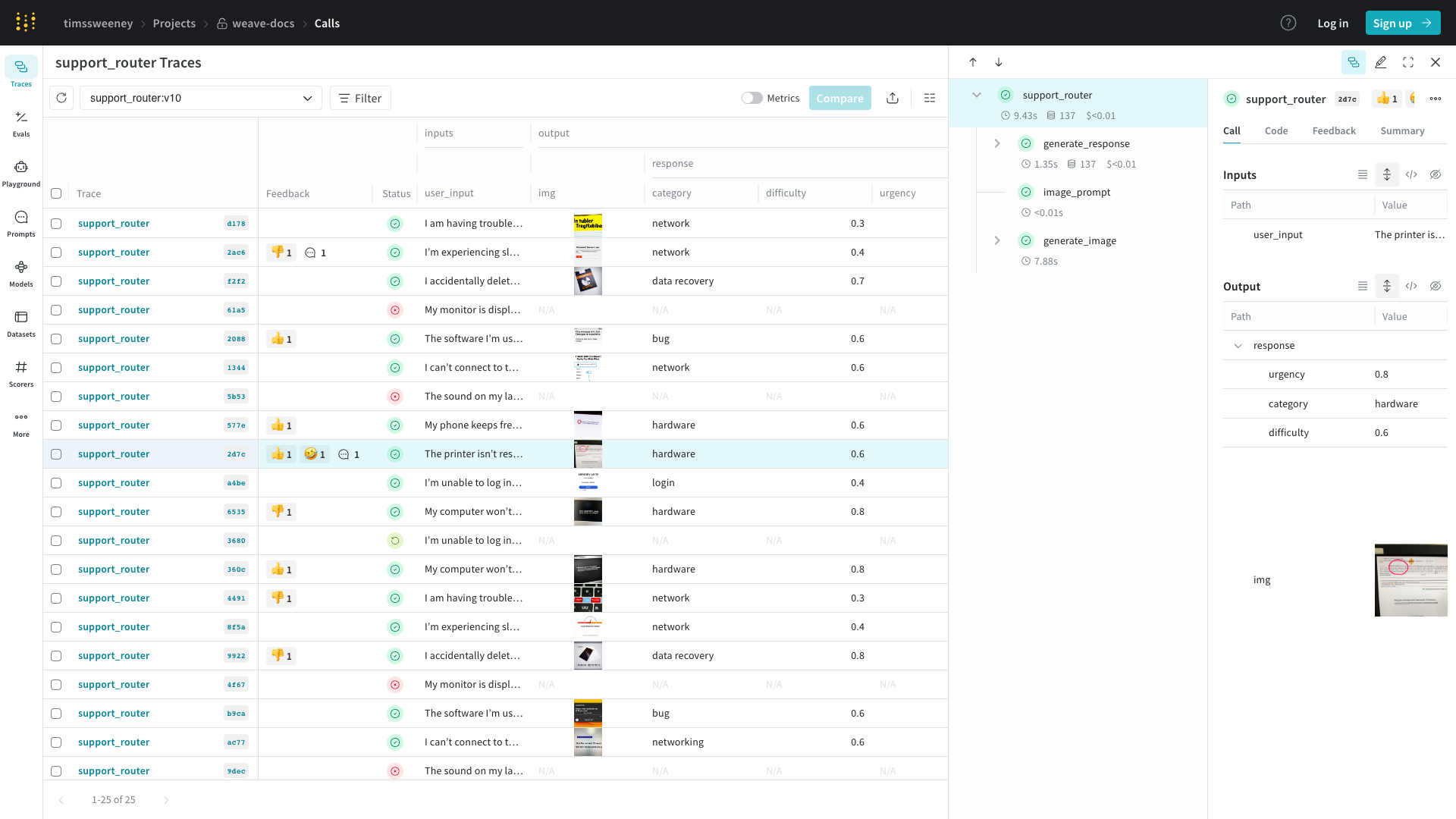
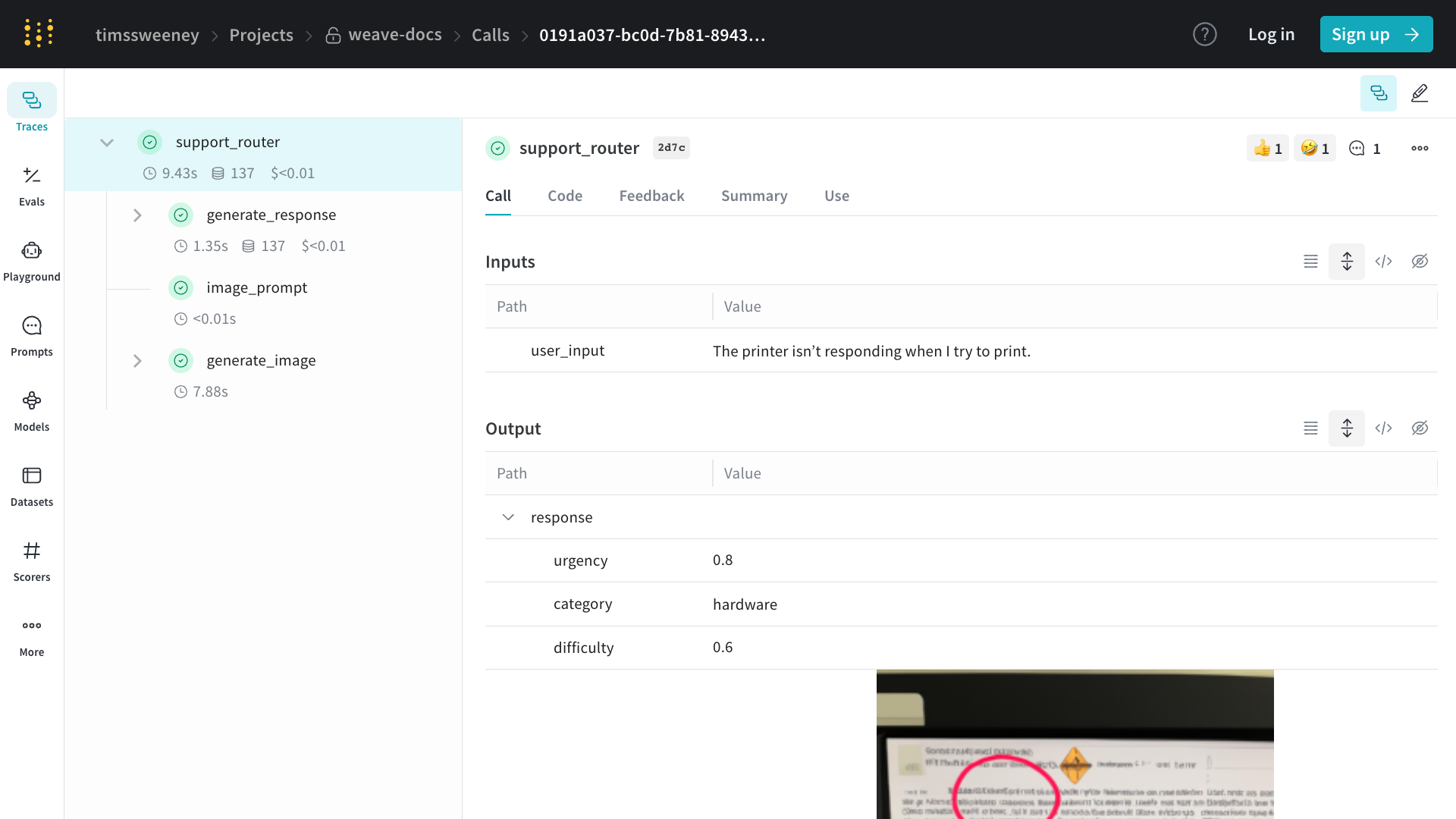
To view a call in the web app:

1. Navigate to your project's **Traces** tab.
2. Find the call you want to view in the list
3. Click on the call to open its details page

The details page will show the call's inputs, outputs, runtime, and any additional metadata.

    <img src="https://mintcdn.com/wb-21fd5541/aRvhhwVWqlxBzke5/images/screenshots/basic_call.png?fit=max&auto=format&n=aRvhhwVWqlxBzke5&q=85&s=b2fbebcb030e5d4e05305bdbb7abd215" alt="View Call in Web App" data-og-width="1920" width="1920" data-og-height="1080" height="1080" data-path="images/screenshots/basic_call.png" data-optimize="true" data-opv="3" srcset="https://mintcdn.com/wb-21fd5541/aRvhhwVWqlxBzke5/images/screenshots/basic_call.png?w=280&fit=max&auto=format&n=aRvhhwVWqlxBzke5&q=85&s=6ec1152ccb3d4184581ae0d8060ceaa1 280w, https://mintcdn.com/wb-21fd5541/aRvhhwVWqlxBzke5/images/screenshots/basic_call.png?w=560&fit=max&auto=format&n=aRvhhwVWqlxBzke5&q=85&s=f0152682f1f095fd225242ba46748448 560w, https://mintcdn.com/wb-21fd5541/aRvhhwVWqlxBzke5/images/screenshots/basic_call.png?w=840&fit=max&auto=format&n=aRvhhwVWqlxBzke5&q=85&s=28425bedbcd5320ef4decf16dbcfd719 840w, https://mintcdn.com/wb-21fd5541/aRvhhwVWqlxBzke5/images/screenshots/basic_call.png?w=1100&fit=max&auto=format&n=aRvhhwVWqlxBzke5&q=85&s=a6e7890a310559a85da8c0345ae57a03 1100w, https://mintcdn.com/wb-21fd5541/aRvhhwVWqlxBzke5/images/screenshots/basic_call.png?w=1650&fit=max&auto=format&n=aRvhhwVWqlxBzke5&q=85&s=d223cd539bce045d7d5d38b7f1893fbb 1650w, https://mintcdn.com/wb-21fd5541/aRvhhwVWqlxBzke5/images/screenshots/basic_call.png?w=2500&fit=max&auto=format&n=aRvhhwVWqlxBzke5&q=85&s=495324e23e8b8f290d33e96c7503a4d5 2500w" />
  <span class="tab-end"></span>

  <span class="tab-start" data-tab-title="Python"></span>
To view a call using the Weave Python SDK, you can use the [`get_call`](/weave/reference/python-sdk/trace/weave_client#method-get_call) method:

```python
    import weave

    # Initialize the client
    client = weave.init("your-project-name")

    # Get a specific call by its ID
    call = client.get_call("call-uuid-here")

    print(call)
    ```
  <span class="tab-end"></span>

  <span class="tab-start" data-tab-title="TypeScript"></span>
```typescript
    import * as weave from 'weave'

    // Initialize the client
    const client = await weave.init('intro-example')

    // Get a specific call by its ID
    const call = await client.getCall('call-uuid-here')

    console.log(call)
    ```
  <span class="tab-end"></span>

  <span class="tab-start" data-tab-title="HTTP API"></span>
To view a call using the Service API, you can make a request to the [`/call/read`](https://docs.wandb.ai/weave/reference/service-api/calls/call-read) endpoint.

```bash
    curl -L 'https://trace.wandb.ai/call/read' \
    -H 'Content-Type: application/json' \
    -H 'Accept: application/json' \
    -d '{
        "project_id": "string",
        "id": "string",
    }'
    ```
  <span class="tab-end"></span>
<span class="tab-group-end"></span>

### Customize rendered traces with `weave.Markdown`

You can use `weave.Markdown` to customize how your trace information is displayed without losing the original data. This allows you to render your inputs and outputs as readable blocks of formatted content while preserving the underlying data structure.

<span class="tab-group-start"></span>
  <span class="tab-start" data-tab-title="Python"></span>
Use `postprocess_inputs` and `postprocess_output` functions in your `@weave.op` decorator to format your trace data. The following code sample uses postprocessors to render a call in Weave with emojis and more readable formatting:

```python
    import weave

    def postprocess_inputs(query) -> weave.Markdown:
        search_box = f"""
    **Search Query:**
    ``+`
    {query}
    ``+`
    """
        return {"search_box": weave.Markdown(search_box),
                "query": query}

    def postprocess_output(docs) -> weave.Markdown:
        formatted_docs = f"""
    # {docs[0]["title"]}

    {docs[0]["content"]}

    [Read more]({docs[0]["url"]})

    ---

    # {docs[1]["title"]}

    {docs[1]["content"]}

    [Read more]({docs[1]["url"]})
    """
        return weave.Markdown(formatted_docs)

    @weave.op(
        postprocess_inputs=postprocess_inputs,
        postprocess_output=postprocess_output,
    )
    def rag_step(query):
        # example newspaper articles of the companies on the S&P 500
        docs = [
            {
                "title": "OpenAI",
                "content": "OpenAI is a company that makes AI models.",
                "url": "https://www.openai.com",
            },
            {
                "title": "Google",
                "content": "Google is a company that makes search engines.",
                "url": "https://www.google.com",
            },
        ]
        return docs

    if __name__ == "__main__":
        weave.init('markdown_renderers')
        rag_step("Tell me about OpenAI")
    ```
  <span class="tab-end"></span>

  <span class="tab-start" data-tab-title="Typescript"></span>
```plaintext
    This feature is not available in the TypeScript SDK yet.
    ```
  <span class="tab-end"></span>
<span class="tab-group-end"></span>

In the following screenshot, you can view the difference between the unformatted and formatted outputs, respectively.

<img src="https://mintcdn.com/wb-21fd5541/nH7Qx1F6mfkUr7pE/weave/guides/tracking/imgs/md-call-render.png?fit=max&auto=format&n=nH7Qx1F6mfkUr7pE&q=85&s=3ab98e6b7301a33c5ae5b5d5f11ceb37" alt="A call rendered in the Weave UI using the code sample." data-og-width="1440" width="1440" data-og-height="1980" height="1980" data-path="weave/guides/tracking/imgs/md-call-render.png" data-optimize="true" data-opv="3" srcset="https://mintcdn.com/wb-21fd5541/nH7Qx1F6mfkUr7pE/weave/guides/tracking/imgs/md-call-render.png?w=280&fit=max&auto=format&n=nH7Qx1F6mfkUr7pE&q=85&s=1fcb381a910c01fbe5988a57fa8c68d0 280w, https://mintcdn.com/wb-21fd5541/nH7Qx1F6mfkUr7pE/weave/guides/tracking/imgs/md-call-render.png?w=560&fit=max&auto=format&n=nH7Qx1F6mfkUr7pE&q=85&s=6e6cd9e203412e37642f441d095db20c 560w, https://mintcdn.com/wb-21fd5541/nH7Qx1F6mfkUr7pE/weave/guides/tracking/imgs/md-call-render.png?w=840&fit=max&auto=format&n=nH7Qx1F6mfkUr7pE&q=85&s=e67439de296ea1b61e9187e8eab7a1db 840w, https://mintcdn.com/wb-21fd5541/nH7Qx1F6mfkUr7pE/weave/guides/tracking/imgs/md-call-render.png?w=1100&fit=max&auto=format&n=nH7Qx1F6mfkUr7pE&q=85&s=3dd168b7d80d1ad6484c3bc5bd47ec45 1100w, https://mintcdn.com/wb-21fd5541/nH7Qx1F6mfkUr7pE/weave/guides/tracking/imgs/md-call-render.png?w=1650&fit=max&auto=format&n=nH7Qx1F6mfkUr7pE&q=85&s=db939aa1247bae7bab5d4a2740ba822a 1650w, https://mintcdn.com/wb-21fd5541/nH7Qx1F6mfkUr7pE/weave/guides/tracking/imgs/md-call-render.png?w=2500&fit=max&auto=format&n=nH7Qx1F6mfkUr7pE&q=85&s=652824cdca8e1c859c4b1b16872d7849 2500w" />

## Updating Calls

Calls are mostly immutable once created, however, there are a few mutations which are supported:

* [Set Display Name](#set-display-name)
* [Add Feedback](#add-feedback)
* [Delete a Call](#delete-a-call)

You can perform all of these mutations from the UI by navigating to the call detail page:


<img src="https://mintcdn.com/wb-21fd5541/EWJ_qs6K6GzDmKfh/images/call_edit_screenshot.png?fit=max&auto=format&n=EWJ_qs6K6GzDmKfh&q=85&s=0c3158af85b48a781488cd8514f40407" alt="Update Call in Web App" data-og-width="2078" width="2078" data-og-height="1124" height="1124" data-path="images/call_edit_screenshot.png" data-optimize="true" data-opv="3" srcset="https://mintcdn.com/wb-21fd5541/EWJ_qs6K6GzDmKfh/images/call_edit_screenshot.png?w=280&fit=max&auto=format&n=EWJ_qs6K6GzDmKfh&q=85&s=36fcf5ded8f107b3564e1af1c4dd4862 280w, https://mintcdn.com/wb-21fd5541/EWJ_qs6K6GzDmKfh/images/call_edit_screenshot.png?w=560&fit=max&auto=format&n=EWJ_qs6K6GzDmKfh&q=85&s=51bf479f8bb532732fbf29e9b0119b6e 560w, https://mintcdn.com/wb-21fd5541/EWJ_qs6K6GzDmKfh/images/call_edit_screenshot.png?w=840&fit=max&auto=format&n=EWJ_qs6K6GzDmKfh&q=85&s=64914f0892b35c4274961338c6635682 840w, https://mintcdn.com/wb-21fd5541/EWJ_qs6K6GzDmKfh/images/call_edit_screenshot.png?w=1100&fit=max&auto=format&n=EWJ_qs6K6GzDmKfh&q=85&s=3d2ece27e1bdfb75a06abd9052af7597 1100w, https://mintcdn.com/wb-21fd5541/EWJ_qs6K6GzDmKfh/images/call_edit_screenshot.png?w=1650&fit=max&auto=format&n=EWJ_qs6K6GzDmKfh&q=85&s=19111492d465122664a41affc87ed882 1650w, https://mintcdn.com/wb-21fd5541/EWJ_qs6K6GzDmKfh/images/call_edit_screenshot.png?w=2500&fit=max&auto=format&n=EWJ_qs6K6GzDmKfh&q=85&s=cd6ea3b13b31ae7c362d7409da313296 2500w" />


### Set display name

<span class="tab-group-start"></span>
  <span class="tab-start" data-tab-title="Python"></span>
In order to set the display name of a call, you can use the [`Call.set_display_name()`](/weave/reference/python-sdk/trace/weave_client#method-set-display-name) method.

```python
    import weave

    # Initialize the client
    client = weave.init("your-project-name")

    # Get a specific call by its ID
    call = client.get_call("call-uuid-here")

    # Set the display name of the call
    call.set_display_name("My Custom Display Name")
    ```
  <span class="tab-end"></span>

  <span class="tab-start" data-tab-title="TypeScript"></span>
To set the display name of a call, use [`client.updateCall`](/weave/reference/typescript-sdk/classes/weaveclient#updatecall) to update by call ID directly:

```typescript
    import * as weave from 'weave'

    // Initialize the client
    const client = await weave.init('your-project-name')

    // Update the display name of a call by its ID
    await client.updateCall('call-uuid-here', 'My Custom Display Name')
    ```
  <span class="tab-end"></span>

  <span class="tab-start" data-tab-title="HTTP API"></span>
To set the display name of a call using the Service API, you can make a request to the [`/call/update`](https://docs.wandb.ai/weave/reference/service-api/calls/call-update) endpoint.

```bash
    curl -L 'https://trace.wandb.ai/call/update' \
    -H 'Content-Type: application/json' \
    -H 'Accept: application/json' \
    -d '{
        "project_id": "string",
        "call_id": "string",
        "display_name": "string",
    }'
    ```
  <span class="tab-end"></span>
<span class="tab-group-end"></span>

You can also [set a call's display name at execution](#set-call-display-name-at-execution).

### Add feedback

Please see the [Feedback Documentation](/weave/guides/tracking/feedback) for more details.

### Delete a Call

<span class="tab-group-start"></span>
  <span class="tab-start" data-tab-title="Python"></span>
To delete a Call using the Python API, you can use the [`Call.delete`](/weave/reference/python-sdk/trace/weave_client#method-delete) method.

```python
    import weave

    # Initialize the client
    client = weave.init("your-project-name")

    # Get a specific call by its ID
    call = client.get_call("call-uuid-here")

    # Delete the call
    call.delete()
    ```
  <span class="tab-end"></span>

  <span class="tab-start" data-tab-title="TypeScript"></span>
```plaintext
    This feature is not available in the TypeScript SDK yet.
    ```
  <span class="tab-end"></span>

  <span class="tab-start" data-tab-title="HTTP API"></span>
To delete a call using the Service API, you can make a request to the [`/calls/delete`](https://docs.wandb.ai/weave/reference/service-api/calls/calls-delete) endpoint.

```bash
    curl -L 'https://trace.wandb.ai/calls/delete' \
    -H 'Content-Type: application/json' \
    -H 'Accept: application/json' \
    -d '{
        "project_id": "string",
        "call_ids": [
            "string"
        ],
    }'
    ```
  <span class="tab-end"></span>
<span class="tab-group-end"></span>

### Delete multiple Calls

<span class="tab-group-start"></span>
  <span class="tab-start" data-tab-title="Python"></span>
To delete batches of Calls using the Python API, pass a list of Call IDs to `delete_calls()`.

<span class="callout-start" data-callout-type="important"></span>
  * The maximum amount of Calls that can be deleted is `1000`.
  * Deleting a Call also deletes all of its children.
<span class="callout-end"></span>

```python
    import weave

    # Initialize the client
    client = weave.init("my-project")

    # Get all calls from client
    all_calls = client.get_calls()

    # Get list of first 1000 Call objects
    first_1000_calls = all_calls[:1000]

    # Get list of first 1000 Call IDs
    first_1000_calls_ids = [c.id for c in first_1000_calls]

    # Delete first 1000 Call objects by ID
    client.delete_calls(call_ids=first_1000_calls_ids)
    ```
  <span class="tab-end"></span>

  <span class="tab-start" data-tab-title="TypeScript"></span>
```plaintext
    This feature is not available in the TypeScript SDK yet.
    ```
  <span class="tab-end"></span>
<span class="tab-group-end"></span>

## Querying and exporting Calls


<img src="https://mintcdn.com/wb-21fd5541/aRvhhwVWqlxBzke5/images/screenshots/calls_filter.png?fit=max&auto=format&n=aRvhhwVWqlxBzke5&q=85&s=25736868692c1f9db194780422e65532" alt="Screenshot of many calls" data-og-width="1920" width="1920" data-og-height="1080" height="1080" data-path="images/screenshots/calls_filter.png" data-optimize="true" data-opv="3" srcset="https://mintcdn.com/wb-21fd5541/aRvhhwVWqlxBzke5/images/screenshots/calls_filter.png?w=280&fit=max&auto=format&n=aRvhhwVWqlxBzke5&q=85&s=15a9172a88dd1a136833c995d68b7d2b 280w, https://mintcdn.com/wb-21fd5541/aRvhhwVWqlxBzke5/images/screenshots/calls_filter.png?w=560&fit=max&auto=format&n=aRvhhwVWqlxBzke5&q=85&s=b2c08bf381c1e23b6be83f0d6ca836e7 560w, https://mintcdn.com/wb-21fd5541/aRvhhwVWqlxBzke5/images/screenshots/calls_filter.png?w=840&fit=max&auto=format&n=aRvhhwVWqlxBzke5&q=85&s=c3f654975796136b4012aa1ecd6456c4 840w, https://mintcdn.com/wb-21fd5541/aRvhhwVWqlxBzke5/images/screenshots/calls_filter.png?w=1100&fit=max&auto=format&n=aRvhhwVWqlxBzke5&q=85&s=9b4d70c6b0a265ae59a8bb7a74a944f5 1100w, https://mintcdn.com/wb-21fd5541/aRvhhwVWqlxBzke5/images/screenshots/calls_filter.png?w=1650&fit=max&auto=format&n=aRvhhwVWqlxBzke5&q=85&s=7c9e23052d7020c17af507ce6a33790c 1650w, https://mintcdn.com/wb-21fd5541/aRvhhwVWqlxBzke5/images/screenshots/calls_filter.png?w=2500&fit=max&auto=format&n=aRvhhwVWqlxBzke5&q=85&s=e8f0eda9868aefdd20b860439f1c8e5f 2500w" />


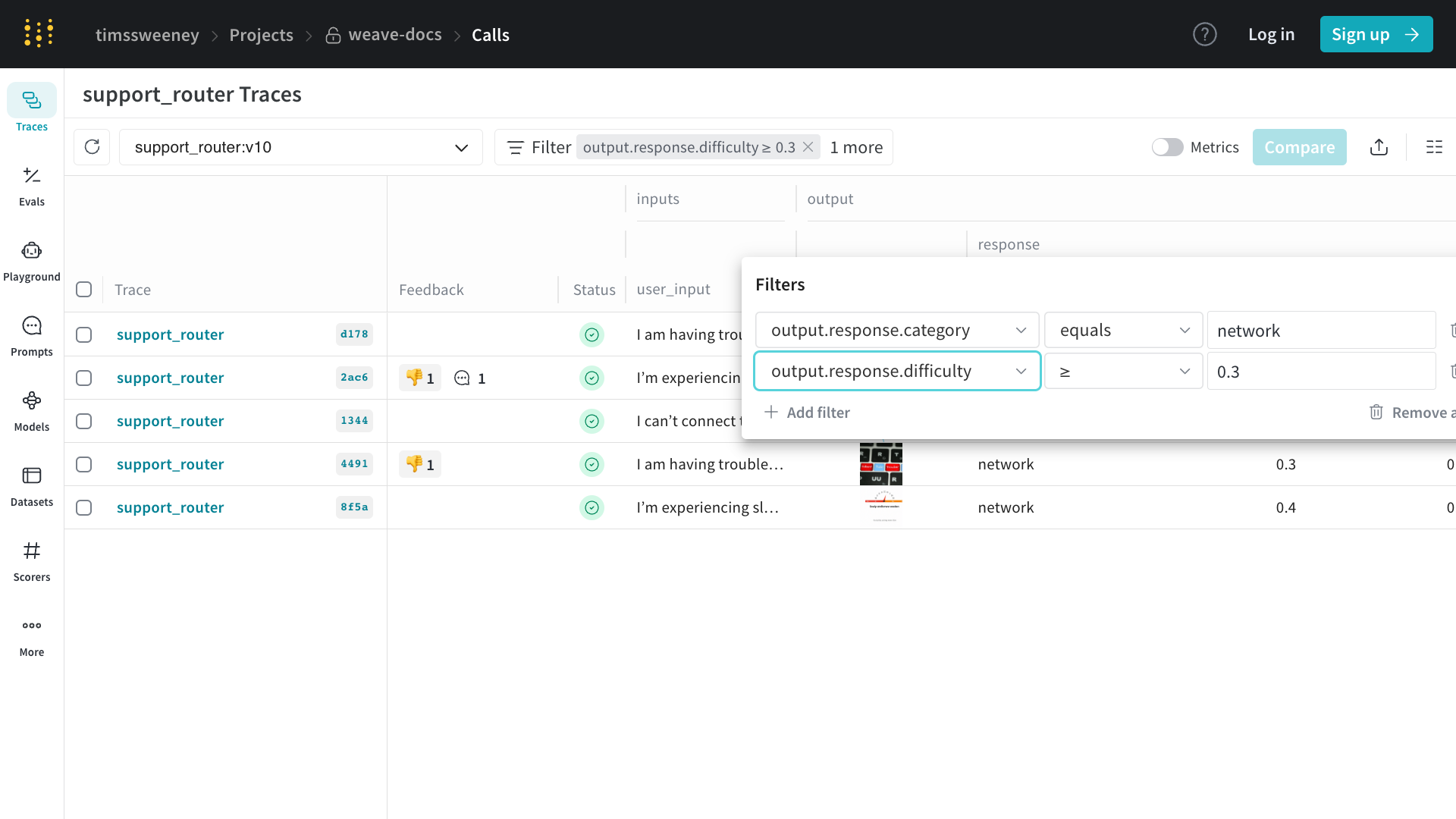
The `/calls` page of your project ("Traces" tab) contains a table view of all the Calls in your project. From there, you can:

* Sort
* Filter
* Export


<img src="https://mintcdn.com/wb-21fd5541/aRvhhwVWqlxBzke5/images/export_modal.png?fit=max&auto=format&n=aRvhhwVWqlxBzke5&q=85&s=4c24ab618bd1c9fe101af33a041c518f" alt="Calls Table View" data-og-width="1704" width="1704" data-og-height="1564" height="1564" data-path="images/export_modal.png" data-optimize="true" data-opv="3" srcset="https://mintcdn.com/wb-21fd5541/aRvhhwVWqlxBzke5/images/export_modal.png?w=280&fit=max&auto=format&n=aRvhhwVWqlxBzke5&q=85&s=9d699a7908d71fea7ff90d8d84481bc1 280w, https://mintcdn.com/wb-21fd5541/aRvhhwVWqlxBzke5/images/export_modal.png?w=560&fit=max&auto=format&n=aRvhhwVWqlxBzke5&q=85&s=92e6563ea5a9f643ea7c1da3f81cb580 560w, https://mintcdn.com/wb-21fd5541/aRvhhwVWqlxBzke5/images/export_modal.png?w=840&fit=max&auto=format&n=aRvhhwVWqlxBzke5&q=85&s=ce4ef598f472702be65b1c9a8c587755 840w, https://mintcdn.com/wb-21fd5541/aRvhhwVWqlxBzke5/images/export_modal.png?w=1100&fit=max&auto=format&n=aRvhhwVWqlxBzke5&q=85&s=decf6e3887914939510edeb967be510e 1100w, https://mintcdn.com/wb-21fd5541/aRvhhwVWqlxBzke5/images/export_modal.png?w=1650&fit=max&auto=format&n=aRvhhwVWqlxBzke5&q=85&s=eb91331f55b56e2d1492344db672bfa2 1650w, https://mintcdn.com/wb-21fd5541/aRvhhwVWqlxBzke5/images/export_modal.png?w=2500&fit=max&auto=format&n=aRvhhwVWqlxBzke5&q=85&s=3f27372d66df3bf6d5d30ee43f4b4cce 2500w" />


The Export Modal (shown above) allows you to export your data in a number of formats, as well as shows the Python & CURL equivalents for the selected calls!
The easiest way to get started is to construct a view in the UI, then learn more about the export API via the generated code snippets.

<span class="tab-group-start"></span>
  <span class="tab-start" data-tab-title="Python"></span>
To fetch calls using the Python API, you can use the [`client.get_calls`](/weave/reference/python-sdk/trace/weave_client#method-get_calls) method:

```python
    import weave

    # Initialize the client
    client = weave.init("your-project-name")

    # Fetch calls
    calls = client.get_calls(filter=...)
    ```
  <span class="tab-end"></span>

  <span class="tab-start" data-tab-title="TypeScript"></span>
To fetch calls using the TypeScript API, you can use the [`client.getCalls`](/weave/reference/typescript-sdk/classes/weaveclient#getcalls) method.

```typescript
    import * as weave from 'weave'

    // Initialize the client
    const client = await weave.init('intro-example')

    // Fetch calls
    const calls = await client.getCalls(filter=...)
    ```
  <span class="tab-end"></span>

  <span class="tab-start" data-tab-title="HTTP API"></span>
The most powerful query layer is at the Service API. To fetch calls using the Service API, you can make a request to the [`/calls/stream_query`](https://docs.wandb.ai/weave/reference/service-api/calls/calls-query-stream) endpoint.

```bash
    curl -L 'https://trace.wandb.ai/calls/stream_query' \
    -H 'Content-Type: application/json' \
    -H 'Accept: application/json' \
    -d '{
    "project_id": "string",
    "filter": {
        "op_names": [
            "string"
        ],
        "input_refs": [
            "string"
        ],
        "output_refs": [
            "string"
        ],
        "parent_ids": [
            "string"
        ],
        "trace_ids": [
            "string"
        ],
        "call_ids": [
            "string"
        ],
        "trace_roots_only": true,
        "wb_user_ids": [
            "string"
        ],
        "wb_run_ids": [
            "string"
        ]
    },
    "limit": 100,
    "offset": 0,
    "sort_by": [
        {
        "field": "string",
        "direction": "asc"
        }
    ],
    "query": {
        "$expr": {}
    },
    "include_costs": true,
    "include_feedback": true,
    "columns": [
        "string"
    ],
    "expand_columns": [
        "string"
    ]
    }'
    ```
  <span class="tab-end"></span>
<span class="tab-group-end"></span>

### Call schema

Please see the [schema](/weave/reference/python-sdk/trace_server/trace_server_interface#class-callschema) for a complete list of fields.

| Property       | Type                  | Description                                                                                        |
| -------------- | --------------------- | -------------------------------------------------------------------------------------------------- |
| `id`           | string (uuid)         | Unique identifier for the call                                                                     |
| `project_id`   | string (optional)     | Associated project identifier                                                                      |
| `op_name`      | string                | Name of the operation (can be a reference)                                                         |
| `display_name` | string (optional)     | User-friendly name for the call                                                                    |
| `trace_id`     | string (uuid)         | Identifier for the trace this call belongs to                                                      |
| `parent_id`    | string (uuid)         | Identifier of the parent call                                                                      |
| `started_at`   | datetime              | Timestamp when the call started                                                                    |
| `attributes`   | Dict\[str, Any]       | User-defined metadata about the call *(read-only during execution)*                                |
| `inputs`       | Dict\[str, Any]       | Input parameters for the call                                                                      |
| `ended_at`     | datetime (optional)   | Timestamp when the call ended                                                                      |
| `exception`    | string (optional)     | Error message if the call failed                                                                   |
| `output`       | Any (optional)        | Result of the call                                                                                 |
| `summary`      | Optional\[SummaryMap] | Post-execution summary information. You can modify this during execution to record custom metrics. |
| `wb_user_id`   | Optional\[str]        | Associated Weights & Biases user ID                                                                |
| `wb_run_id`    | Optional\[str]        | Associated Weights & Biases run ID                                                                 |
| `deleted_at`   | datetime (optional)   | Timestamp of call deletion, if applicable                                                          |

The table above outlines the key properties of a Call in Weave. Each property plays a crucial role in tracking and managing function calls:

* The `id`, `trace_id`, and `parent_id` fields help in organizing and relating calls within the system.
* Timing information (`started_at`, `ended_at`) allows for performance analysis.
* The `attributes` and `inputs` fields provide context for the call. Attributes are frozen once the call starts, so set them before invocation with `weave.attributes`. `output` and `summary` capture the results, and you can update `summary` during execution to log additional metrics.
* Integration with Weights & Biases is facilitated through `wb_user_id` and `wb_run_id`.

This comprehensive set of properties enables detailed tracking and analysis of function calls throughout your project.

Calculated Fields:

* Cost
* Duration
* Status

## Saved views

You can save your Trace table configurations, filters, and sorts as *saved views* for quick access to your preferred setup. You can configure and access saved views via the UI and the Python SDK. For more information, see [Saved Views](/weave/guides/tools/saved-views).

## View a W\&B run in the Traces table

With Weave, you can trace function calls in your code and link them directly to the [W\&B runs](https://docs.wandb.ai/models/runs/) in which they were executed.
When you trace a function with @weave.op() and call it inside a wandb.init() context, Weave automatically associates the trace with the W\&B run.
Links to any associated runs are shown in the Traces table.

<span class="tab-group-start"></span>
  <span class="tab-start" data-tab-title="Python"></span>
The following Python code shows how traced operations are linked to W\&B
runs when executed inside a `wandb.init()` context. These traces appear in the
Weave UI and are associated with the corresponding run.

```python
    import wandb
    import weave

    def example_wandb(projname):
        # Split projname into entity and project
        entity, project = projname.split("/", 1)

        # Initialize Weave context for tracing
        weave.init(projname)

        # Define a traceable operation
        @weave.op()
        def say(message: str) -> str:
            return f"I said: {message}"

        # First W&B run
        with wandb.init(
            entity=entity,
            project=project,
            notes="Experiment 1",
            tags=["baseline", "paper1"],
        ) as run:
            say("Hello, world!")
            say("How are you!")
            run.log({"messages": 2})

        # Second W&B run
        with wandb.init(
            entity=entity,
            project=project,
            notes="Experiment 2",
            tags=["baseline", "paper1"],
        ) as run:
            say("Hello, world from experiment 2!")
            say("How are you!")
            run.log({"messages": 2})

    if __name__ == "__main__":
        # Replace this with your actual W&B username/project
        example_wandb("your-username/your-project")
    ```

To use the code sample:

1. In the terminal, install dependencies:

```bash
    pip install wandb weave
    ```

2. Log in to W\&B:

```bash
    wandb login
    ```

3. In the script, replace `your-username/your-project` with your actual W\&B entity/project.
4. Run the script:

```bash
    python weave_trace_with_wandb.py
    ```

5. Visit [https://weave.wandb.ai](https://weave.wandb.ai) and select your project.
6. In the **Traces** tab, view the trace output. Links to any associated runs are shown in the Traces table.
  <span class="tab-end"></span>

  <span class="tab-start" data-tab-title="TypeScript"></span>
```plaintext
    This feature is not available for the TypeScript SDK yet.
    ```
  <span class="tab-end"></span>
<span class="tab-group-end"></span>

## Configure autopatching

By default, Weave automatically patches and tracks calls to common LLM libraries like `openai`, `anthropic`, `cohere`, and `mistral`.

<span class="tab-group-start"></span>
  <span class="tab-start" data-tab-title="Python"></span>
<span class="callout-start" data-callout-type="warning"></span>
  The `autopatch_settings` argument is deprecated. Use `implicitly_patch_integrations=False` to disable implicit patching, or call specific patch functions like `patch_openai(settings={...})` to configure settings per integration.
<span class="callout-end"></span>

### Disable all autopatching

```python
    weave.init(..., implicitly_patch_integrations=False)
    ```

### Enable specific integrations

```python
    import weave

    weave.init(..., implicitly_patch_integrations=False)

    # Then manually patch only the integrations you want
    weave.integrations.patch_anthropic()
    weave.integrations.patch_cohere()
    ```

### Post-process inputs and outputs

You can customize how inputs and outputs (such as for PII data) are handled by passing settings to the patch function:

```python
    import weave.integrations

    def redact_inputs(inputs: dict) -> dict:
        if "email" in inputs:
            inputs["email"] = "[REDACTED]"
        return inputs

    weave.init(...)
    weave.integrations.patch_openai(
        settings={
            "op_settings": {"postprocess_inputs": redact_inputs}
        }
    )
    ```
  <span class="tab-end"></span>

  <span class="tab-start" data-tab-title="TypeScript"></span>
The TypeScript SDK only supports autopatching for OpenAI and Anthropic. OpenAI is automatically patched when you import Weave and doesn't require any additional configuration.

Additionally, the TypeScript SDK doesn't support:

* Configuring or disabling autopatching
* Input/output post-processing

For edge cases where automatic patching doesn't work (ESM, bundlers like Next.js), use explicit wrapping:

```typescript
    import OpenAI from 'openai'
    import * as weave from 'weave'
    import { wrapOpenAI } from 'weave'

    const client = wrapOpenAI(new OpenAI())
    await weave.init('your-team/my-project')
    ```

For more details on ESM setup and troubleshooting, see the [TypeScript SDK Integration Guide](/weave/guides/integrations/js).
  <span class="tab-end"></span>
<span class="tab-group-end"></span>

For more details, see [How to use Weave with PII data](/weave/cookbooks/pii).

## FAQs

### How do I stop large traces from being truncated?

For more information, see [Trace data is truncated](/weave/guides/troubleshooting#trace-data-is-truncated) in the [Troubleshooting guide](/weave/guides/troubleshooting).

### How do I disable tracing?

#### Environment variable

In situations where you want to unconditionally disable tracing for the entire program, you can set the environment variable `WEAVE_DISABLED=true`.

`WEAVE_DISABLED` is read only once, at function-defintion time. This variable cannot be used to toggle tracing at runtime.

#### Client initialization

Sometimes, you may want to conditionally enable tracing for a specific initialization based on some condition. In this case, you can initialize the client with the `disabled` flag in init settings.

<span class="tab-group-start"></span>
  <span class="tab-start" data-tab-title="Python"></span>
```python
    import weave

    # Initialize the client
    client = weave.init(..., settings={"disabled": True})
    ```
  <span class="tab-end"></span>

  <span class="tab-start" data-tab-title="TypeScript"></span>
```plaintext
    This feature is not available for the TypeScript SDK yet.
    ```
  <span class="tab-end"></span>
<span class="tab-group-end"></span>

#### Context manager

To conditionally disable tracing for a specific block of code, you can use a tracing context manager. Use `with tracing_disabled()` to suppress tracing **only for the function calls executed inside the `with` block**. It is intended to be used in application code to scope which calls should not be logged.

```python
import weave
from weave.trace.context.call_context import tracing_disabled

client = weave.init('your-team/your-project-name')

@weave.op
def my_op():
    ...

with tracing_disabled():
    my_op()
Although tracing behavior is fixed when functions are defined, this can be used for runtime control when combined with application logic. For example, you can wrap the context manager in a conditional to dynamically enable or disable tracing based on a runtime value:
if should_trace:
    my_op()
else:
    with tracing_disabled():
        my_op()
How do I capture information about a Call?#
Typically you would call an op directly:
@weave.op
def my_op():
    ...

my_op()
However, you can also get access to the call object directly by invoking the call method on the op:
@weave.op
def my_op():
    ...

output, call = my_op.call()
From here, the call object contains all the information about the call, including the inputs, outputs, and other metadata.